


A huge thank you to Mark, KMM and Amanda who became paid subscribers over the last week and many thanks also to those who bought me a coffee. Taming the Trunk is 100% reader supported, no ads or commission links and your support is really appreciated.
Newsletter housekeeping: The latest version for PC & Mac is 11.20.2. You can grab it from the download page. Latest mobile version is 11.20.3.
I’ve not done a “features you may not know about” article for ages, so I thought it was about time.
Forgive me if I’ve mentioned some of these before. They tend to be some of the little things that when I mention them, folks say “I never knew you could do that.”
So here we go.
They all work on desktop. I’ll write a mobile version of this in a few weeks.
You can create a note even when you’re working in another app
As long as Evernote is minimised or the elephant is showing in the Windows/Mac task bar, there’s a keyboard shortcut for creating a new note anywhere.
Use ALT + CTRL + N for PC or ^ + ⌥ + ⌘ + N on Mac.
No matter what app you’re in, a new note will be created.
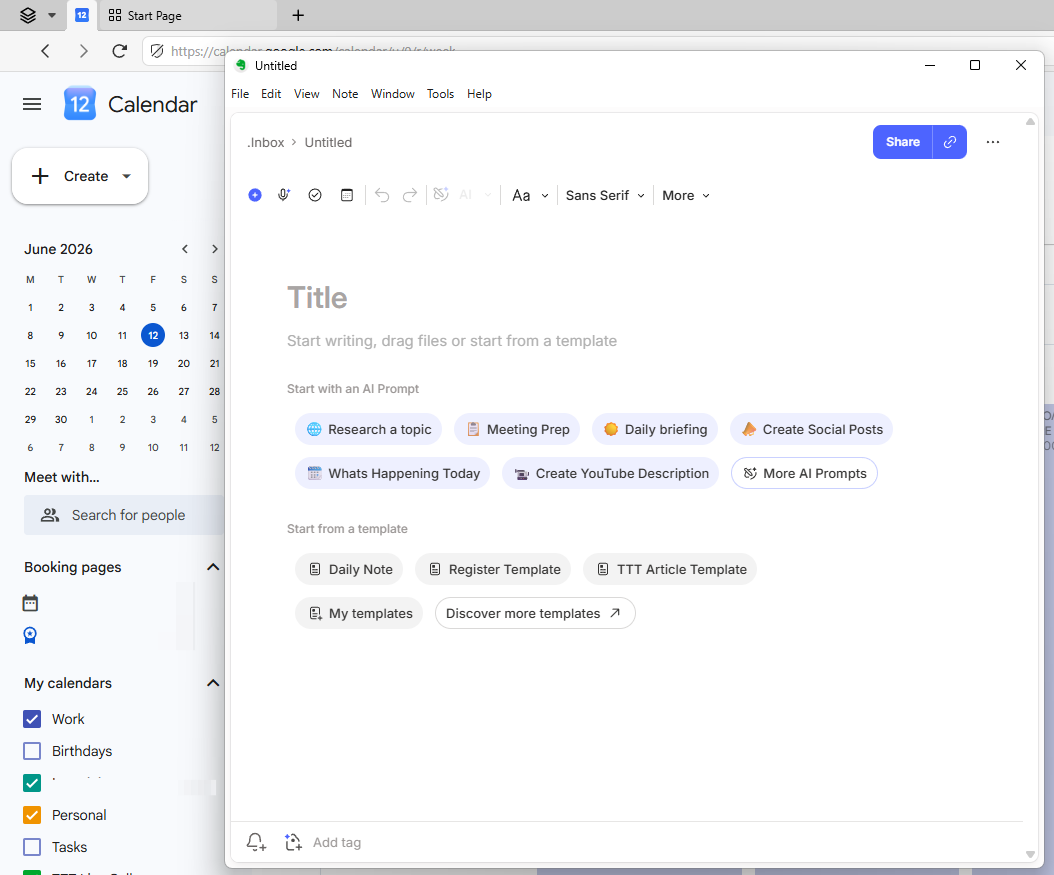
In the screen grab above, I’m in my browser viewing my calendar and have opened a new note.
The note will always appear in your default notebook and make sure other software doesn’t take over the shortcut.
Paste clipboard contents directly into a new note anywhere
Copy something to your clipboard, some text, an image or even a file and then use the keyboard shortcut ALT + CTRL + V or ^ + ⌘ + V and it turns up in a new note where ever you are.
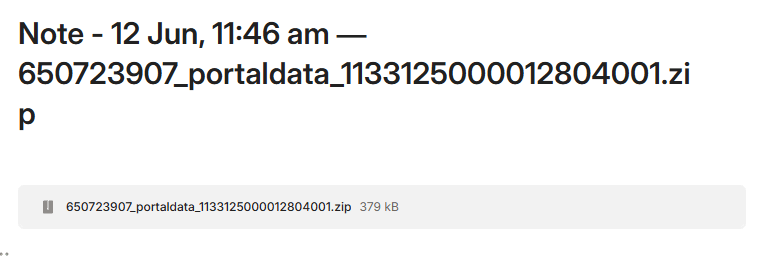
In this screen grab, I was in my file explorer, I copied a zip file to my clipboard, did the shortcut and the file appeared in my default notebook as a new note.
I use this quite a bit.
Get to Evernote search from anywhere
On the same theme there’s a global shortcut to open Evernote search.
No matter what app you’re playing with (as long as they don’t take over the shortcut) just do a Shift + Ctrl + K or WIN + SHIFT + F for PC. On Mac use ⇧ + ⌘ + K or ^ + ⌘ + E.
Evernote will open with the search box in full focus.
Drag all the contents of a header around
We have collapsible headers, which are pretty cool, they help hide content in long notes and make them a little easier to navigate.
One cool thing you can do is close the heading, which collapses its contents and then using the little drag handles to the left of the heading, you can move all the contents around the page.

I’ve used this quite a bit to rearrange the structure of a note.
Copy multiple internal note links in one go
This is useful if you want to create a Table of Contents note.
Just multi-select a bunch of notes ( I believe up to 100) and then use the keyboard shortcut Alt + Ctrl + L or ⌘ + L to copy the note links or Ctrl + Alt + Shift + C or ^ + ⌥ + ⌘ + C for the internal note links.
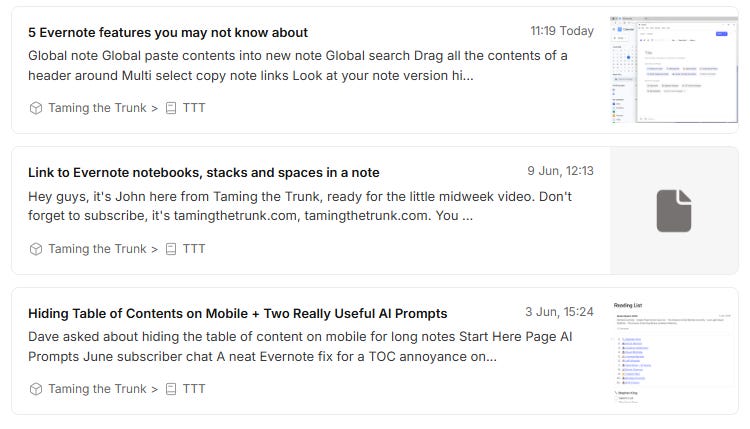
In the screen grab above, I’ve multi-selected three different notes and pasted the links in preview style.
One little note! A copied note link will start https:// and this usually opens in Evernote web. An internal note link starts evernote:/// and will only open in the app itself.
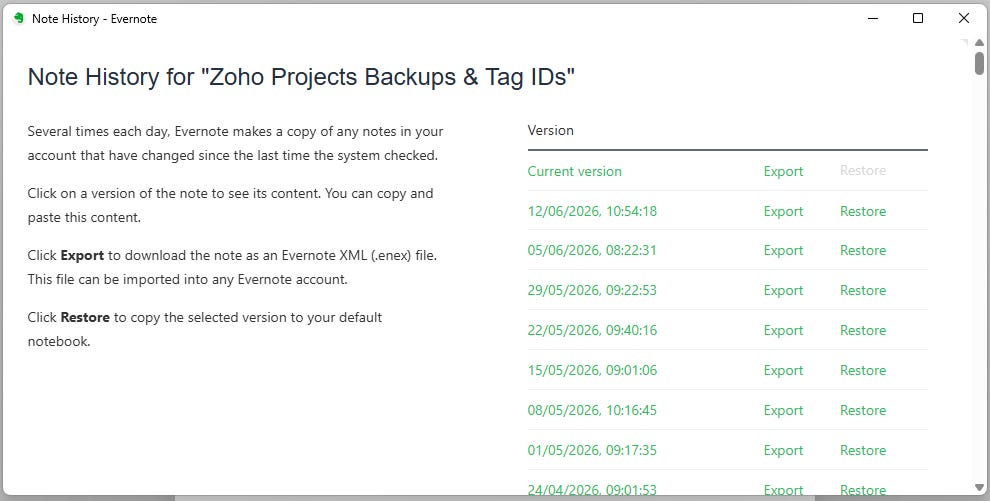
Look at your note version history going back years
Find your note history using CTRL + SHIFT + I or ⇧ + ⌘ + I, or picking it from the three-dot menu at the top right of a note.
Near the bottom of the pop-up, you’ll see a little text link for note history.
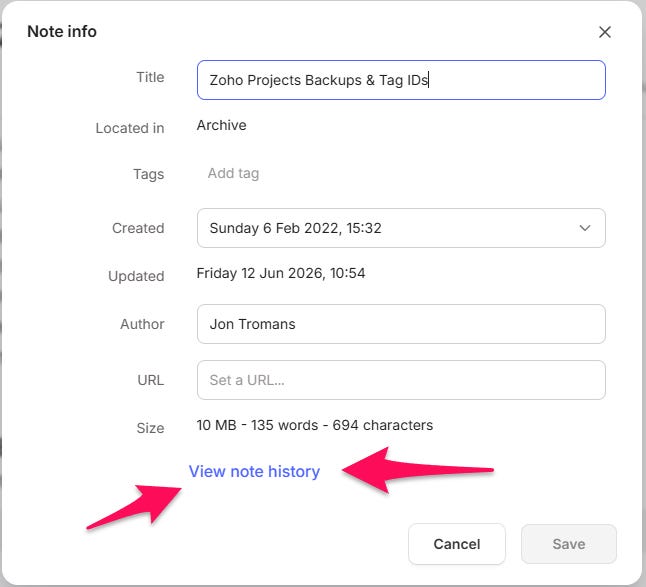
Click on it and you can view the note history going back years, not just 30 days like in a lot of apps.

I created the note above back in 2022 and I can still go right back to the beginning.
You also get the chance to export the old version of the note as an ENEX file or restore the note to an earlier version.
It’s a very cool feature that can get you out of a pickle.
So, did you know all of these little tricks? Had you forgotten about any of them? Let me know in the comments.
And finally...
The official May update video is out.
These are always worth a watch and cover improvements and updates that happened during May.
That’s it
Have a great weekend
All the best
Jon
great, picked up a new shortcut.
Collapse all headers is something I do often, that's very useful indeed. I would love that they would make a shortcut for this!
Very helpful, thanks!