


A huge thank you to Jean who became a paid subscriber over the last week and many thanks to Anon who who bought me a coffee. Taming the Trunk is 100% reader supported, no ads or commission links and your support is really appreciated.
Newsletter housekeeping: The latest version for PC & Mac is 11.0.4 (finally!). You can grab it from the download page. Latest mobile version is 11.0.3.
So, version 11 is out and our robot elephant AI Assistant, who I still call EVE is in the wild. Have you had a play yet?
I’ve had a bunch of questions over the last couple of weeks about how to best prompt the AI Assistant and get the most out of it, which got me thinking about creating a framework for building a prompt.
So, I came up with something.
Say hello to the eBILDE Framework.
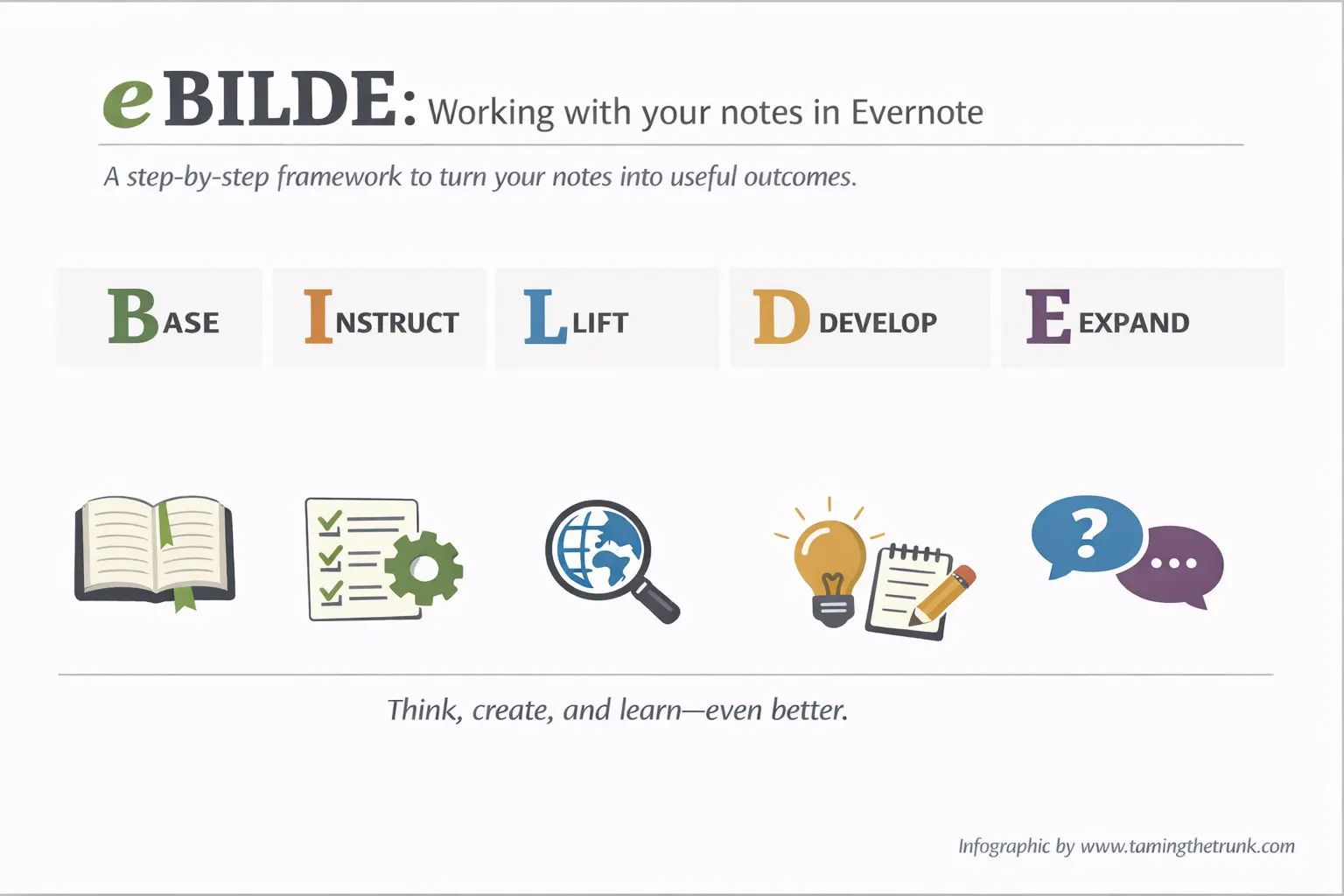
Please, if any other publications use this framework, credit Taming the Trunk.
One of the issues myself and others have had is structuring the prompt so that the assistant can understand what you want.
A lot of the time, I’ve been too vague or assumed it knows what I’m talking about.
What I’ve learned is that you need to be specific. Very much like when you prompt any AI tool.
So here’s the breakdown of the framework.
The little e is for Evernote.
The rest is as follows.
B - Base
This is where you start. Tell Evernote where to look. It needs to know.
Do you want Evernote to look at a specific note or notes that are tagged something?
Do you want Evernote to look in a notebook, stack or space?
Tell the AI Assistant where to look by using the @ symbol to mention the area of Evernote you want to focus on.
You can also select text or other items and say things like “Look at the selected text” or “Look at the selected table”.
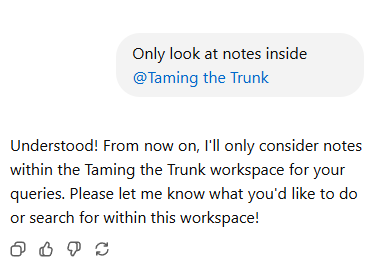
This tells the AI Assistant (AIA) to look inside my Taming the Trunk Space.
Its blue, which means I’ve selected it from the drop down list that appears when you use the @ symbol.
I - Instruct
This is the action step.
You give clear instructions such as find, summarise, extract information, draft an update or structure ideas.
Make sure you are very specific about what you want the AIA to do.
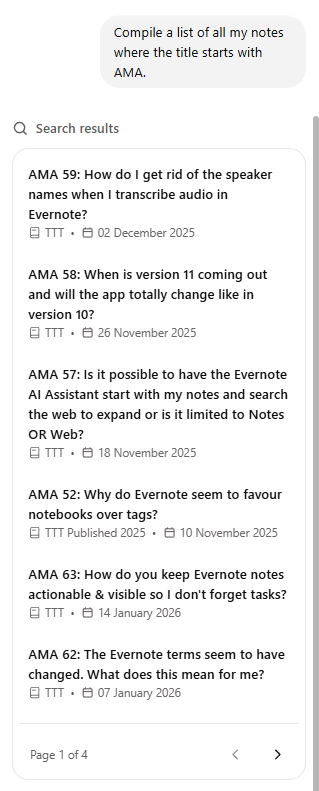
Notice with this prompt, it produces a lot of notes and they are paginated at the bottom as 1 to 4 pages. You can page through them all.
The Instruct part of the framework can be in multiple stages, so I could now add another instruction like this.
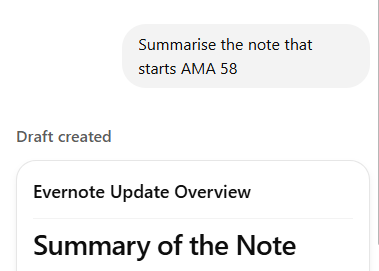
The AIA gives me a summary of the note that I mentioned.
L - Lift (optional)
This is where you can lift your note to another level by searching the web and adding to your note.
You can click the plus icon in the prompt box to activate a web search or just ask the assistant to search the web.
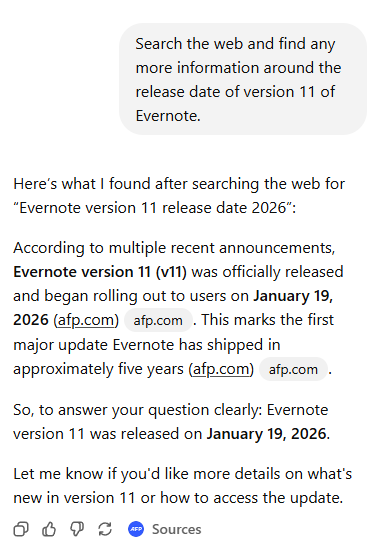
The assistant understands everything inside the conversation you’re having, so you can search the web multiple times during your conversation and refer back to the information it found.
D - Develop
This is what you want to happen next once the main task is done?
Develop your conversation in more detail, give the AIA more instructions, tell it to summarise certain information, combine information from web searches and your Evernote notes.

Keep asking questions, keep telling the AIA to do what you want.
I’m now going to add another Instruction and ask Evernote to create a note with the information from the summary.
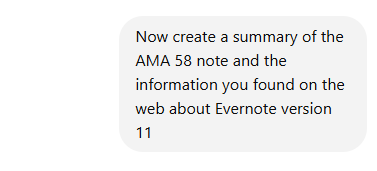
It doesn’t actually create the note, but it provides you with copy & paste information to put into a new note yourself.
E - Expand (optional)
Do you want to expand the conversation even more?
Start questioning and challenging the AIA. Ask it to explain choices, explore alternatives or respond to feedback.
How confident are you of the answers you’ve given?
Check the sources again for the release date to make sure it’s correct.
Make sure you get what you want and the information is correct and in the format you want.
Tell me if I’ve missed anything that could be important.
Lets look at some real world examples on how to use eBUILDE.
Plan a trip to Wales
Base: Look in my notes related to trips to Wales including places, walks, food and accommodation.
Instruct: Organise these notes into a clear summary with sections for highlights, favourite places and things I might want to do differently next time.
Lift: Add brief background context from the web for notable locations such as national parks or coastal towns, only where it adds helpful context.
Develop: Suggest one follow-up note I could create to help plan a future trip to Wales.
Expand: I’ll tell which part of previous trips I enjoyed most, then refine the summary to emphasise that theme. Also question whether anything important is missing.
The Design Project Meetings
Base: Look at the meeting notes related to the “Design Project”.
Instruct: Turn these notes into a clear summary showing decisions made, open questions and agreed next steps.
Lift: None - I’m only going to rely on information in my notes.
Develop: Draft a short internal update based on this summary.
Expand: Challenge any unclear decisions, ask where ownership is missing and suggest follow-up questions I should raise in the next meeting.
Buying some Doc Martens boots (yes I am!)
Base: Look at this note (@ it) and search the Doc Martens website about some new mens Doc Martens, including style preferences, budget and any past notes mentioning Doc Martens or similar brands.
Instruct: Help me decide which men’s Doc Martens boots would suit me best. Compare suitable styles based on comfort, durability and how versatile they are for everyday wear.
Lift: Collect up-to-date review information from the web about current men’s Doc Martens boot models. Give me a list of issues and the positives.
Develop: Recommend one or two specific boot styles that best match my needs with a short explanation of why each is a good fit. Include guidance on sizing.
Expand: Ask a couple of follow-up questions to refine the recommendation. Ask the AI to challenge its own recommendation and if another style might suit me better based on my answers.
That’s it.
Remember this framework is not strict, you can repeat sections and miss other sections out if you want.
The idea is to give yourself some sort of structure to start with so you’ll be able to write a more specific prompt and make the most out of EVE.
Let me know what you think. Let me know how you’ve been using the assistant. Leave a comment below.
Have a great weekend
All the best
Jon
Interesting, I saved this for later reference and to try it. Would this work both on Mac and iPhone?
Jon - thanks very much for eBILDE! I've dabbled a bit with MS CoPilot to get it to find information on the web about a few subjects I was researching; used MS Designer to create some illustrations for an amateur magazine; and used Chat-GPT to do some photo editing, but have never felt particularly confident in using such tools. So I was a bit wary of how to use EN's new AI Assistant. However, the eBILDE framework looks very useful. I haven't had the opportunity to apply it in earnest yet, but your framework will be a great help in directing me along the path to usefully using EN's AI. Much appreciated.