


A huge thank you to all paid subscribers and many thanks also to those who bought me a coffee. Taming the Trunk is 100% reader supported, no ads or commission links and your support is really appreciated.
Newsletter housekeeping: The latest version for PC & Mac is 11.3.5. You can grab it from the download page. Latest mobile version is 11.3.5.
Linking in Evernote has evolved quite a bit over the last couple of years and we have more options than ever for ways to create and display links.
This deep dive looks at both internal note links and external links.
Most of this article refers to PC and Mac, but internal linking does work on the mobile apps.
Internal linking in Evernote
Internal links refer to note links, linking a note to another note and there’s lots of ways to create one of these links in Evernote.
The first way is to use the ‘@’ command and just start typing the name of the note.
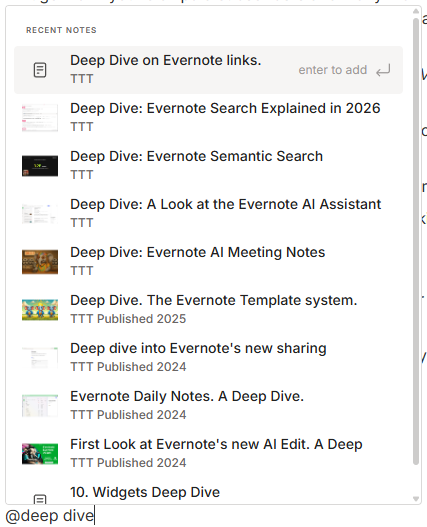
I’ve typed ‘deep dive’ after the ‘@’ symbol and it brings up all the notes with ‘deep dive’ in the title and I can click one of then and the internal link is automatically created.
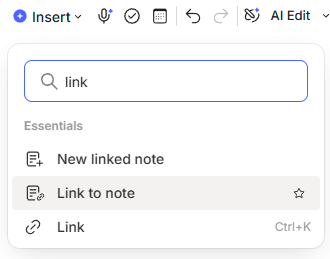
You can also use the Insert menu at the top left of the note editor to add a note link and it works the same as the ‘@’ command.
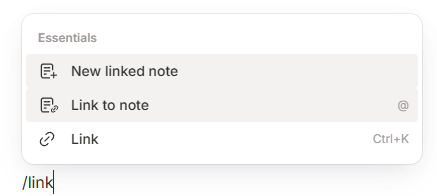
Another way is to choose Link to note from the slash (‘/’) command menu. Again, it works the same as ‘@’.
The final way to create a link to another note is to go to that note and use the keyboard shortcuts Ctrl + Alt + Shift + C for PC or ^ + ⌥ + ⌘ + C on Mac. You can edit these shortcuts in settings as they are a bit of a finger-twist.
This copies the direct internal link to your clipboard and you can paste it anywhere you want.
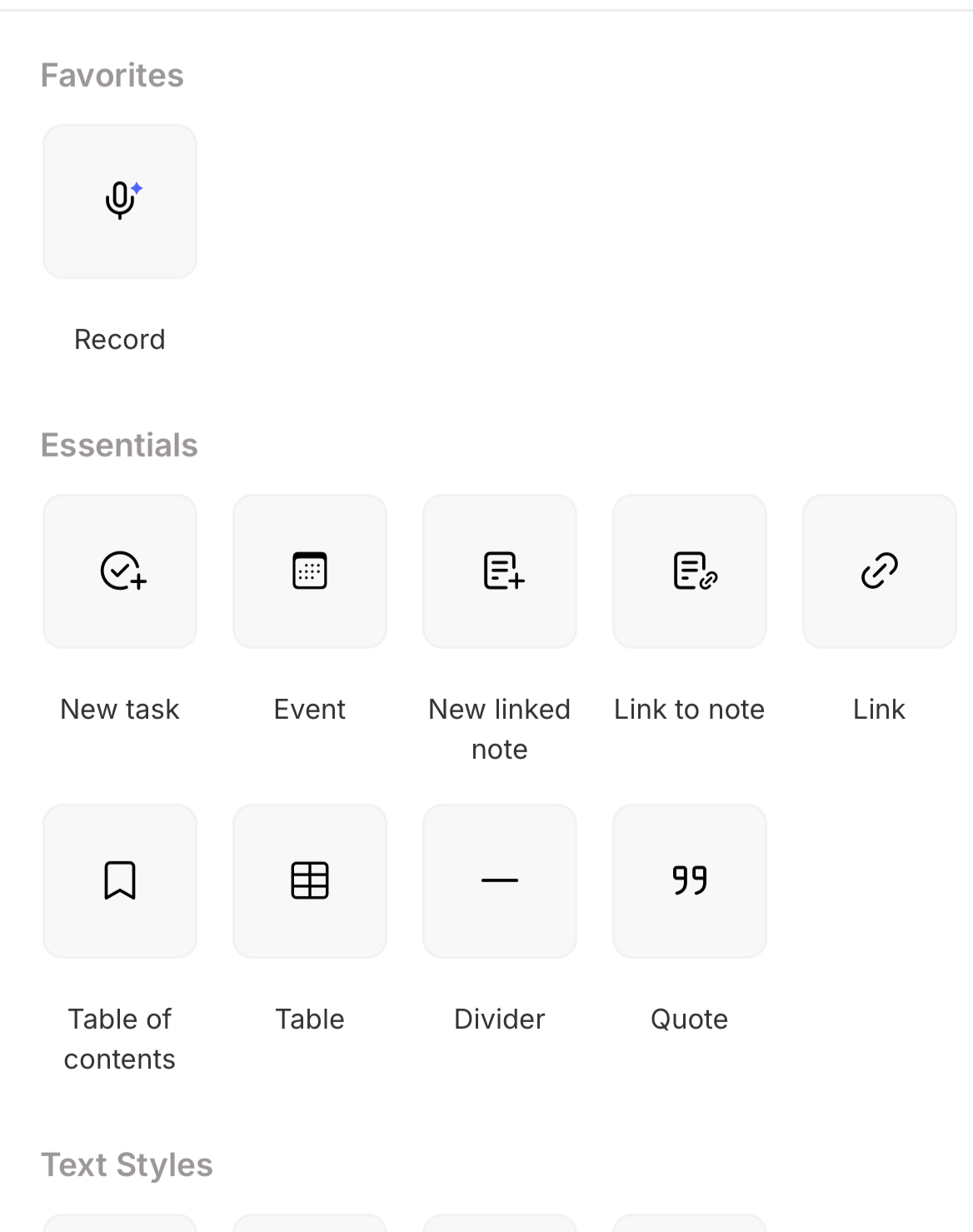
On mobile for Android or iPhone, tap the + button and select Link to Note, then choose your note.
One cool thing to mention is that when you link to another note, that note gets a little link box at the top to show you which notes link to it. Very cool for understanding how your notes link together.
I’ve just linked to another note and that note now shows a little box for backlinks.

View internal note links in different ways
When you create a link to another note, you can change the way it displays and we get four options.
Mention
Text
Title
Preview
This is what Mention looks like.

You get most of the title of the note appear and a little note icon on the far left to show it’s a note.
When you hover over this type of link, a little preview appears that looks like this.
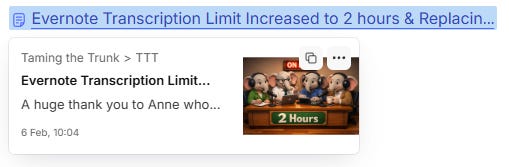
Towards the top right of the preview, you can copy the link or go to the three-dot menu and change the view of the link or delete it.
This is what a text link looks like.

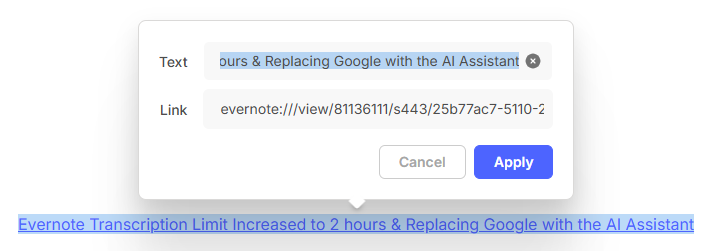
You get the full title of the note and when you hover over it, a little pop up appears with options to copy the link and get to the three-dot menu.

The little edit icon lets you edit the link, change the text, or even the link itself. The little link symbol that’s crossed out will remove the link but leave the text in place.
This is what the Title view looks like

You get a single line block appear which you can click on to go to the note.
When you hover over this link, you can copy the link and access the three-dot menu for more options.
This is what the preview link looks like
Its my favourite and the type of link I use the most.

This includes the full title of the note and a preview together with a thumbnail.
You can also see some location breadcrumbs at the bottom of the preview that show you where that note is located.
When you hover this view, you can copy the link and access the three-dot menu.
Changing the view for an internal link
You can change the view for an internal link at any time.
Just go into the three-dot menu and choose one of the other views.
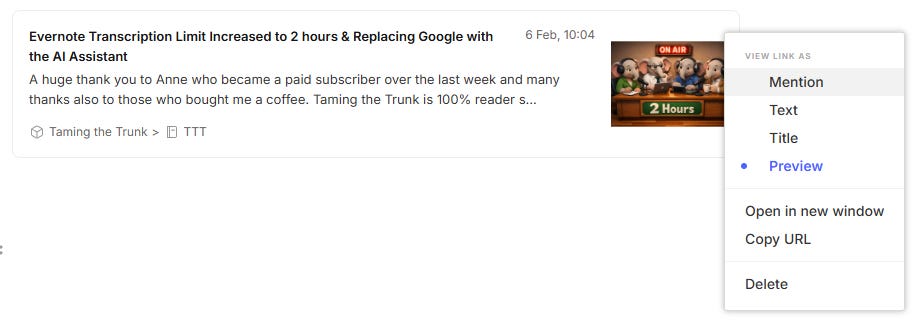
You can also set global defaults for your link views and I’ll talk more about this later on in the article.
External links in Evernote
These are basically web links. Links to websites that are external from your Evernote notes and we can display these in different ways as well.
Adding an external link is simple. Just copy a web link and paste it into a note.
Depending on how you have your default view set (more later), the link will appear in any of these three views.
Mention
Text
Preview
This is what Mention looks like.

You get a little icon on the left and most of the title of the page. Hover over the link and you’ll see a preview.

Like with the internal mention link you can see icons for copying the link and also accessing the three-dot menu.
This is what Text looks like

Just a plain link. You can hover over the link and copy, edit, or remove the link.
This is what Preview looks like

This is my favourite view. You get the full title of the page and a summary. Hover again to copy the link or access the menu.
Changing the view of an external link works the same as with internal links, just go into the three-dot menu and select the view you want.
Adding links to existing text
I’ve found the easiest way to add a link to existing text is to copy the link to your clipboard, select the text you want linked and then use the following keyboard shortcuts.
For PC use CTRL+V and for Mac use CMD+V.
This will instantly turn the text into a link without having to mess around with any pop-ups. Simple.
Setting global defaults for internal & external links in Evernote
With all these different views and styles for links, there’s a way for you to set your preferred default in the settings.
Head over to Settings -> Preferences -> Notes -> Links and attachments.
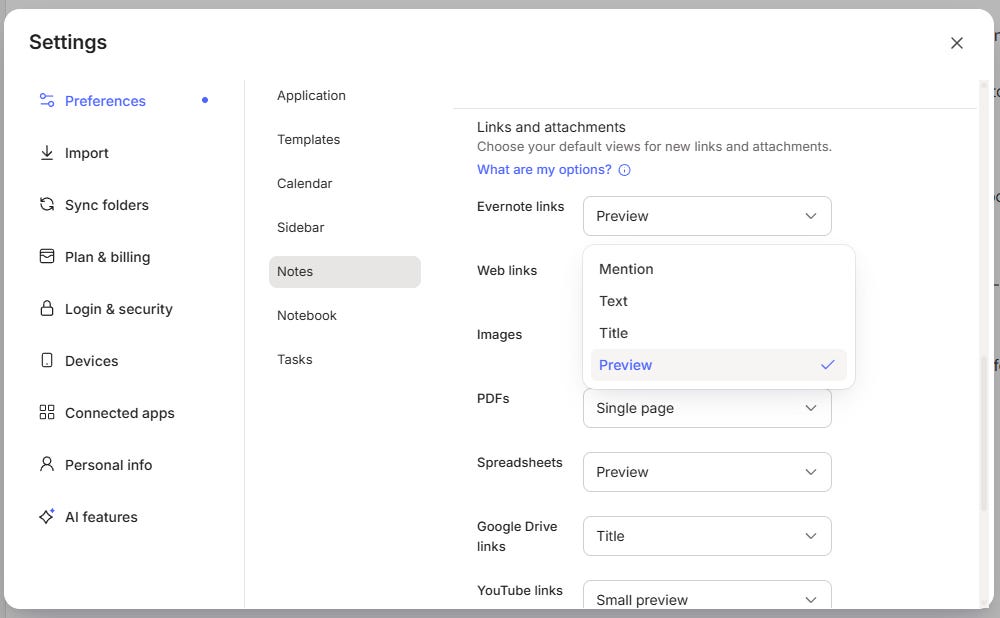
You’ll see an option for Evernote links and Web links. Just change the drop down box to the style you prefer.
You can also access these settings in the mobile apps. Head to Settings -> Notes -> Links and attachments.
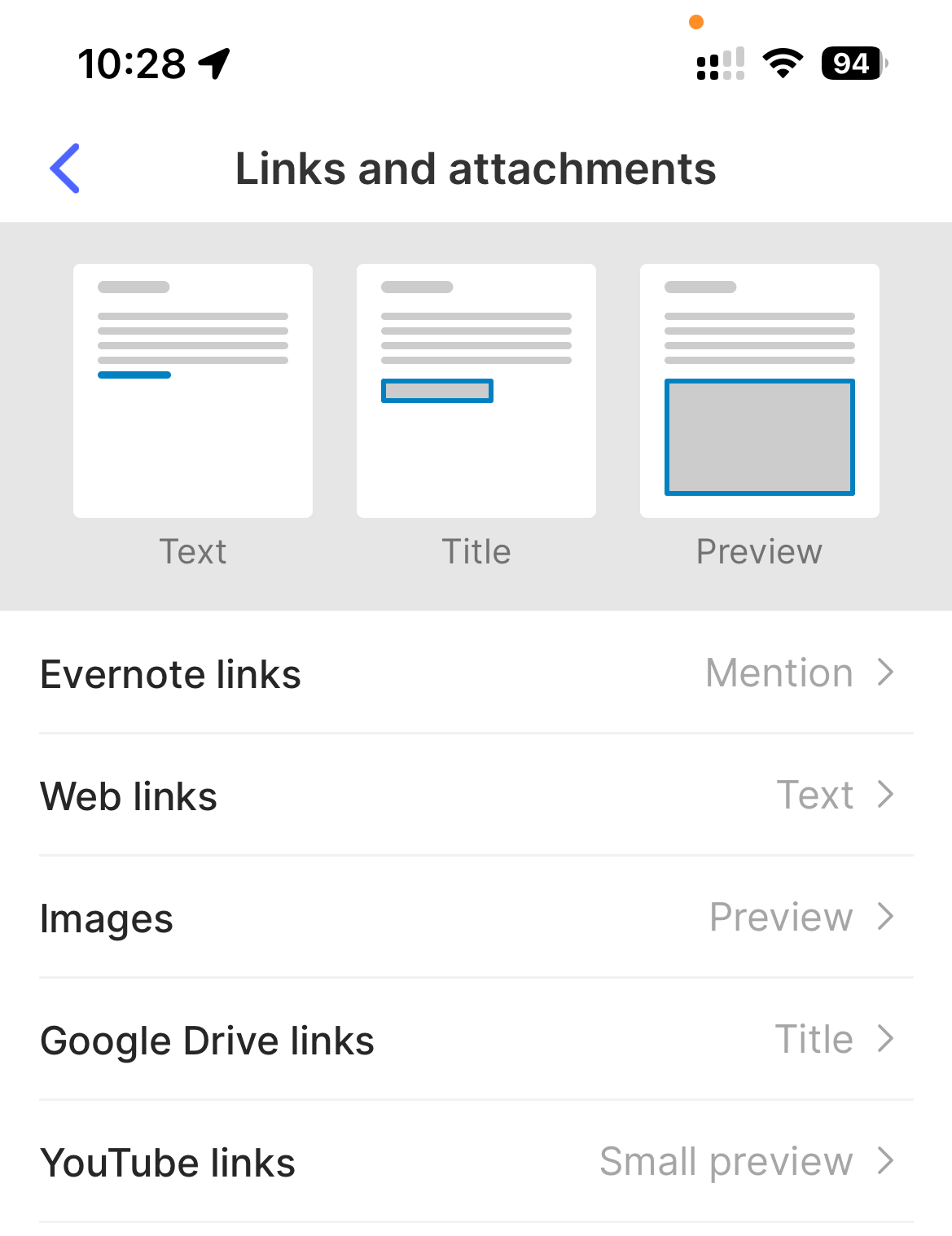
One thing to mention. This setting doesn’t change any existing links, they all stay in the same format.
The setting only works with new links that you create.
This is to stop the change messing up any notes you already have.
That’s it. I hope its been useful.
What are your favourite link views? Do you use a mixture or tend to stick to one style? Let me know in the comments.
Have a great rest of the week
All the best
Jon
Thank you Jon.
I find it helpful that you can edit a link Title. When embedded in a sentence, I will often use a much abbreviated title or even just say "here".
Plain internal links used to show up green to readily distinguish them from external links. I wish they'd bring up that option again.
I use text links mostly. Jon you mentioned before that we could expect to see an update that text link would also get automatically updated when the note title changes. Any idea when that is coming up? It does work for all link types except for text links.