


A huge thank you to all paid subscribers and many thanks also to those who bought me a coffee. Taming the Trunk is 100% reader supported, no ads or commission links and your support is really appreciated.
Newsletter housekeeping: The latest version for PC & Mac is 11.27.5. You can grab it from the download page. Latest mobile version is 11.27.3.
A bit of a game changing update has arrived for the Evernote AI Assistant that will stop you having to copy and paste and manually edit notes quite so much.
Say hello to Edit Mode!
We can now use the AI Assistant to live edit our notes using natural language.
The content of your note automatically changes when edited.
Don’t panic! There’s an Undo button if it all goes horribly wrong.
You can switch into edit mode by clicking the plus button in the AI Assistant chat window and selecting Edit.
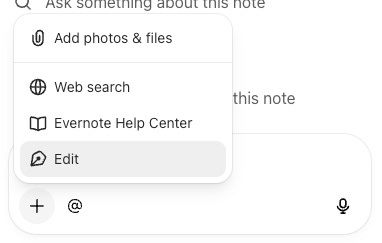
A little blue pen fountain pen icon will let you know edit mode is switched on.

From here, you can write what you want to edit in natural language and the AI Assistant will do it for you.
Let’s look at some examples.
Editing the title
Something simple to start with.
The title of this note I’m writing the article in is:
Evernote Adds Edit Mode to the AI Assistant
The prompt I’m using is:
Rewrite the title of this note so its more explanative
It automatically changes the title of the note to:
Evernote update: AI Assistant now has Edit Mode (what it does and how to use it)
In the AI Assistant window it explains what its done and gives me a big Undo button in case I don’t like it.
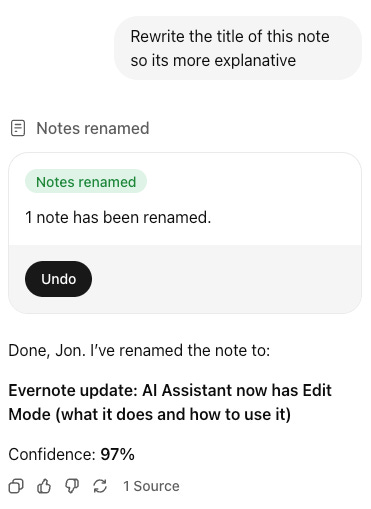
I’m not a fan. I preferred the previous title, so I’ve hit Undo.
Editing a table
Let’s move onto something a bit more complicated. Styling a table.
I’ve created a sample table using the information from my reading list note. It’s a bit long, so I’ve just focused on Stephen King books. This is what it looks like.
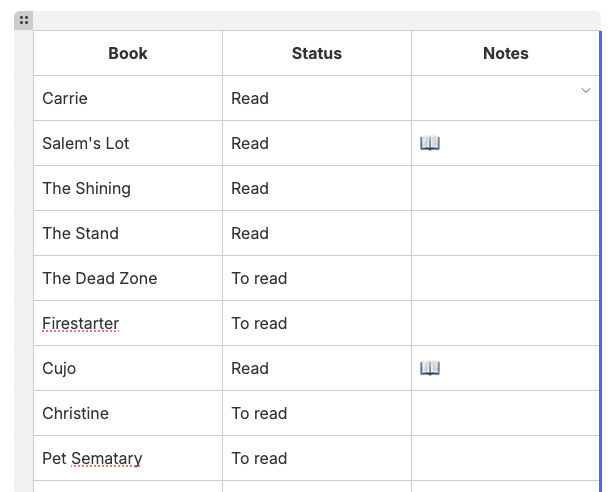
The prompt I’ve used is:
Style this table so it has some colour and titles stand out a bit more
It changed the styling and shows me the original table with the new table styling underneath.
I can accept and reject the changes.
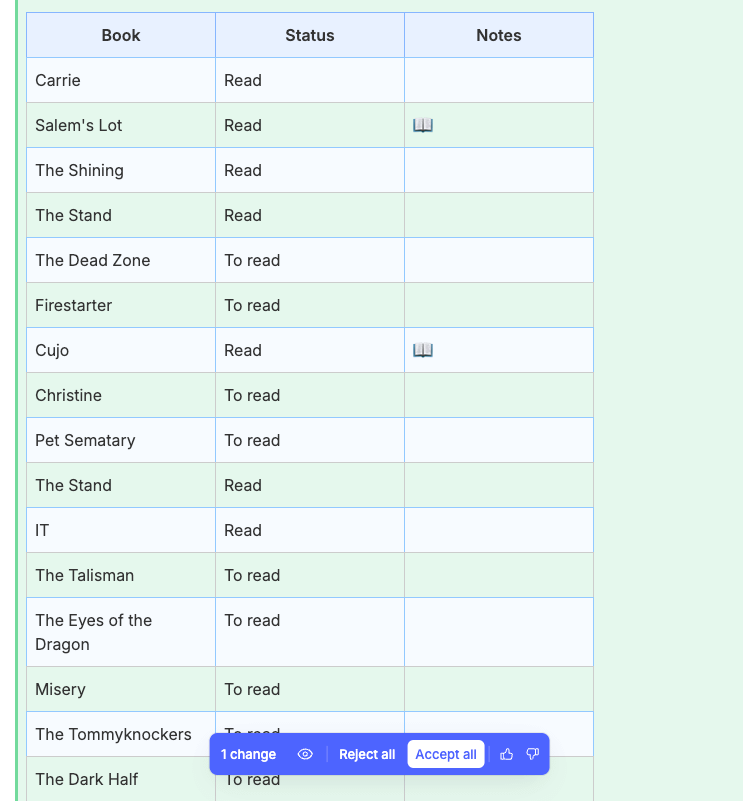
If I accept, then the old style is removed, leaving the new style behind.
Editing text
Another example. I’m going to ask the AI Assistant to simplify a paragraph of text from last week’s article.
This is the text and I’ve selected it.
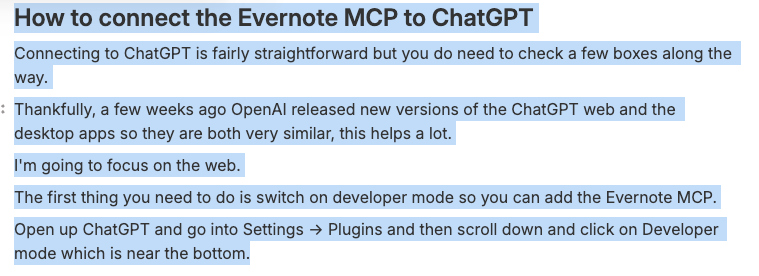
The prompt I’ve used is:
Rewrite the selected text to make it easier to read and simpler to understand
When the edits are done, I get the chance to accept/reject all lines of the paragrpah or accept/reject each line individually.
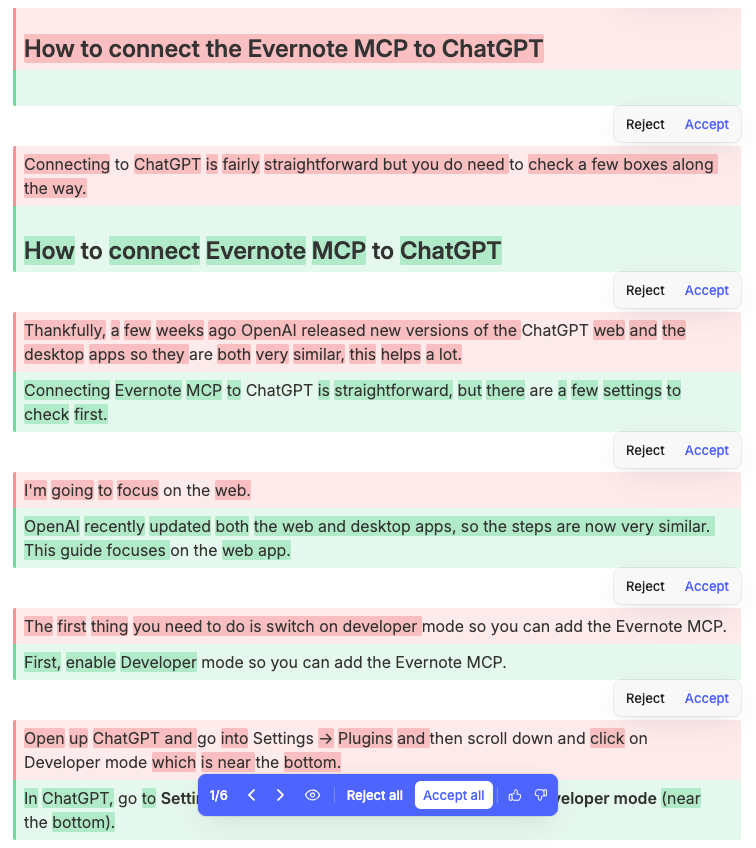
You can see the changes it made, go through them and approve whatever you want.
I like the way it does this. You don’t have to accept all the edits.
Creating a call-out
Lets turn some text into a call-out.
Here’s the text that I’ve selected.

The prompt I’ve used it:
Turn the selected text into a callout.
When I run this prompt, I see the new call-out created with an Important emoji together with the old text above.

I accept the changes and see this.

Important things to note
Right now, this works on desktop apps only. Hopefully, a mobile version will arrive.
Even though Edit Mode automatically changes the content of the note, you always get chance to either accept/reject or undo changes.
Version history is updated during this editing process, so you can always go back to the previous version of a note.
OK, what do you think? I don’t usually get the AI Assistant to write for me, I can do that myself, but I think it will help with reformatting notes, especially from web clips or forwarded emails. You may want to rewrite things, the choice is yours.
Will you be using edit mode? Let me know in the comments.
And finally...
A new official Evernote video is out showing off a few of the 115 new features and improvements that have arrived over the first half of this year. Absolutely worth a watch.
That’s it
Have a great weekend
All the best
Jon