


A huge thank you Ivan who became a paid subscriber over the last week and many thanks also to those who bought me a coffee. Taming the Trunk is 100% reader supported, no ads or commission links and your support is really appreciated.
Newsletter housekeeping: The latest version for PC & Mac is 11.12.2. You can grab it from the download page. Latest mobile version is 11.12.1.
We have some new things to play with on Evernote mobile and it’s going to please a lot of folk.
Evernote mobile gets slash commands
Slash (/) commands have been around for quite a while on the desktop apps and I use them every day. They are really useful for adding various items to a note quickly without leaving your keyboard.
We now have them on mobile!
Make sure you’re on the latest version (11.12.1), app store updates can take 5 - 7 days to get through to everyone. Keep mashing the update button.
Open a note, bring up the keyboard and enter a / and you should see this.
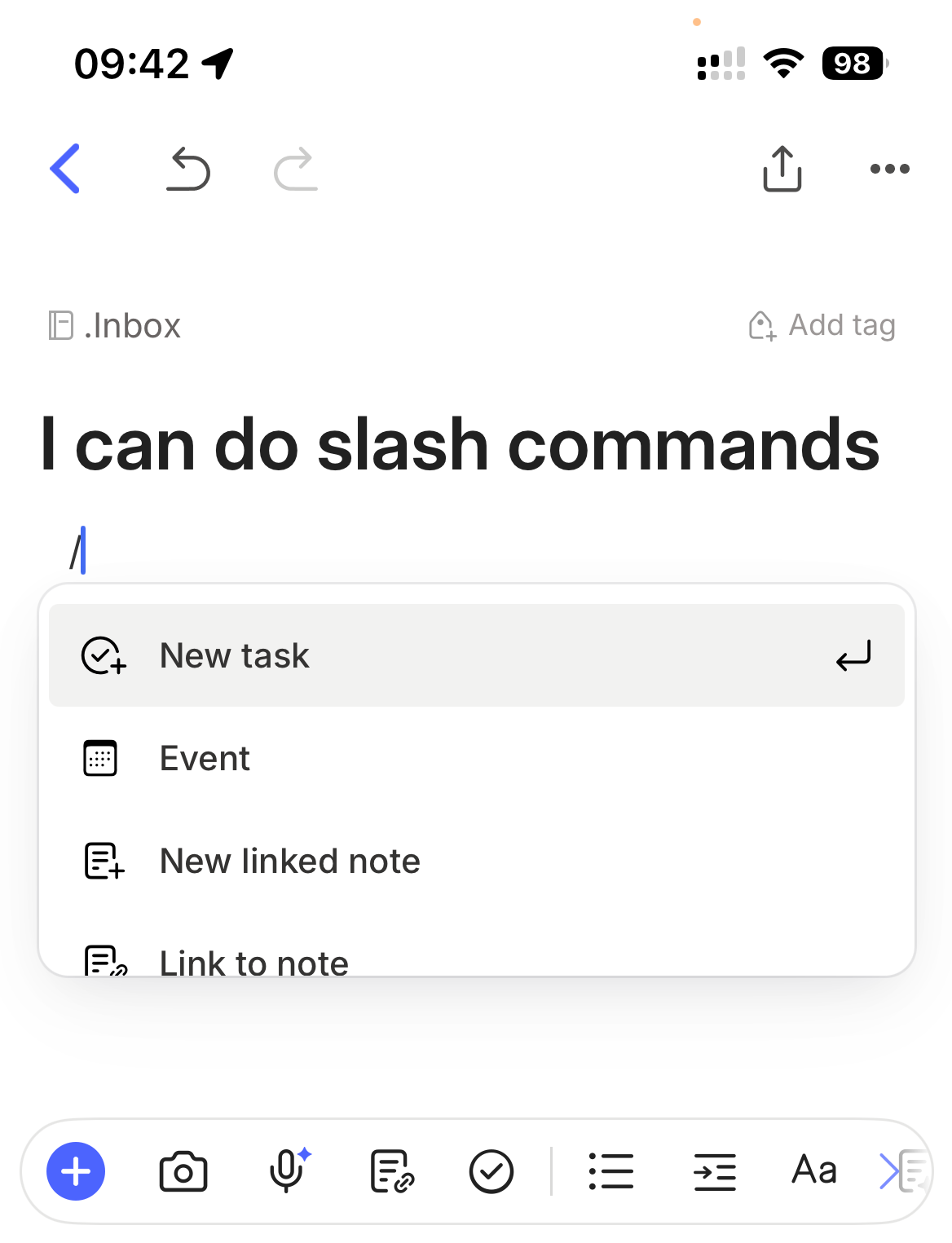
You can use your finger to scroll up and down the slash command list and just tap the item you want.
The full list of commands available is huge and includes all formatting options like headers, font colours and all the items you can add like audio recording, images, tables, etc.
Because the list is long, you can start typing what you want and the list shrinks like this.
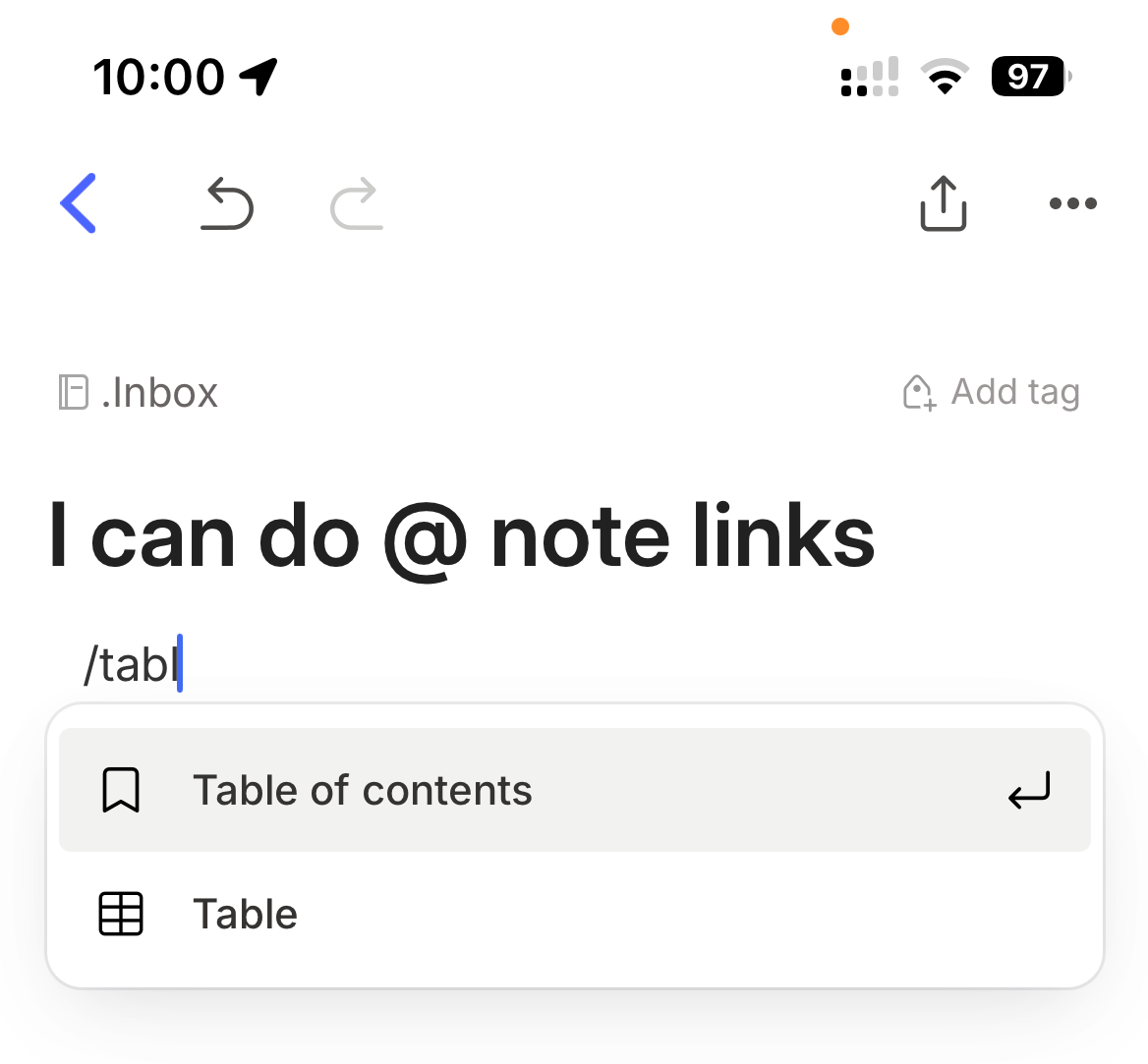
Mobile slash commands also support aliases, which are other words you can use to find a command.
For example you can type /todo to find New task or Checklist. You can use /meet to find the Event or Record command.
Here’s a full list of all the slash command aliases on a shared Evernote note.
Are you happy to see slash commands on mobile? Let me know in the comments.
Easier note links on mobile with @ commands
Adding internal note links on mobile has always been a bit of a fuss, so this new addition will make a huge difference.
We can now use @ commands on mobile.
We’ve been able to use these on desktop for ages and it’s the main way I add internal links.
Open up a note on your phone and type the @ command and then start typing the name of a note and you see it appear. You can scroll up and down the list to find what you want.
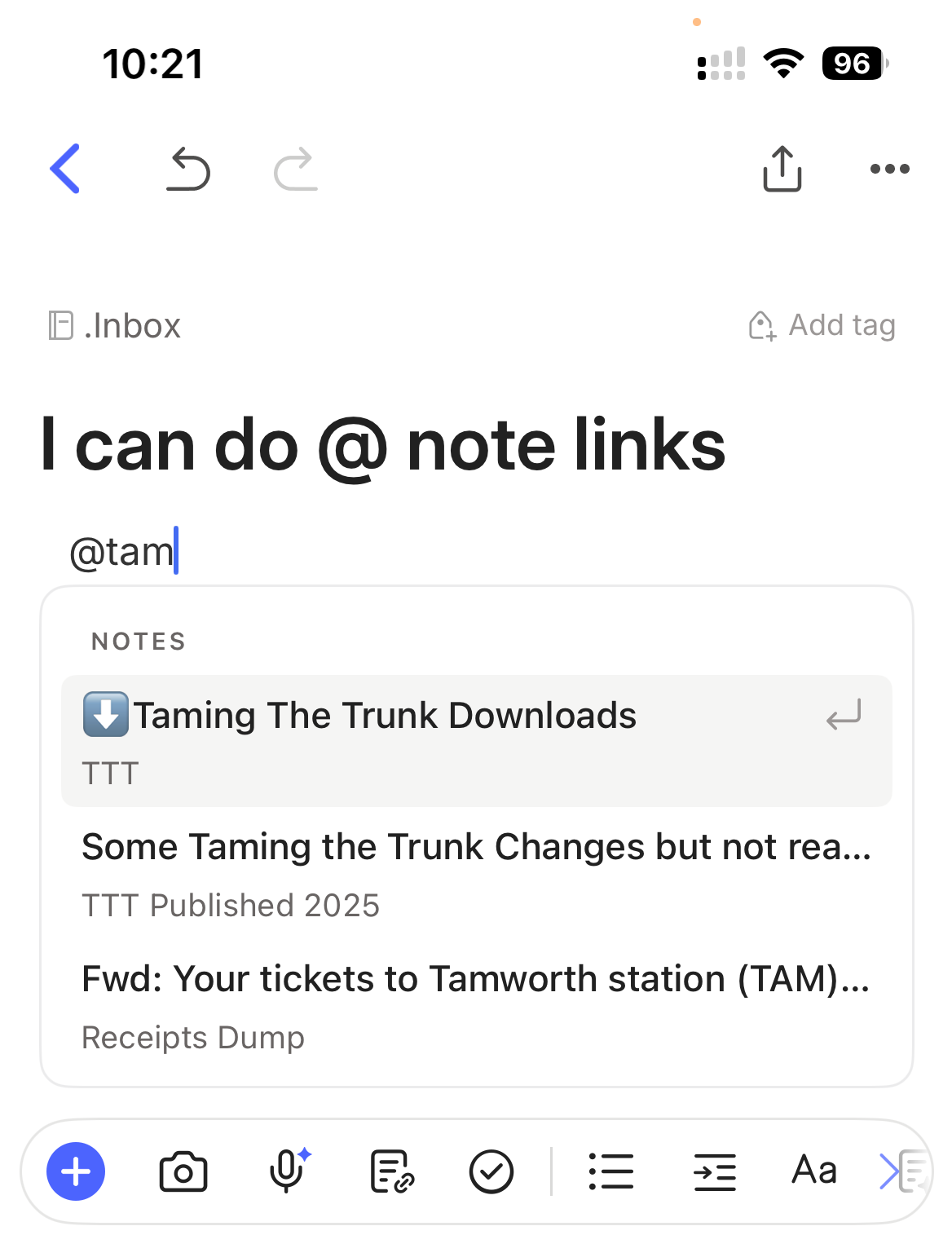
This instantly makes internal linking an awful lot easier and quicker.
You can also set a default view for internal links on mobile to display them as Mention, Text, Title or Preview.
Head to Settings → Notes → Links and attachments → Evernote links.
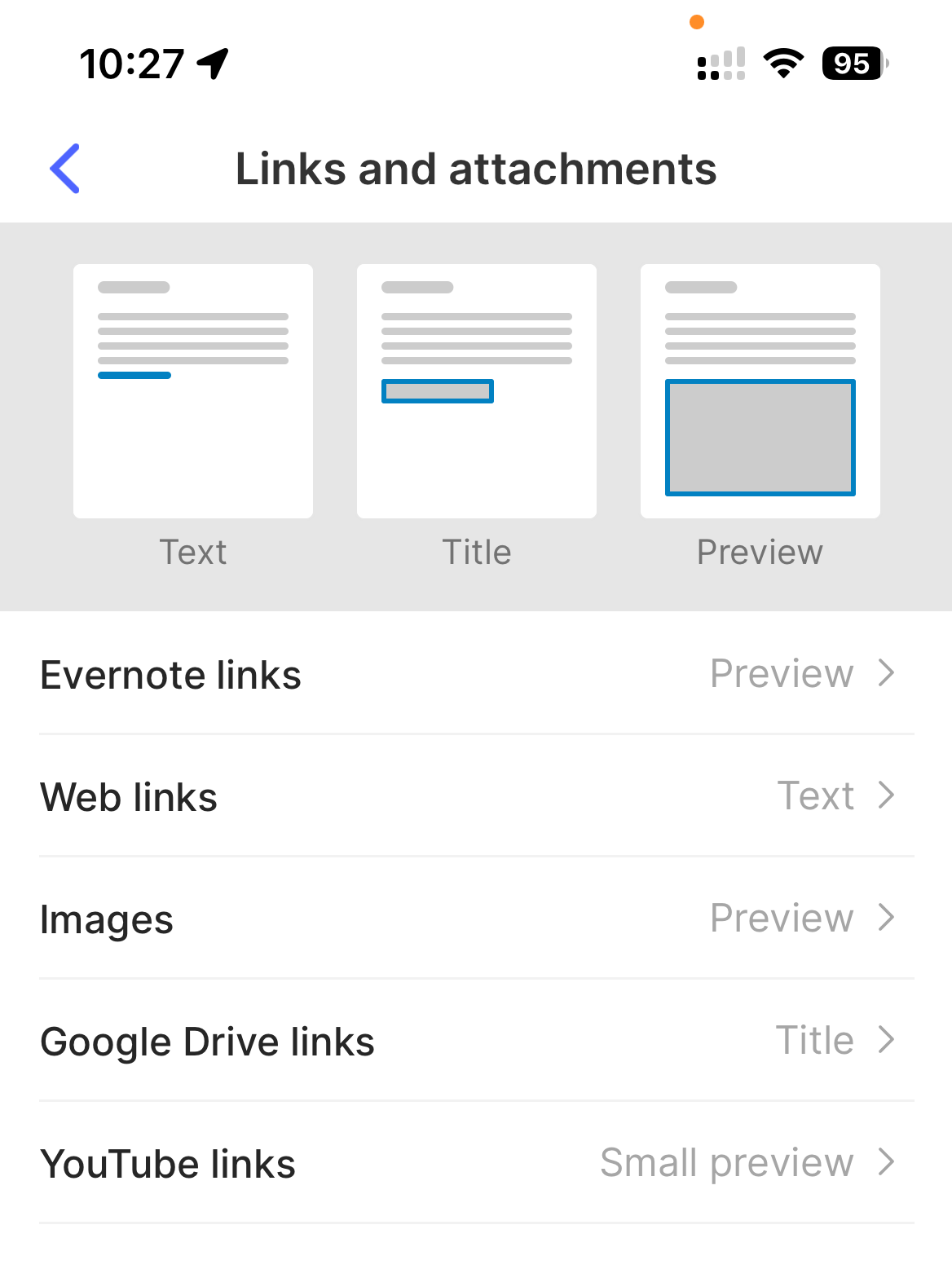
My default for internal links is Preview which looks like this.
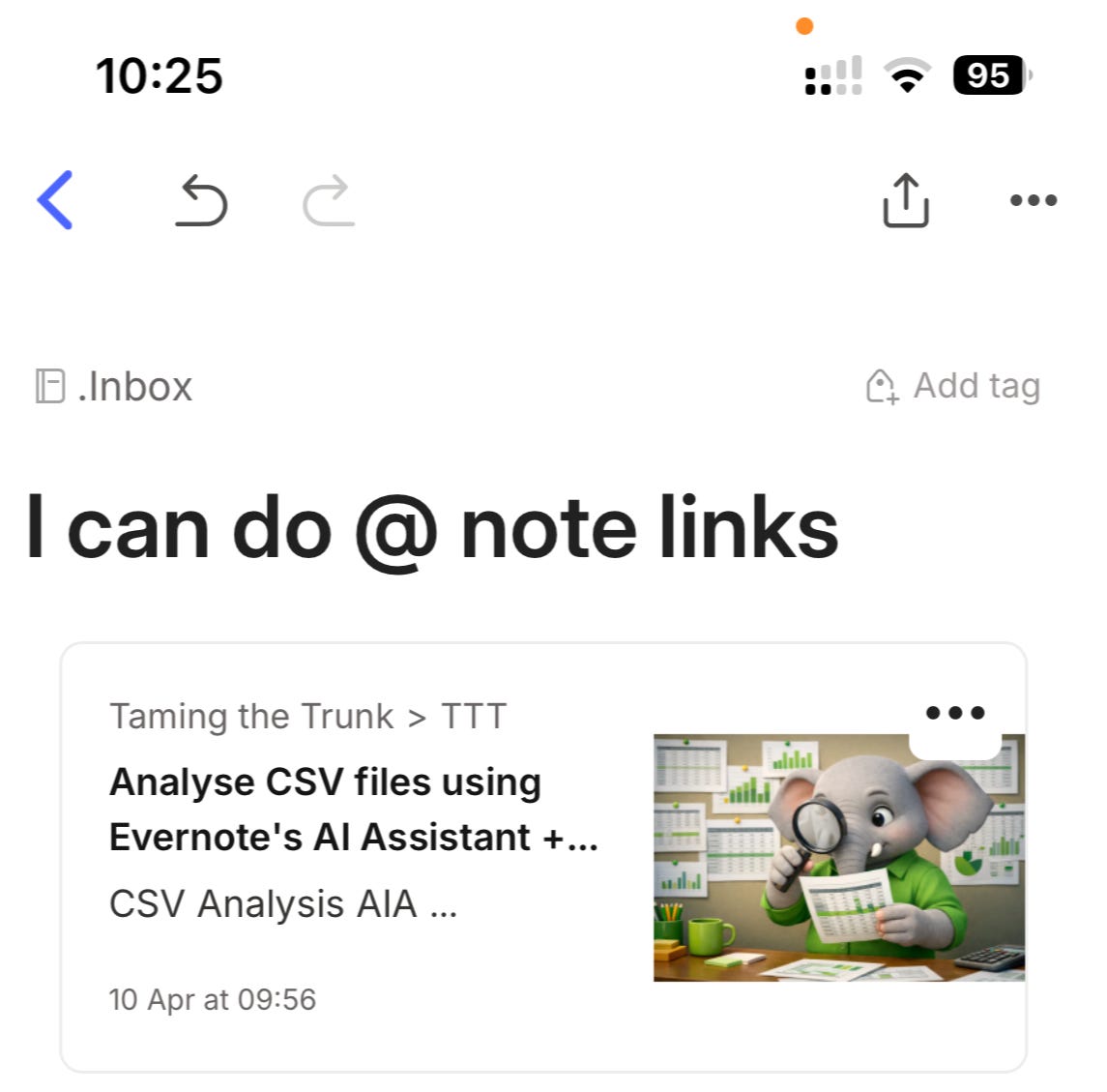
Are you happy to see @ commands arrive in mobile? Will you find them useful? Leave me a comment.
New text formatting bar in Evernote mobile
Another new thing on mobile is a brand new formatting bar, which to be honest makes a lot more sense.
When you edit a note, you can now see a sliding format bar that goes right and then left again so you can scroll to see all the different options. When you tap an option, the changes you can make appear just above it.
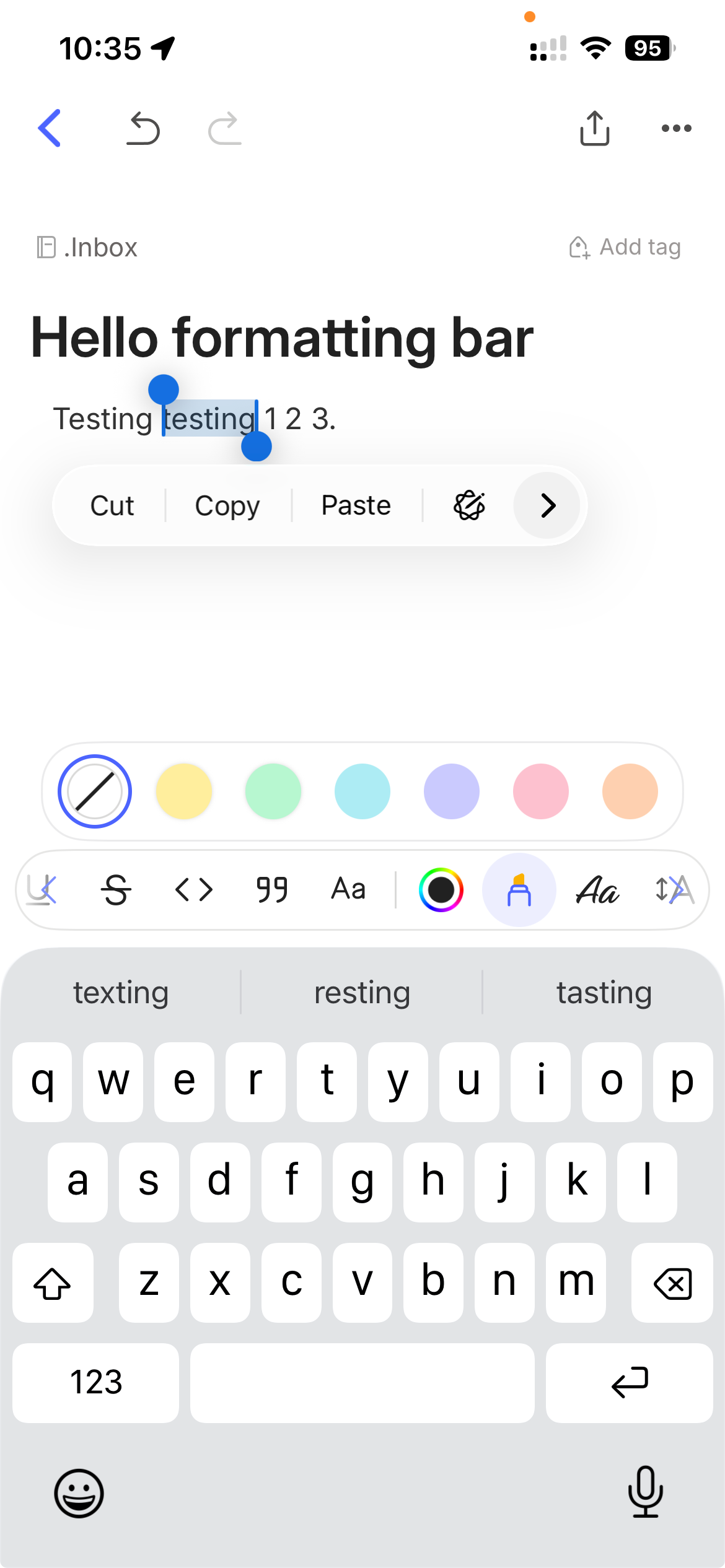
This is what it looks like when you want to change the font.
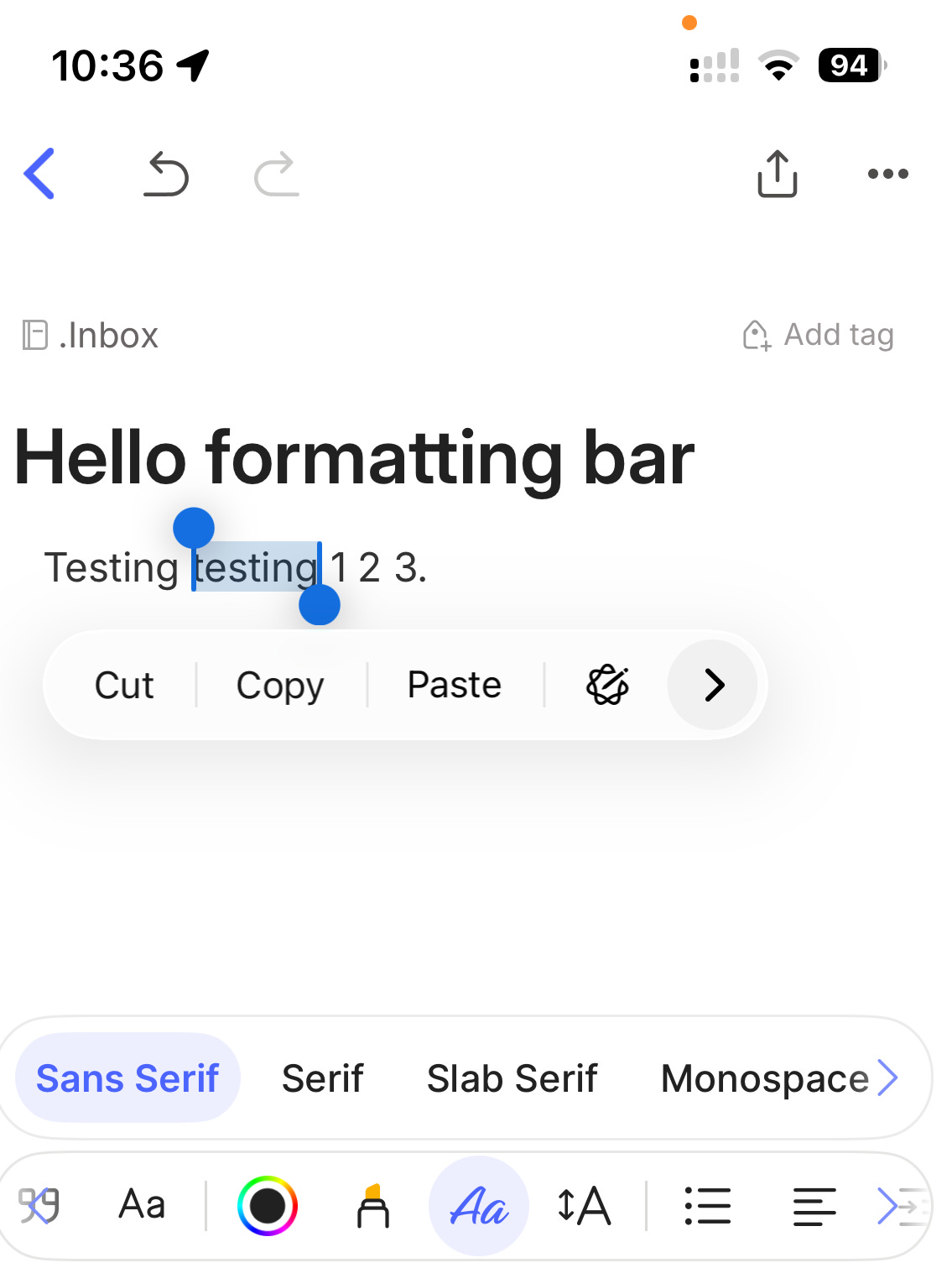
I’ve found this new toolbar a lot easier to work with than the old one, much quicker and more intuitive.
Do you like it? Have you used it? Let me know in the comments.
And finally...
This is best viewed on desktop and I’m not sure how old it is, it may have been released ages ago, but I only found it last week!
You can see all of your Evernote usage in one place including your how many MBs you use.
In the desktop app go to Settings → Personal info → Go to your profile.
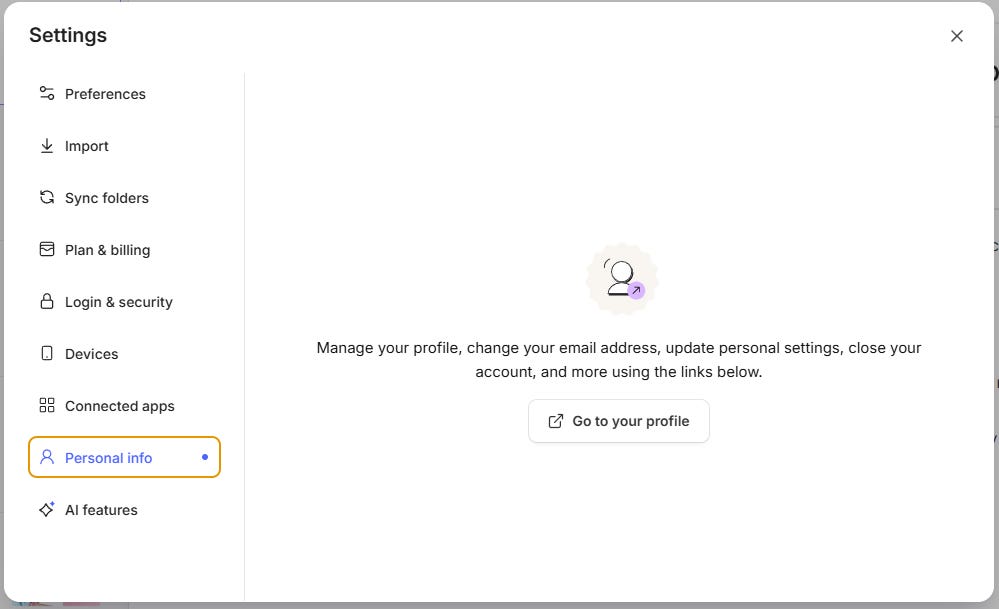
It’ll open up a page in your web browser and you may need to login.
You’ll end up on an Account Summary page and scroll down to the bottom where you can see all your usage.
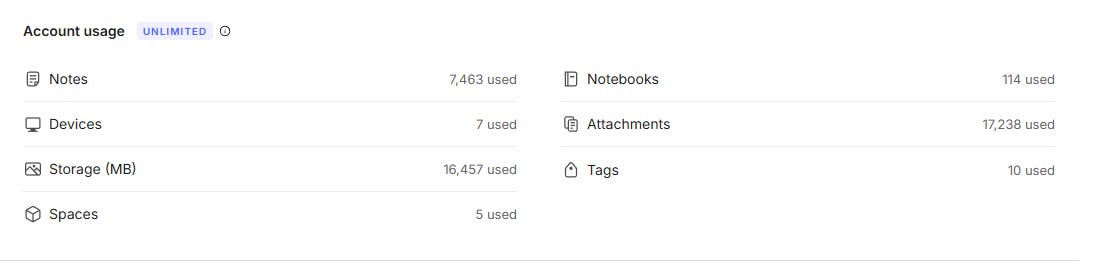
The Notes number includes anything in the trash. The storage number is in MBs and you can convert to GBs by dividing by 1024 so my storage is 16.07GB.
What do your numbers look like? I KNOW there will be some scary numbers posted in the comments! Share yours.
That’s it
Have a great weekend
All the best
Jon
Thanks for following that so swiftly, Jon. I'll await the next release in hope 😆
Mine are 26k notes, 10GB storage and 166k attachments, Jon must be something in the way you use Evernote for so few attachments?