

A huge thank you to Doug who became a paid subscriber over the last week and many thanks also to those who bought me a coffee. Taming the Trunk is 100% reader supported, no ads or commission links and your support is really appreciated.
Newsletter housekeeping: The latest version for PC & Mac is 11.44.6. You can grab it from the download page. Latest mobile version is 11.44.7.
A bit of a catch-up on itty bitty improvements this week as there’s been a few small but very useful new things added over the last couple of weeks.
Slash command favourites
We can now favourite our most used items in the slash command menu, which makes it quicker to get to what you want.
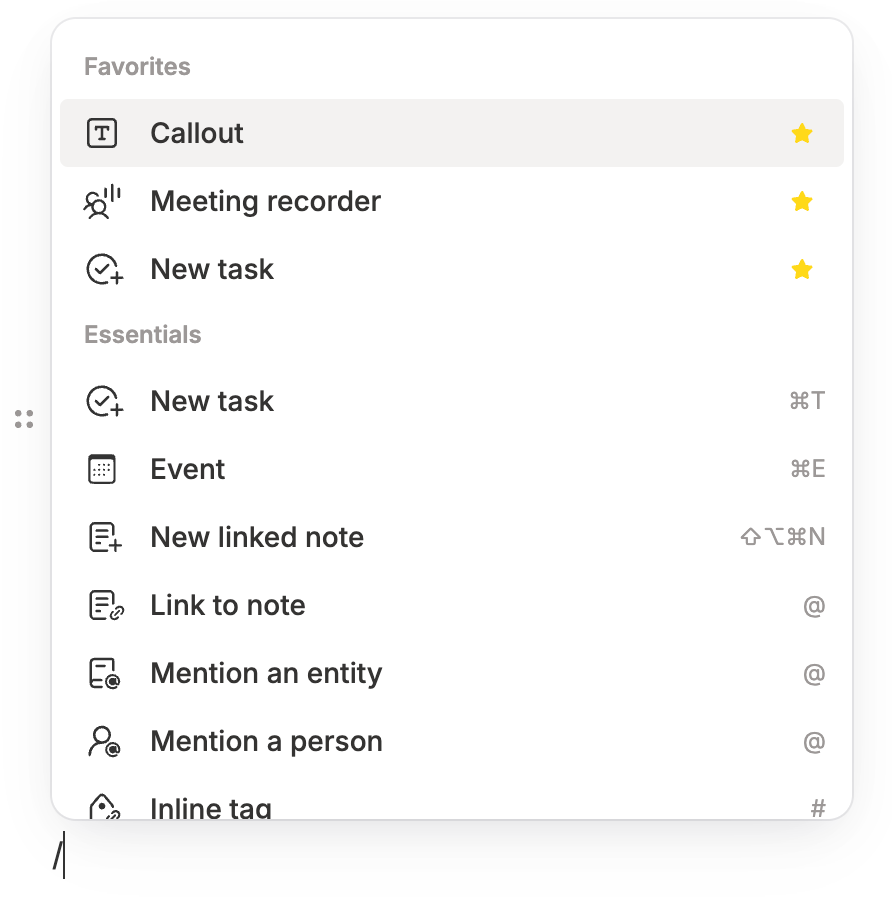
If you hover over the right hand side of any commands, you’ll see a star icon, click this and you’ll be able to favourite the item and it appears at the top of your slash command menu.
This is the same set of favourites that appear in the Insert menu at the top left of the note editor so if you’ve already favourited some items there, they will appear in the slash menu, and vice versa.
Its a nice little customisation that can speed up your workflow a little.
The AI Assistant can read more files
Did you know you can add files to the AI Assistant? This is separate from adding the file to a note.
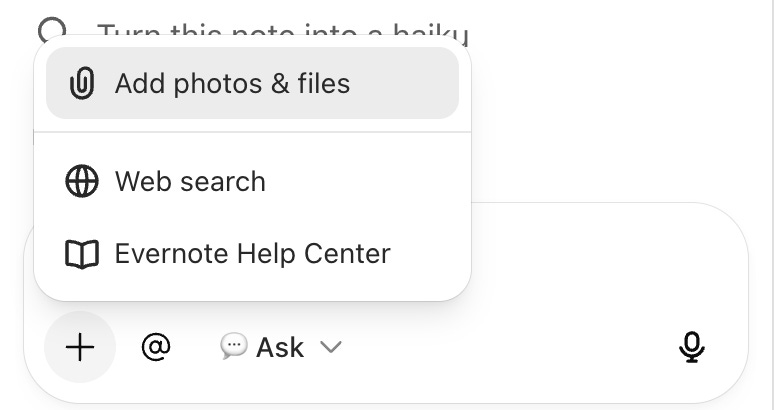
The list of files it can read now include Word, PowerPoint, Excel, RTF, ODT, email, subtitle, calendar, contact, TIFF, and BMP files.
The idea is that you can upload a PowerPoint, question it, summarise it and then get the AI Assistant to create a note from this information or even expand on the information by searching the web.
Useful if you’re doing some research.
Markdown language is now in the code block
If you use the code block item via the slash command or insert menu, you can now have your Markdown code formatted in a pretty way.
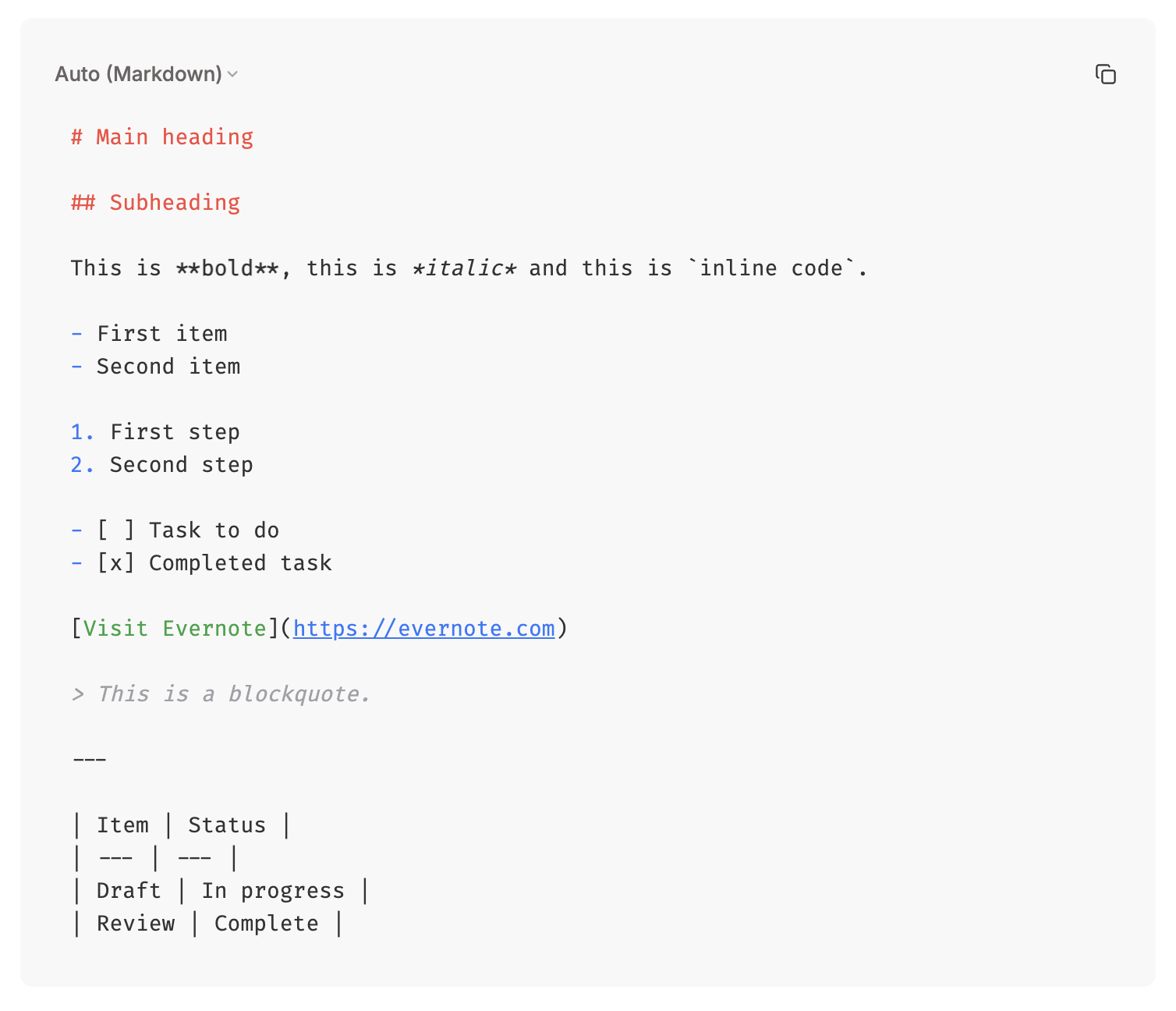
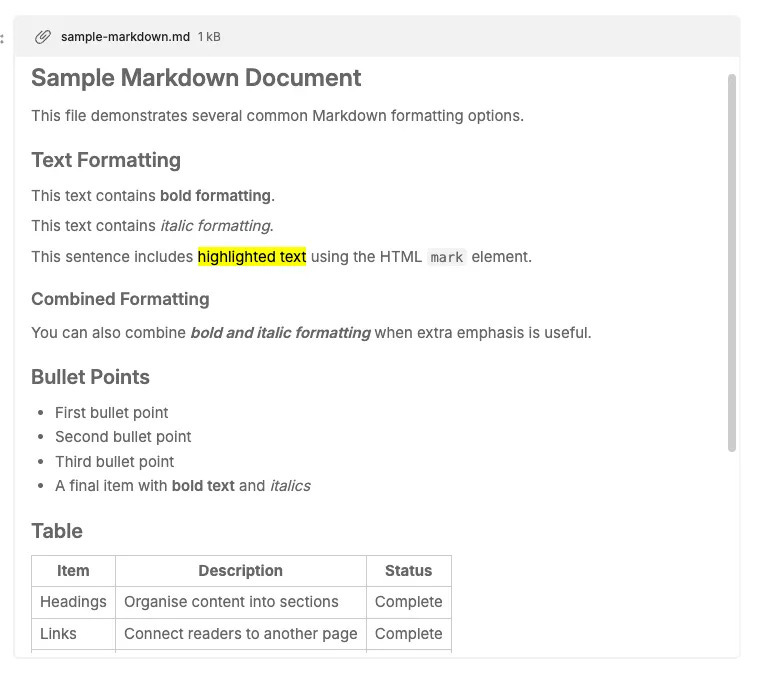
If you use a lot of Markdown, don’t forget you can paste it directly into your note and have it appear formatted, or you can go to Settings -> Import, add a Markdown file and it appears as a preview like this.
Do you use Markdown much? Let me know in the comments.
Resize columns in the task view
Another useful improvement is being able to resize the columns in the task view.

Grab hold of the little column separators and you can drag them left and right to resize them.
Something I would love to see if the ability to show/hide columns. I would remove the Assigned to column as I don’t need it.
New keyboard shortcut for toggles
Toggles are great. I’ve been using them a fair bit.
They work in a similar way to headers where you can show/hide content behind a collapsible toggle.
The good thing about toggles is that they are not headers, so they don’t show in the table of contents, they just let you show/hide things.
Type >> and then a space and you’ll get a toggle.

And finally…
There’s a new official video out that concentrates on tutoring students, from teaching resources to monthly billing. Very much worth a watch.
That’s it for this week.
Let me know in the comments if you’re using, or will be using any of these new things and what for.
Have a great weekend
All the best
Jon
Toggles... I don't use them very much and when I have it was an after-thought and I find it somewhat cumbersome to add.
So I type the paragraph and then think "this should be in a toggle". You can't just insert a toggle before the already written text. It becomes a 3 step process. You create the toggle, select all the text, drag it under the toggle.
Just nit picking.
Speaking of nit-picking... I REALLY dislike the new line spacing.