


A huge thank you to Len, Harry and Hal who all became paid subscribers over the last week and many thanks to those who bought me a coffee. Taming the Trunk is 100% reader supported, no ads or commission links and your support is really appreciated.
Newsletter housekeeping: The latest version for PC & Mac is 11.21.5. You can grab it from the download page. Latest mobile version is 11.21.4.
A couple of months ago Evernote announced they were working on an MCP Server and invited folks to sign up to a wait list.
That wait is over and folks who filled in the form should’ve had an email telling them how to test out this new feature.
It’s going to be a bit of a game changer for a lot of people.
This article is meant to be more of an introduction than a how to. Things may change before it’s released to everyone, so I’ll do one of my deep dives demoing how to connect it all up once it’s fully released.
What is an MCP
MCP stands for Model Context Protocol and its a standard that allows any AI tool like ChatGPT, Claude etc to connect to your Evernote account and retrieve/add/edit notes.
It’s a bit like a fancy API.
It doesn’t matter what AI service you use, just connect to the Evernote MCP and get access directly to everything in your Evernote account inside the AI tool.
This is what the connection looks like in ChatGPT.
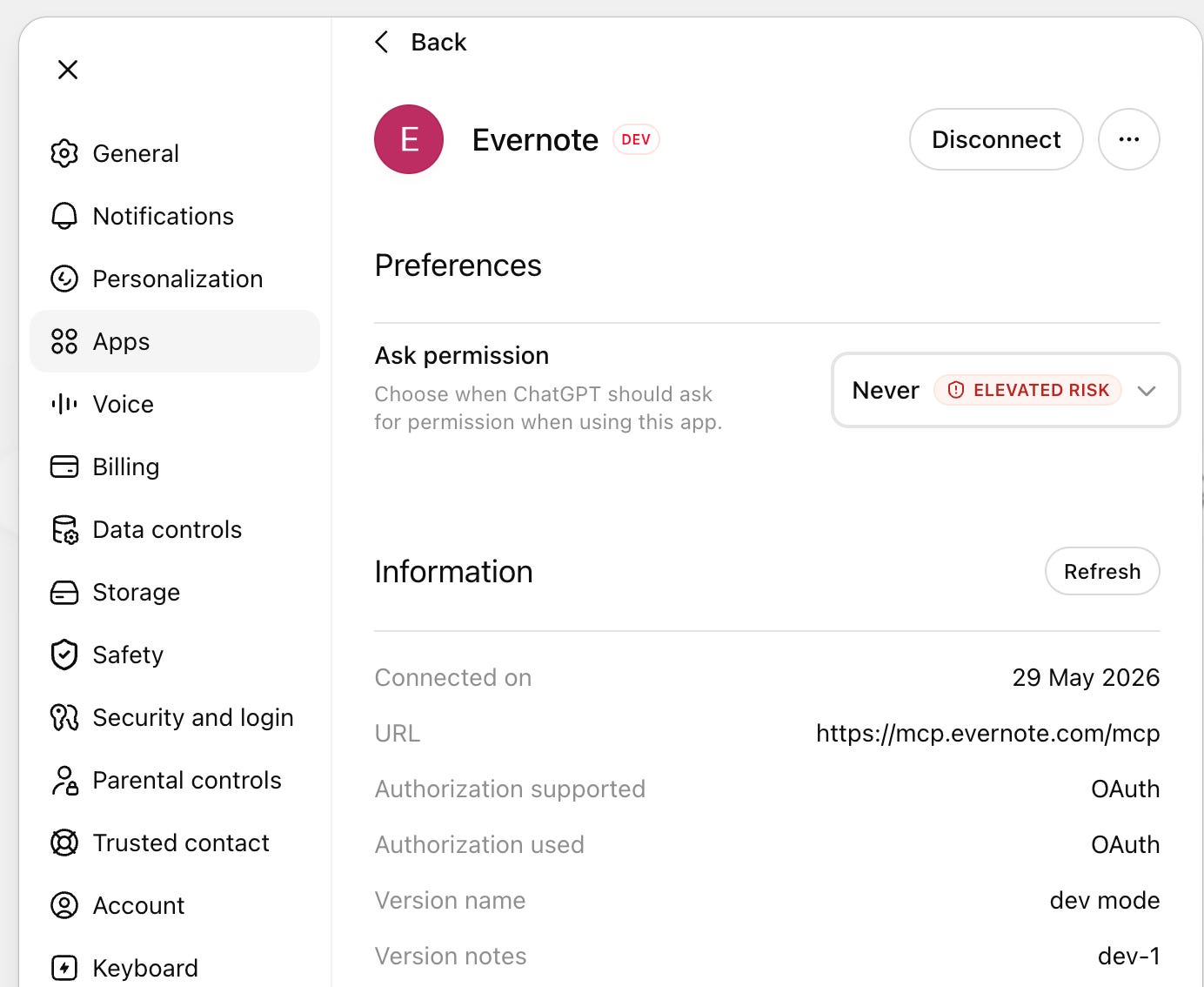
With this connection live I can ask ChatGPT to perform all sorts of different actions on my Evernote account.
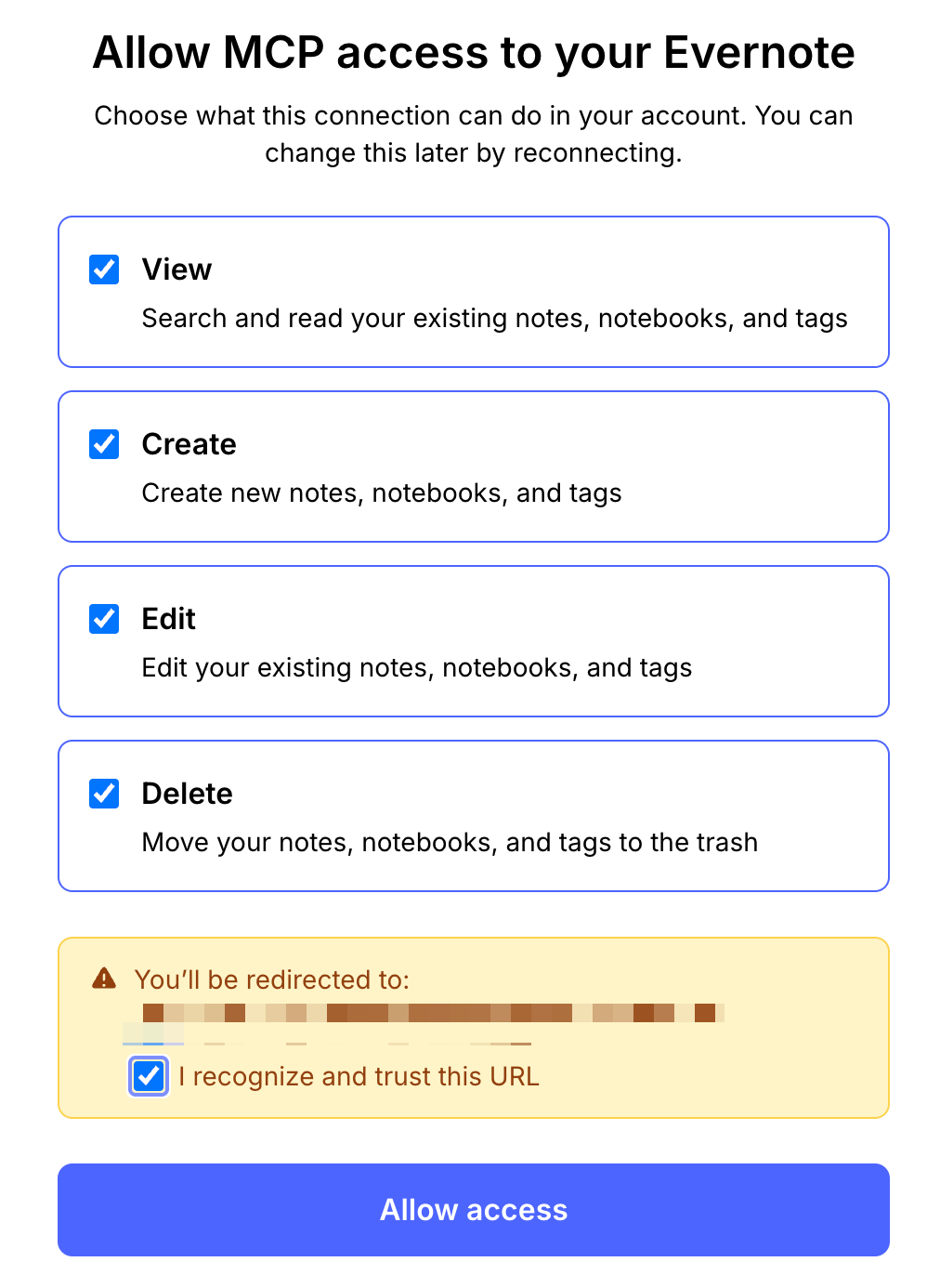
When you connect things up for the first time, you can choose to allow certain actions like adding/editing/deleting.
For example, you could only allow read only permissions so that the AI can only retrieve information and not add/edit or delete it.
This is what the permissions window looks like when connecting.
Once its all connected you’ll be able to prompt your AI with phrases like “Save this information to Evernote” and it will create a new note with whatever info you’ve been getting from the AI.
What can you do with the Evernote MCP?
Lots of things.
I’ve had it connected for around a month now and have used it quite a few times to either save information to Evernote or work with Evernote data inside my AI.
My AI of choice is Codex for Work which is made by OpenAI, its very similar to Claude Co-work.
The other day, I asked it to do some research for me on how to create some call-outs using Apple Pages, plus another bunch of formatting information. I told it to save the information to Evernote.
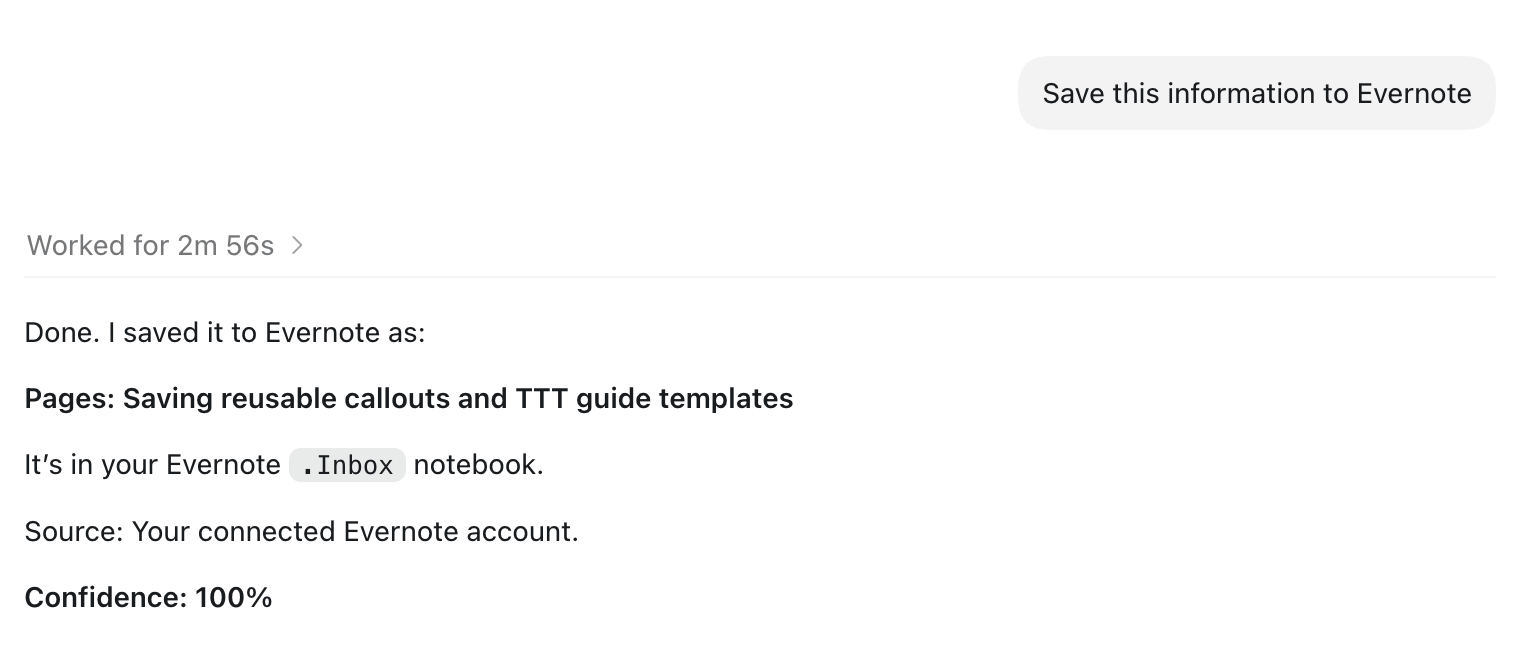
It didn’t really take almost 3 minutes to do this, it was my fault not paying attention and approving write permission for the first time it tried to create a note.
So, the AI did some research, collated it and formatted it how I wanted and then saved it into Evernote.
If I’m honest this kind of research could easily be done using the Evernote AI Assistant with a web search. You’d get pretty much the same results and it may be easier. It depends on how you work.
It all gets a lot more exciting and much more powerful when you start adding all your other apps to your AI service. It’s like connecting them all together.
Right now along with Evernote’s MCP, I’ve added my invoicing and CRM apps, cloud storage, social media app, project management software, Slack and my email.
I can now work with all of them in Codex and bring information from many places together.
Here’s something I did earlier.
I asked the AI to go to my invoice app and get all the paid invoices from May, add them up and store the results in an Evernote note.
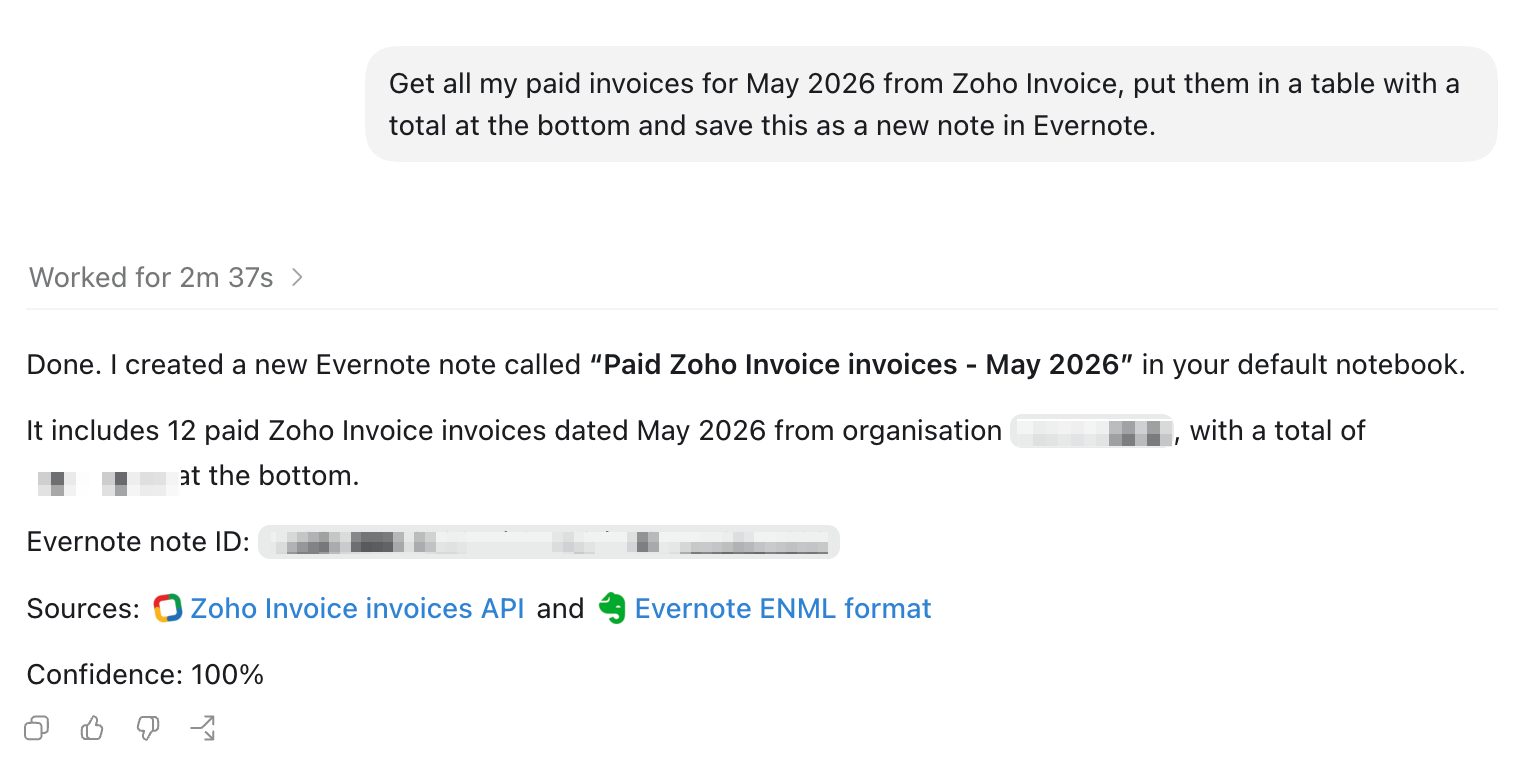
I now have a paid invoices report for May. If I wanted to, I could specify the notebook I want it to be saved into. If you don’t it goes into the default notebook.
I’m not a big fan of social media, so I tend to get Codex or Evernote’s AI Assistant to write posts for me. I’ve created a specific skill in Codex with the Taming the Trunk brand voice and tone, which is basically how I sound.
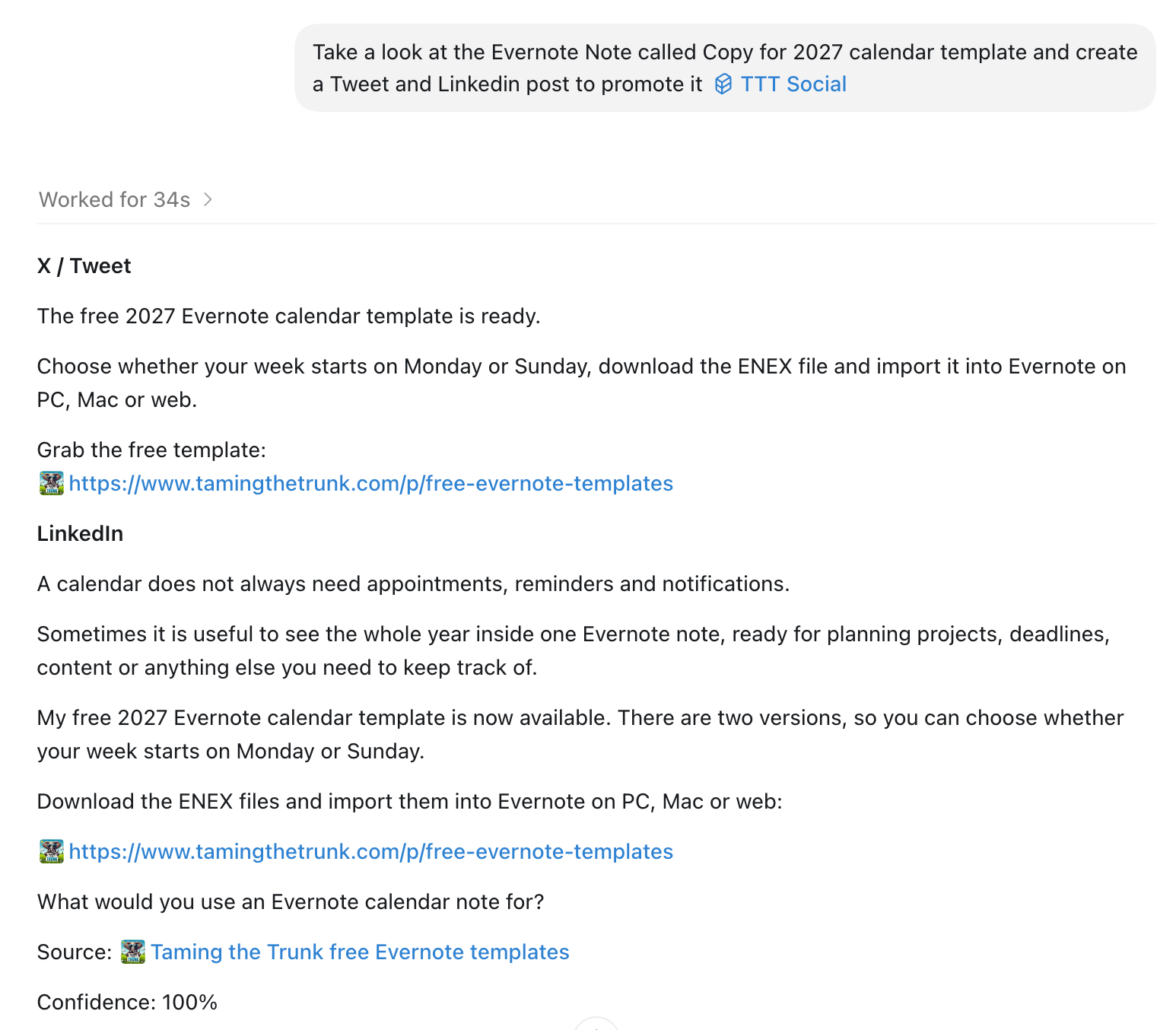
This prompt goes to Evernote and looks at the Copy for 2027 calendar template note and then creates some social posts based on the social skills I’ve taught it.
Final example is a skill that I’ve taught Codex for renaming and processing all my receipts.
Every now and then, I’ll be asking it to look at my Receipts Dump notebook, rename the note titles based on who this invoice is from, what its for and when it is. I then tell it to move the note to my Receipts 2026 notebook.
I’m really lazy at processing my receipts manually, so teaching Codex this skill will save me hours of work. There were 175 notes in my Receipts Dump notebook... not any more!
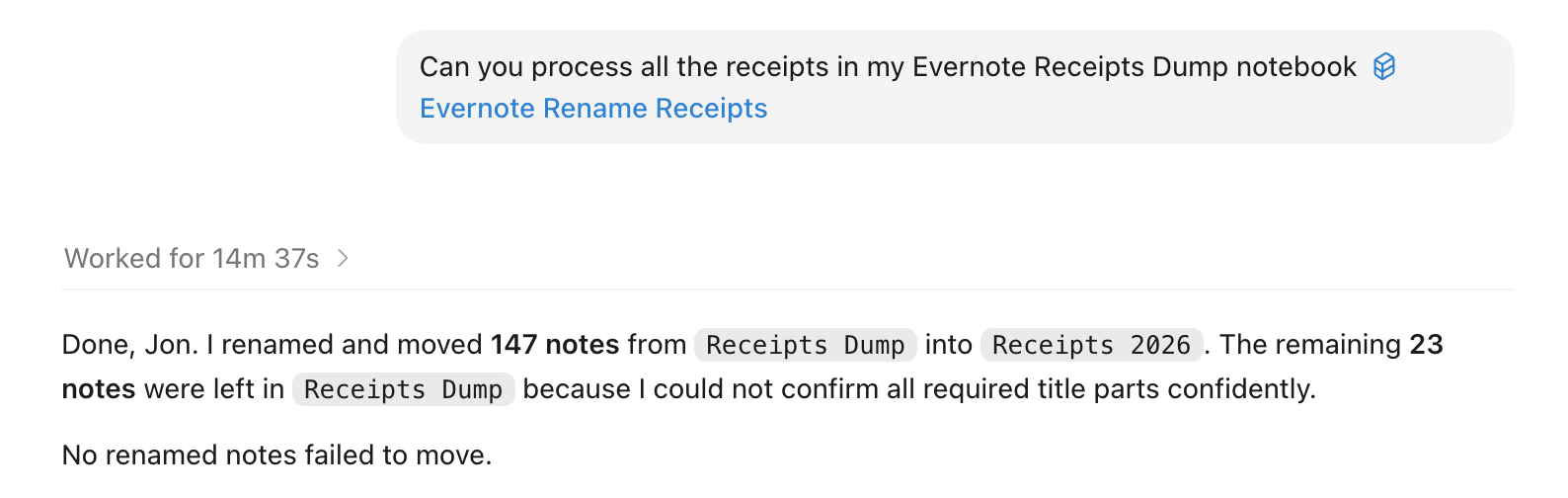
I invoked the Evernote Rename Receipts skill that I created and it processed 147 of the notes.
The 23 left over were because I told it to ignore notes where it couldn’t work out what it was for.
This is huge. Manually renaming so many notes and moving them takes me ages. I just ask my robot to do it now.
So, there we go. These are some of the ways I’m using the Evernote MCP. Others will do different things with it.
If you’ve got access to it, let me know what you’re up to and what you think.
If you haven’t, either hang on a little longer for the public rollout or fill in the waitlist form and see if they are still taking entries.
And finally…
Bending Spoons have published a fascinating blog post explaining how they created the technology for semantic search.
It throws out a lot of stats like 9 billion notes, 5.7K notes processed per second.
If you want to go super technical and find out how they did it, then check out the article here.
Have a great weekend
All the best
Jon
I got access to the MCP server beta, but I can't open up the kimono and give full access to all my stacks/notebooks/notes. It's an 'all or nothing' choice as it is, which I am not comfortable with... so decided to sit this one out. I must say that I look forward to be using part of my notes with Claude as the currently integrated AI assistant is wasting too much of my time unfortunately.
Interesting. I wonder whether I can get it to work with the apfel MCP which would mean the data was processed locally rather than by a third party. I’ll have to sign up and find out!