


A huge thank you to David who became a paid subscriber over the last week and many thanks also to those who bought me a coffee. Taming the Trunk is 100% reader supported, no ads or commission links and your support is really appreciated.
Newsletter housekeeping: The latest version for PC & Mac is 11.39.2. You can grab it from the download page. Latest mobile version is 11.38.7
A bits and pieces edition this week with some smaller Evernote improvements that might help your workflows a little.
First up is formatted mention links.
There are many ways to display an internal link in Evernote, preview (my default), title, text and mention.
A mention style internal link looks like this (pop up displayed).

Something new that’s been added to mention links is the ability to format them, change colour or make them bold.
This works when you link to notes, notebooks, spaces, stacks and people.
Here’s a link to a note in bold and italics with the colour changed.

Now, this got me thinking. If you link to a lot of notebooks or notes within certain projects, you can now set them as a certain colour. For example, project X could be green links and project Y could be yellow.
This could be a nice little visual identifier
Maybe you could set notebooks as one colour and notes as another.
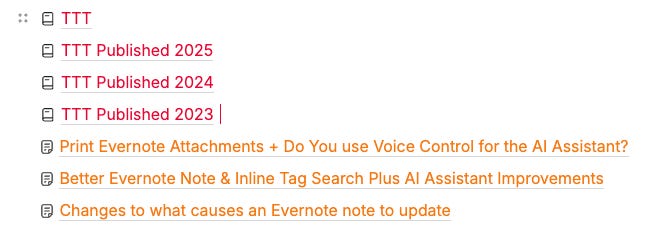
The choice is yours how to format internal links.
Let me know in the comments if you’ll be using this and what system you use.
Preview markdown files complete with formatting
As you know we can drag files into Evernote and some of them create previews. I’m thinking PDFs, images, text files and CSVs.
One more has been added to the list. We can now preview markdown files complete with the formatting and it looks a bit like this.
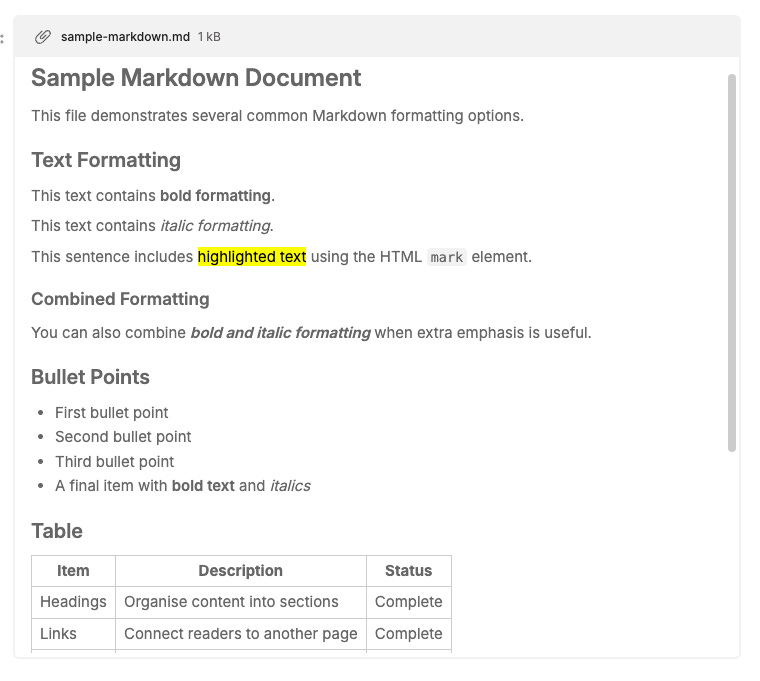
Evernote already handles markdown fairly well. You can copy and paste markdown code into Evernote and it formats automatically in the note. You can also use the import function in settings to import many markdown files and have them arrive as fully formatted new notes.
This is something new and this is how I tested it.
I created an .md file with the following text and when I drag it into my note it displays fully formatted in the preview pane in Evernote.
Remember, you need to have the view set as preview to see this.
# Sample Markdown Document

This file demonstrates several common Markdown formatting options.

## Text Formatting

This text contains **bold formatting**.

This text contains *italic formatting*.

This sentence includes <mark>highlighted text</mark> using the HTML `mark` element.

### Combined Formatting

You can also combine ***bold and italic formatting*** when extra emphasis is useful.

## Bullet Points

- First bullet point
- Second bullet point
- Third bullet point
- A final item with **bold text** and *italics*

## Table

| Item | Description | Status |
| --- | --- | --- |
| Headings | Organise content into sections | Complete |
| Links | Connect readers to another page | Complete |
| Tables | Present structured information | Complete |

## Links

Visit the [Markdown Guide](https://www.markdownguide.org/) to learn more about Markdown.

## Quote

> Good writing becomes easier to navigate when structure and formatting are used thoughtfully.

## Closing Note

Markdown is useful for notes, documentation, articles and project instructions.
If you want to test it out, copy and paste this code into a blank text document and save it as a .md file then drag it into Evernote.
It works well and renders tables, highlights and links just fine.
Why would this be useful?
A lot of folk, mainly technical people, use markdown files for documentation, software release notes and lots of other things.
They can now store these files fully rendered in Evernote which makes the markdown code much easier to read, especially with tables.
Will you use this? Let me know in the comments.
You can create a new note from the Evernote task bar icon
Something small and new.
If you right click the little elephant icon in the task bar of Mac’s and PCs you can create a new note.

When you click it Evernote opens and a new note is created in the open notebook.
If Evernote is open in the tasks or home window, or not open in a notebook then the note is created in your default notebook.
Useful? Let me know in the comments.
The AI Assistant shows you the context it works with
I’m not sure if I’ve mentioned this, apologies If I have, but it is useful.
This feature came along a couple of weeks ago and if you open the AI Assistant, there’s a little banner that tells you what context the AI Assistant is working with.

This means it’s working with the entire note context. You can see the note icon and the name of the note at the top of the AI Assistant.
If you select some text, it tells you that is the context its working with.

I’ve found this a useful little indicator.
That’s it for this week. Don’t forget to share your tips and ask questions in the Taming the Trunk chat available for free and paid subscribers.
Have a great weekend
All the best
Jon