


A huge thank you to all paid subscribers and many thanks also to those who bought me a coffee. Taming the Trunk is 100% reader supported, no ads or commission links and your support is really appreciated.
Newsletter housekeeping: The latest version for PC & Mac is 11.43.4. You can grab it from the download page. Latest mobile version is 11.43.4.
Apologies if this ends up as another long one, it may get a bit nerdy!
By now everyone should have the new tagging view in their Evernote desktop and mobile apps. You can read my deep dive here.
The big new thing is coloured tags, which has got me thinking and experimenting quite a bit over the last couple of weeks around colour coded tagging systems.
What I want to do in this article is share a few ideas. You don’t have to use them verbatim, you can modify and change them however you want. One of the great things about tagging in Evernote is that its personal to how you think and work.
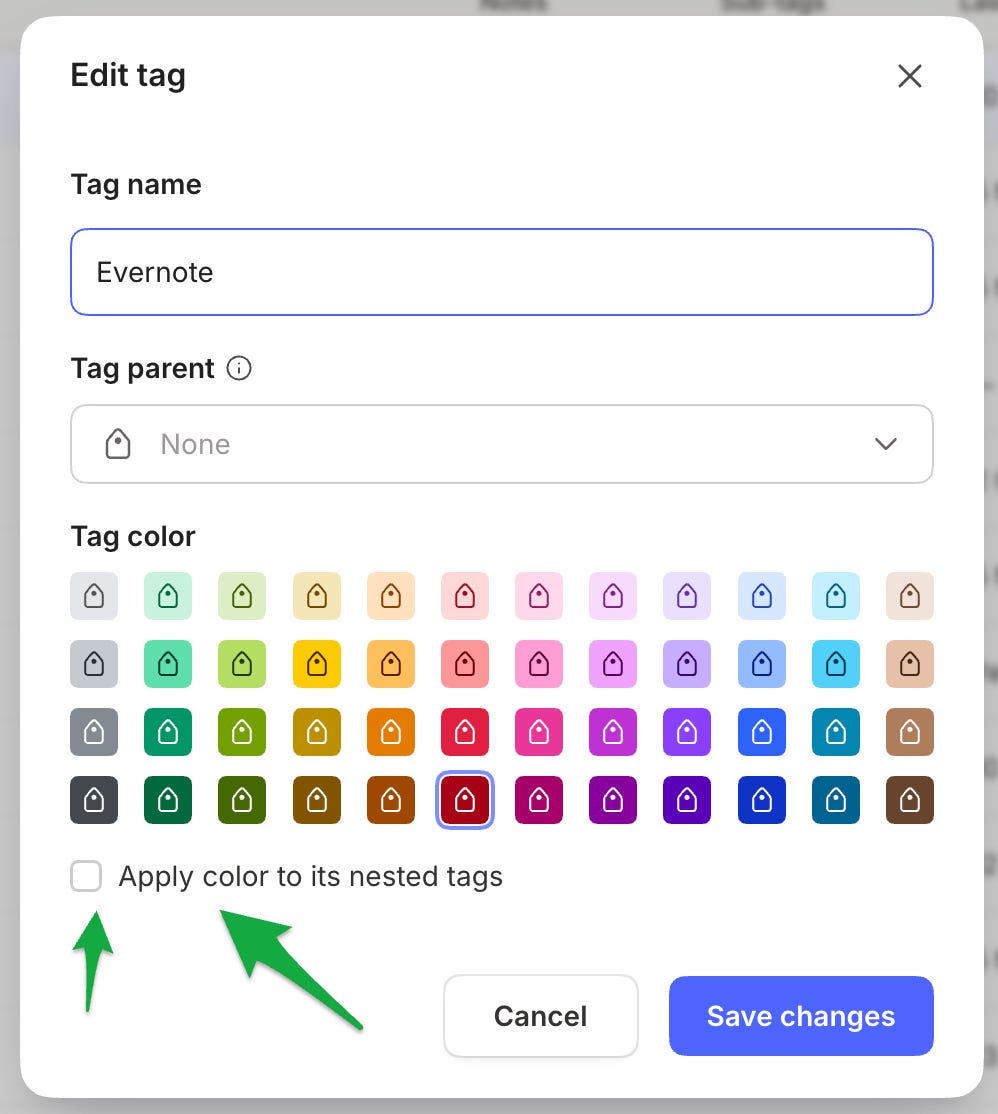
It’s easy to change the colour of tags. You just right click a tag and edit the colour.
You can also edit a parent tag, change the colour and apply it to all its children.
A quick tip. If you want to change the colour of all your child tags but keep the parent tag a different colour, then edit the parent, change the colour of the parent and apply it to all sub tags and then re-edit the parent tag to another colour. Quicker than multi-selecting or doing it one by one.
Let’s dig into some ways you can use the colours for organisation going from simple to complicated.
Waiting for someone or something
We all have to wait. Our notes sometimes have to wait for someone to do something before you update them, so tag them.
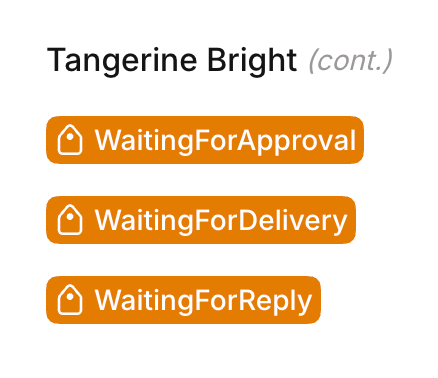
Tangerine Bright for WaitingForReply, WaitingForDelivery and WaitingForApproval
When you click WaitingForReply you’ll see a list of all notes that you’re waiting for.
A tag for Decisions Needed
How about a tag for DecisionNeeded which you can stick on notes where you know you need to make a decision about something.
Give it a darker colour so it will stand out.
A tag for meeting preparation and follow-up
When you build this tagging in with Evernote’s calendar, meeting recorder, transcriber and summariser, you start to create a powerful little meeting tool
Maybe a blue for PrepareNextMeeting, an orange for MeetingFollowUp .
Tags for travel
This is useful if you’re planning travel over multiple days.
One colour each for Transport, Accommodation and Activities.
You could have a parent tag called Travel and keep the related tags as sub-tags.
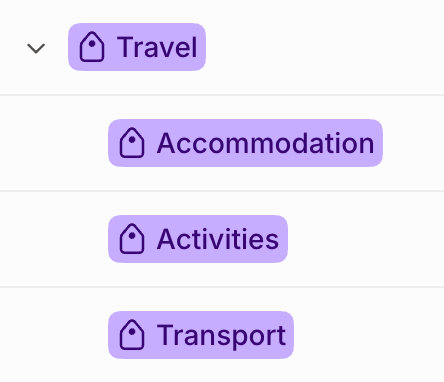
When you click on Accommodation you’ll see all the hotel bookings appear. You could even create tags for specific trips and remove the tags from the notes once you’re back home.
Tags for family members
I like this idea. You may have notes spread out over a lot of notebooks to do with different members of your family, tag them.
You could pick a different colour for Harry, Larry and Sally.
Click on Sally and you’ll see all the notes that relate to her.
Tags for food and recipes
You could tag by occasion, style, or ingredient. Create a parent tag called food and add some sub-tags.
You could use QuickDinner, BatchCooking, PackedLunch and Entertaining or Chicken, Rice and Vegetarian.
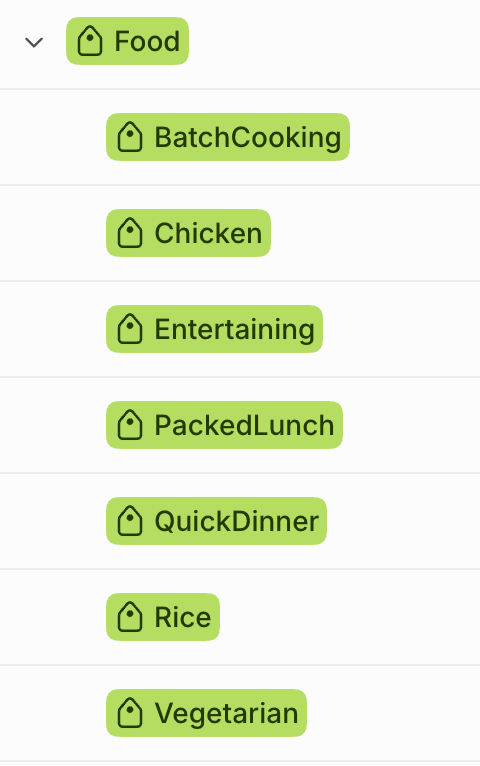
Click on PackedLunch and you see all the recipes, filter by PackedLunch and Chicken and you’ll get all the chicken lunch recipes.
How about some project status tags?
It could be a work or home project and you can change the tag names to relate to your notes, how about:
Grey:
Status-IdeaBlue:
Status-ReadyYellow:
Status-DoingOrange:
Status-WaitingRed:
Status-BlockedGreen:
Status-Complete
A new kitchen quote could carry Project-Kitchen and Status-Waiting. Change the status tag when the quote becomes agreed or gets to Status-Waiting .
A system where colour identifies the kind of tag
This is quite flexible. Instead of giving every client or project its own colour, the colour tells you which question a tag answers.
Blue | Who?
Person-Alex,Client-AcornPurple | What project?
Project-Website,Project-KitchenOrange | What action?
Action-Call,Action-ReviewGreen | What material?
Type-Contract,Type-MeetingNotesGrey | What period?
Year-2026,Quarter-Q4
A note might have Client-Acorn, Project-Website, Action-Review and Type-Contract. The colours would identify each tag’s role, the names give you the extra detail.
Using Evernote tags when drafting or writing a book
A lot of folk use Evernote to research or draft their books and tags can play a really important part.
You can create tags for things like characters or locations and give them colours so, for example, all characters are yellow.
Yellow:
Character-MarthaYellow:
Character-EllisYellow:
Character-RuthBlue:
Location-LighthouseBlue:
Location-HarbourBlue:
Location-Town
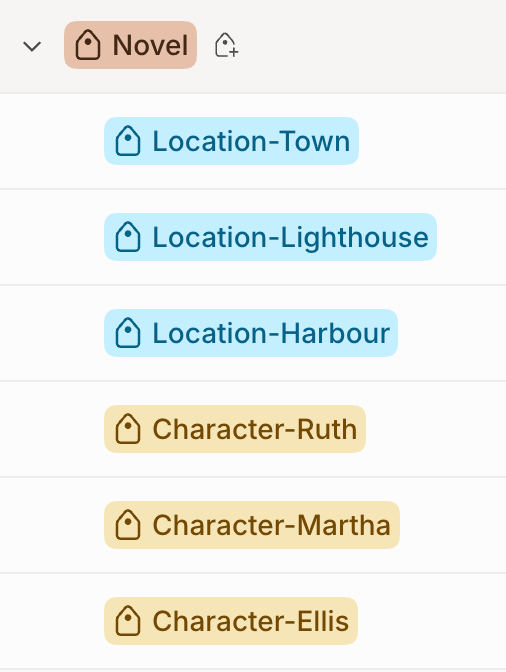
When you’re writing your book, you may have each chapter as a different note and use multiple tags on that note like this.

When you click on Character-Ellis you see all the chapters they appear in.
If you click on Location-Harbour you see all the chapters that take place in the harbour.
You get the idea.
You can build on this and create a system to match the book you’re writing.
A tagging system for bills and receipts
Your receipts and bills have always been ripe for tags.
Pretty much everyone I talk to send their bills to Evernote for safe keeping and a sensible tagging system can help organise them properly.
Here’s a few ideas:
Purple | Supplier:
Supplier-BritishGas,Supplier-LocalGarage,Supplier-BTBlue | Category:
Category-Gas,Category-Car,Category-BroadbandGrey | Year:
Year-2026,Year-2027Red | Payment needed:
Status-ToPayOrange | Something needs resolving:
Status-QueryGreen | Payment recorded:
Status-Paid
A note with purple, blue, grey and red tags would tell you that it has been classified and still needs paying.
Here’s a couple of examples:
2026-11-04 British Gas: November gas bill
Supplier-BritishGasCategory-GasYear-2026Status-ToPay
2026-11-08 Local Garage: car service
Supplier-LocalGarageCategory-CarYear-2026Status-Paid
The tags on the car service note would look like this.

Clicking on the Supplier-LocalGarage will give you all the bills from that garage.
Filtering by Supplier-LocalGarage and Year-2026 will show you the bills from that garage for this year.
So that’s what I’ve come up with. Let me know how you’re managing things.
If you want to learn more about the new tagging features as a whole, including how to find notes filtered by multiple tags then check out the deep dive from a couple of weeks ago.
One little warning. Tags can get out of control. If you have a lot of tags you need to be a disciplined organiser, I’m not, so I don’t use too many.
Comments are open. Are you enjoying coloured tags?
Have a great weekend
All the best
Jon
Thanks for this, Jon. Not sure that I've really seen much about the strategy of using tags in Evernote. This made interesting reading. I agree with your warning - if you're not careful you could find yourself with a maze of tags. Think I'll review your suggested uses and decide what the best use I can make of a select strategy which doesn't involve an abundance of tags.