

A huge thank you to Peter and Lillian who became paid subscribers over the last week and many thanks also to those who bought me a coffee. Taming the Trunk is 100% reader supported, no ads or commission links and your support is really appreciated.
Newsletter housekeeping: The latest version for PC & Mac is 11.38.5. You can grab it from the download page. Latest mobile version is 11.38.7.
There’s been a few changes to what constitutes a note update and this is going to please a lot of folk.
Make sure you’re on the latest desktop or mobile versions to see these changes.
When version 10 of Evernote came out back in the Summer of 2020 there were a few issues around what actions caused the ‘updated date’ to change.
This is important to a lot of folk including me, as you can sort your notes by when they were last updated which is my default.
Back in the day even viewing a note used to change the updated date, adding tags changed it, clicking on a note changed it. The whole thing was a mess.
If you want to see the updated date of a note just head to Note Info behind the three-dot menu of the note or use the shortcut CTRL+SHIFT+I or CMD+SHIFT+I.
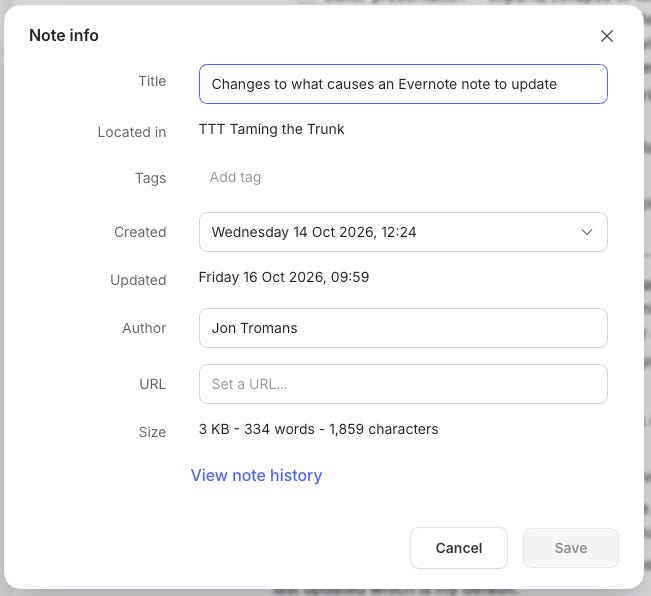
Over time a few of the irritating date updates were fixed but there was never a definitive list of what caused a note to update.
Over the last couple of years there’s been quite a lot of chatter within the Evernote Certified Expert community about this and the Evernote team created a list of what they thought could constitute a note update. There was lots of debate and the Evernote folk asked opinions of the main user base as well to help make the final decision.
There’s now been an update to change things.
What causes the Evernote updated date to change?
It’s basically an edit to the content of the note.
If you add an image, PDF, change some text, format something, all these types of changes mean the note’s updated date will change.
As a rule of thumb, anything that changes in the note editor itself will change the update date.
I think this pretty much makes sense. Let me know what you think in the comments.
What does not cause Evernote to change the updated date?
Quite a lot. Here’s the list.
Expanding or collapsing toggles and headers
Showing or hiding elements like calendar events and transcripts
Showing or hiding image captions
Changing table column/row widths
Changing an attachment, image or link between preview, title or mention views
Changing a mermaid diagram between code, split and preview views
Setting or changing reminders
Marking or unmarking a note as a template
Marking a task as completed or editing its reminders or due dates
Changing any note share settings or a collaborator’s access
Publishing or unpublishing a note using the share system
Deleting notes or restoring from the trash
Adding, editing, replying, resolving or deleting comments
Adding or removing tags
Moving notes to another notebook
Undoing or redoing any of the above
So, as an example, adding or removing a task from a note will change the updated date but completing, changing due dates for the task or adding a description won’t.
The list above isn’t exhaustive as I haven’t tested every change you can make. I’ve not looked into changes in spaces but it gives you an idea of the kind of actions that change the updated date.
The choices can be a bit subjective and different folk will have different ideas on what constitutes a note update but I think the main benefit of this is consistency. We all know how our notes will behave going forward.
What do you think of the changes? Let me know in the comments.
Evernote annotations get a colour picker
Another little change this week is the introduction of a colour picker tool to the annotation feature.
This works when you select the colour icon in the annotation bar.

The bottom right hand colour-wheel is the picker and when you click this you see the picker.
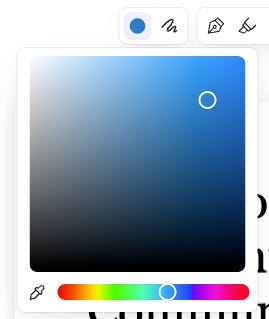
You can drag the little circles around to change the colour or use the eye dropper to select a colour from within the PDF or image you’re annotating.
This doesn’t work for the highlighter, just the pen or shapes tools.
I’m hoping they’ll bring this colour picker to the other colour selectors like fonts and maybe tags.
Let me know what you think in the comments.
And finally...
A new official video is out showing off the new annotation and PDF editing capabilities that we talked about a few weeks ago. Enjoy.
And Finally, finally...
Substack have just introduced Chat Groups so I can now split the paid subscriber chat from the main chat which will save folks having to scroll up and down forever!
If you’re a paid subscriber you can access the chat here. Feel free to post questions, screenshots, highlight issues etc.
If you’re a free subscriber then you can access the chat here. Again, feel free to ask questions etc.
I’m glad they’ve introduced this as it will help make the chat a bit easier to access.
Something else I would like to see is different topics within the individual chats... maybe for the future.
Have a great weekend
All the best
Jon