


A huge thank you to all paid subscribers and many thanks also to those who bought me a coffee. Taming the Trunk is 100% reader supported, no ads or commission links and your support is really appreciated.
Newsletter housekeeping: The latest version for PC & Mac is 10.167.4. You can grab it from the download page. Latest mobile version is 10.167.1.
Happy New Year.
I thought I’d kick off January with a bit of an explainer article around Evernote search as things have changed quite a bit over the last 6 months and I’m seeing some confusion online around the new functionality.
I thinkstart by making a few statements and then get into the weeds of it all.
Evernote search is now Keyword AND Semantic search. You can turn off Semantic search in the settings.
The AI Search and Semantic search does not work well with basic keyword searches. It’s not meant for this. AI Search is for answering direct questions and Semantic Search is for finding related notes, like search for invoice for see sematic results for bill or receipt.
Advanced search and sorting results still works but you must hit enter after typing the search term.
I’m seeing quite a lot of confusion online around AI and Semantic search, where folks are saying its useless and not working when they are using a keyword search term of one or two words. This is not what its for.
Lets explain all of this and get into the weeds of Evernote search in 2026.
The search box is a button
You can’t type in the search box in the sidebar. It’s a button. Same goes for the search box at the top of the note list.
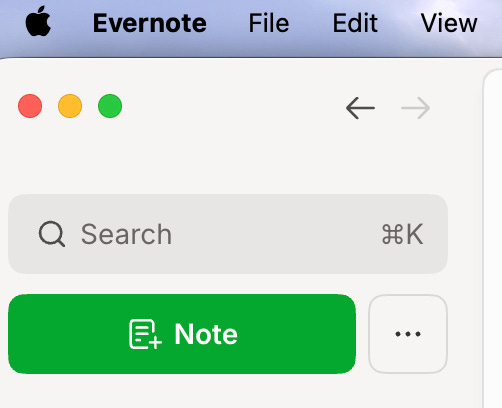
When things were being redesigned Evernote tested an actual search button but folks didn’t seem to like it. Most folk clicked on the box more than a button to activate search. This is why its a box.
Starting a search
Just click the box, a pop up windows appears and at the top you can type in your search terms.
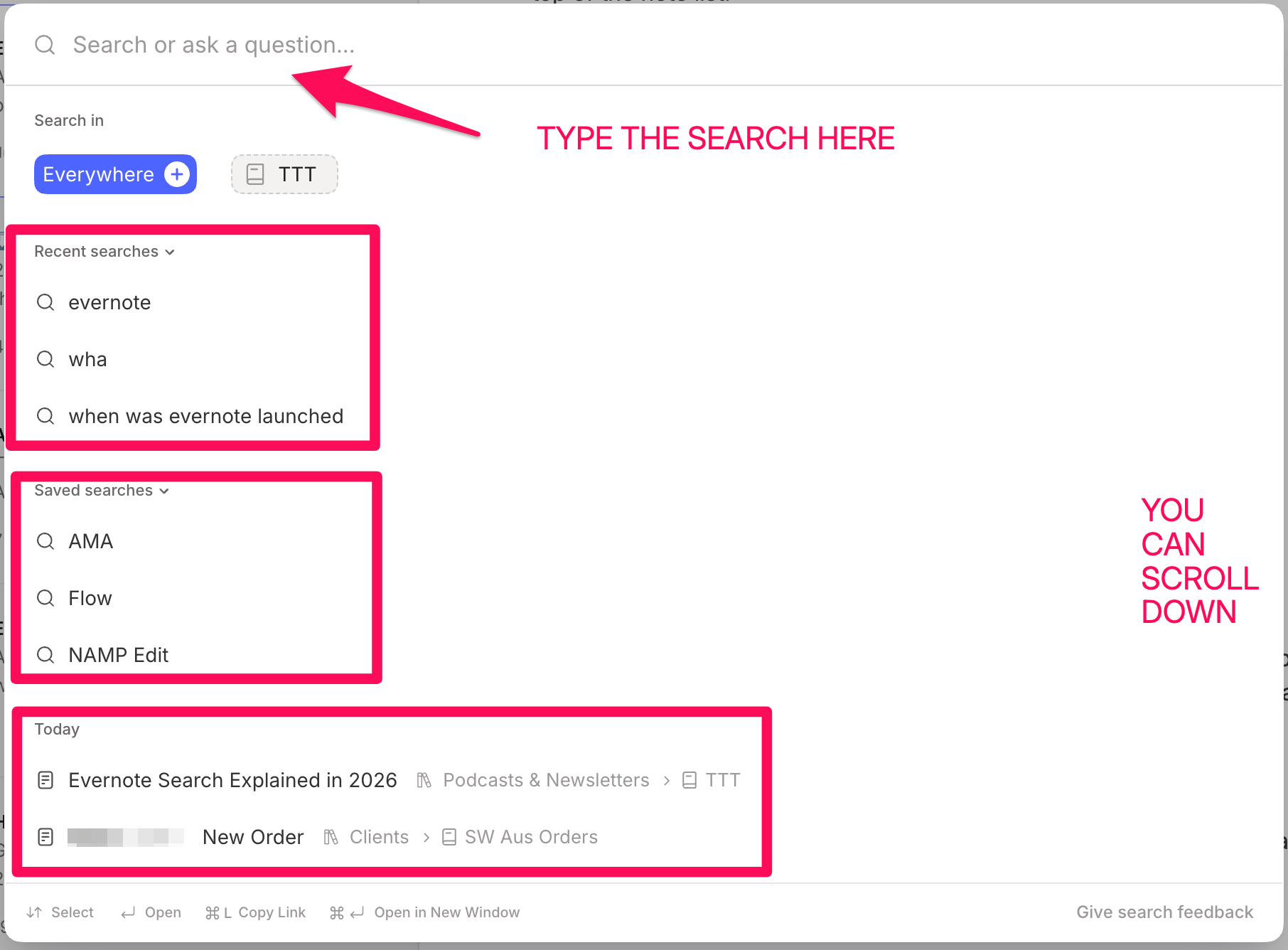
This is what you see before you type a search term and this box is very useful.
Search Everywhere (default) or just in the notebook you’re in
See your recent searches. You can click on the
‘v’and see more recent searches.See your saved searches and click
‘v’to see more of them.You can also see your recently updated notes. Scroll down to see many more recent notes.
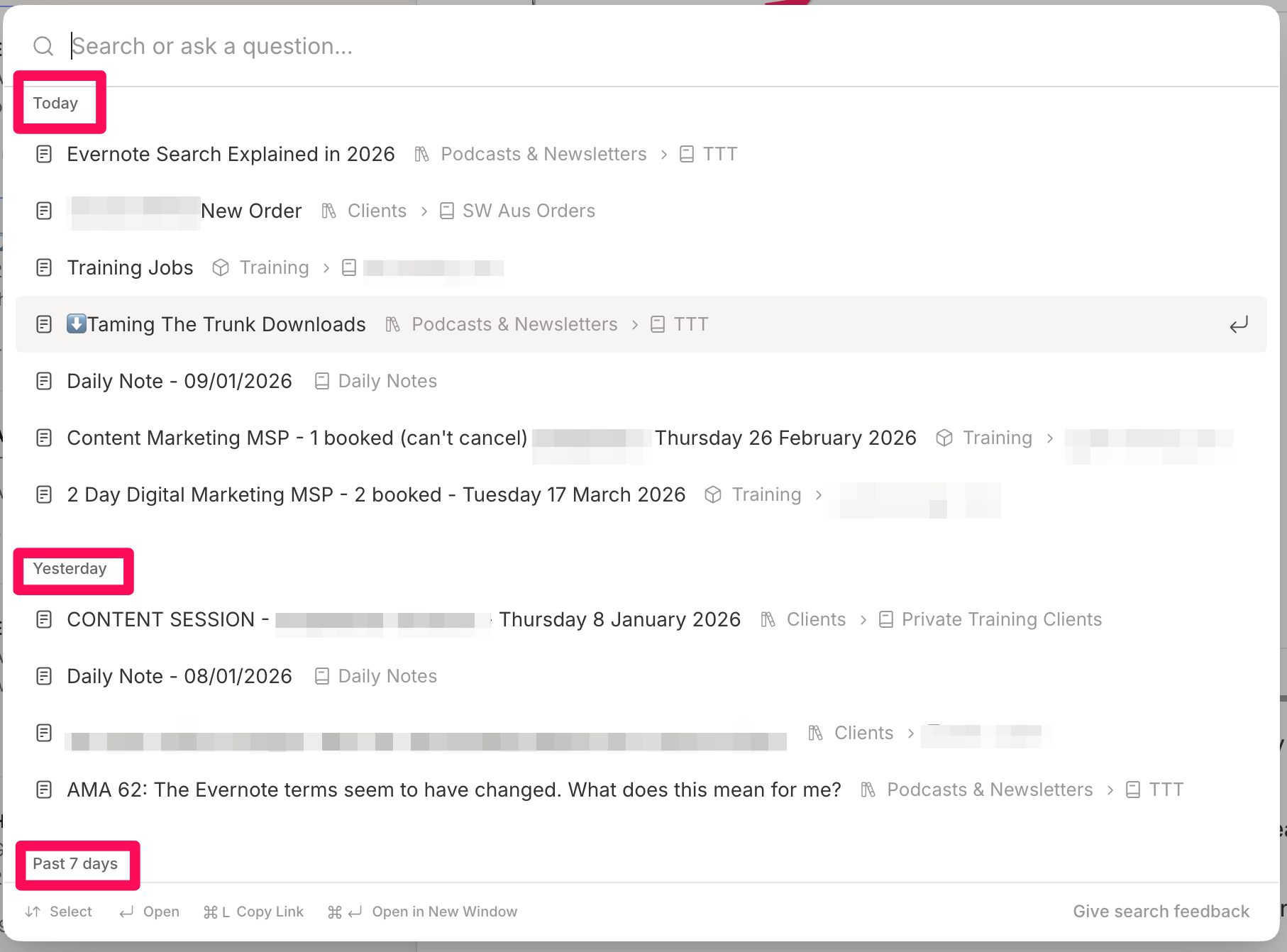
I find this box really useful for navigating to various recent notes.
Performing a search
To perform a search just type your search term into the top of the pop up.
Note: AI search may not show for just keyword searches as this is not what its meant for.
You should see something like this.
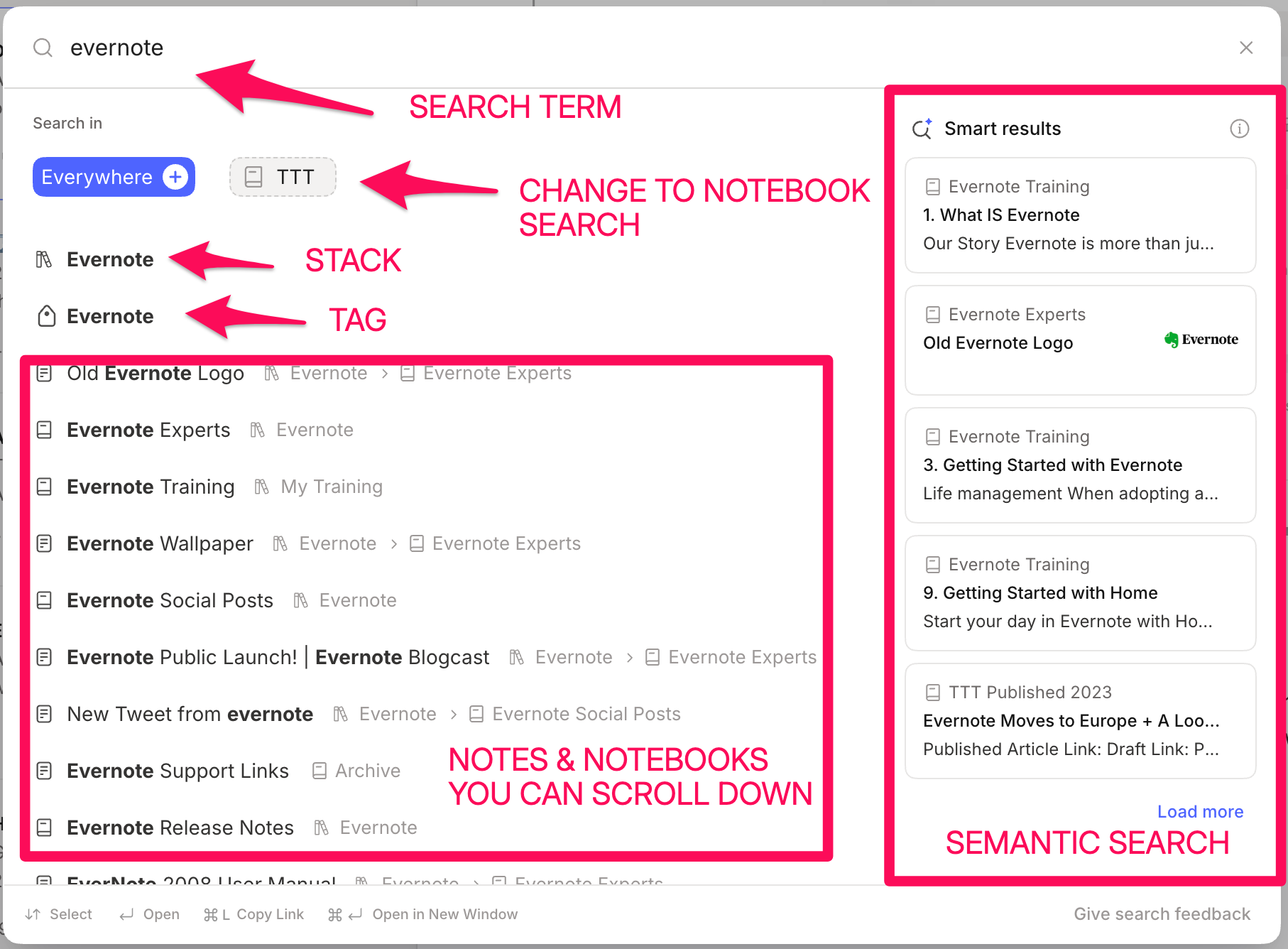
I’ve performed a simple search for ‘evernote’ and this is what I see.
At the top, you can change from search everywhere to just the notebook you’re in.
Next, the results are shown by relevance, which prioritises things like the search term in the title of the note/notebook/stack/space and when you recently updated something. The order of these results will change for different searches. The idea is to get you to what you want quickly.
On the right are the semantic or related search results. I did a deep dive on Semantic Search here which explains how it works.
Now let’s change the search term to a question, which should activate the AI Search.
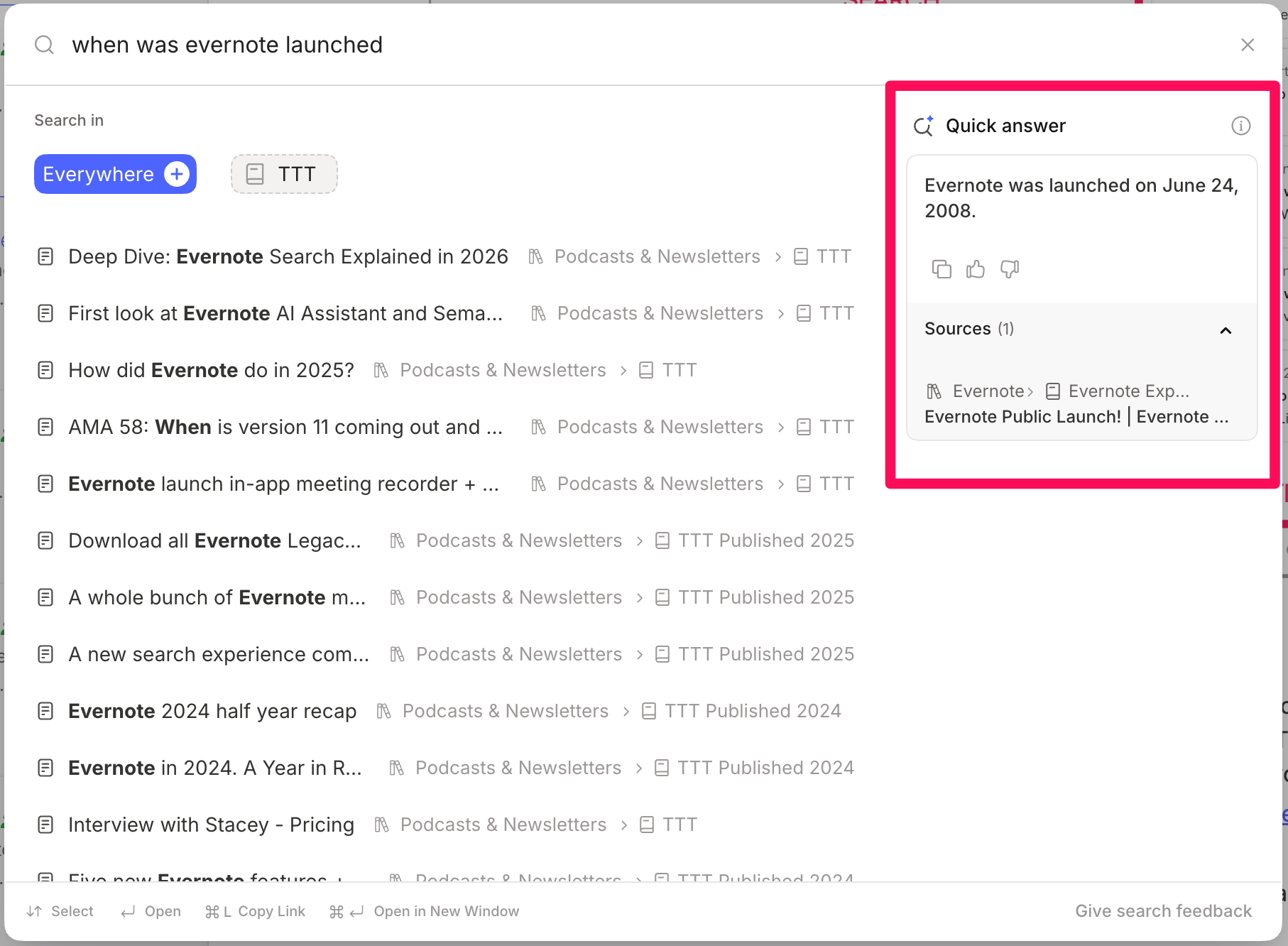
You can see the answer to the question on the right hand side.
Here’s the answer to ‘whats my bike insurance policy number’.
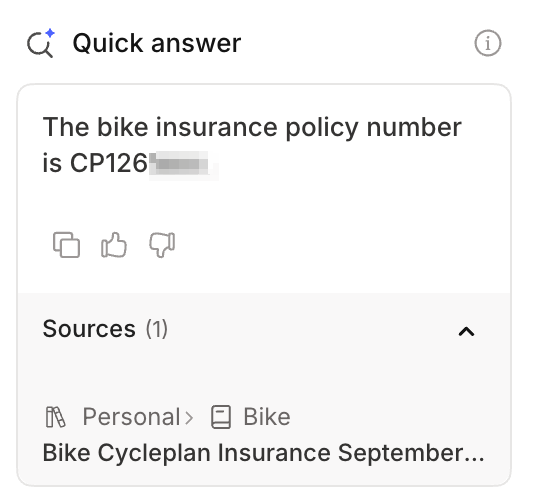
These AI Quick Answers will only show if you are asking questions or searching for very specific things. You won’t see these answers for a lot of basic keyword searches.
Hit enter to sort and filter your results
For a lot of searches, the pop up box will work just fine. You’ll see the result in front of you and be able to click on something and go to a note, notebook or tag.
You can still sort and filter your results and see them in a note list the same as old Evernote search, just hit enter after typing in the search.
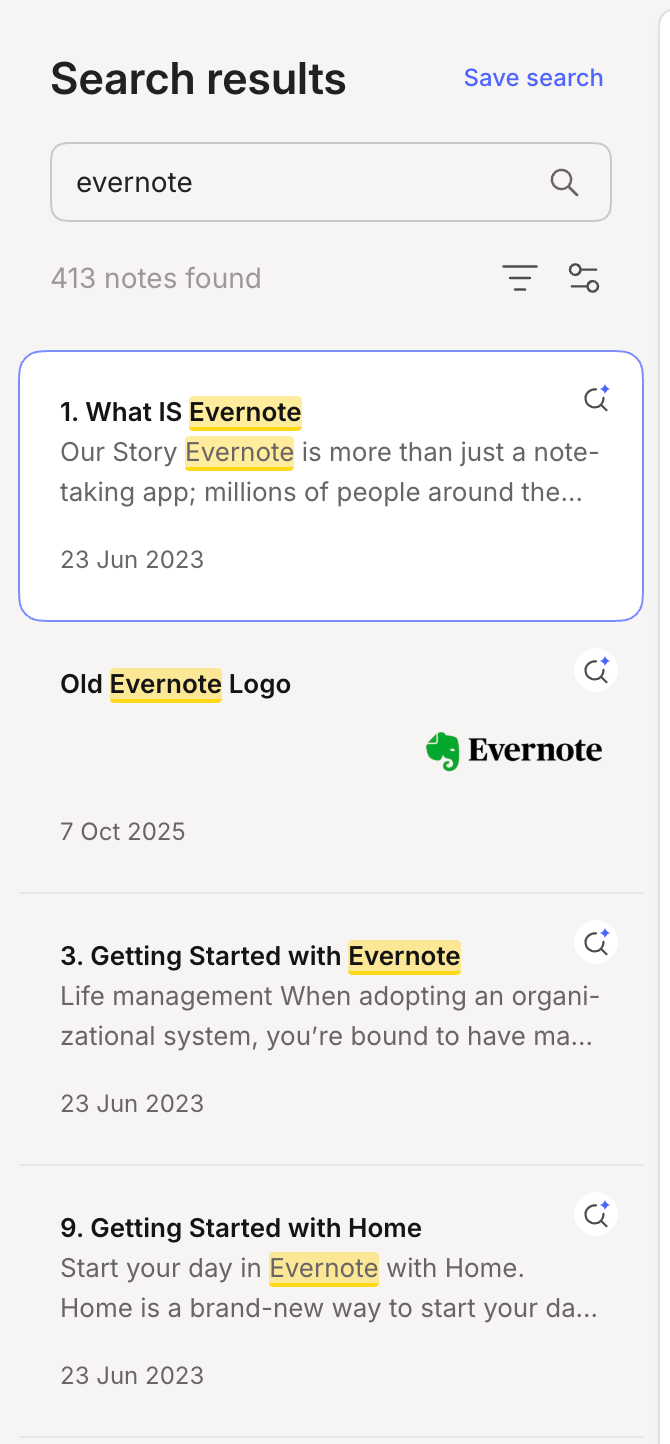
The search box at the top is a button, you can’t type in it. When you click it, you’ll reopen the pop up search box.
If you want to filter these results, then use the icon at the top of the results list.
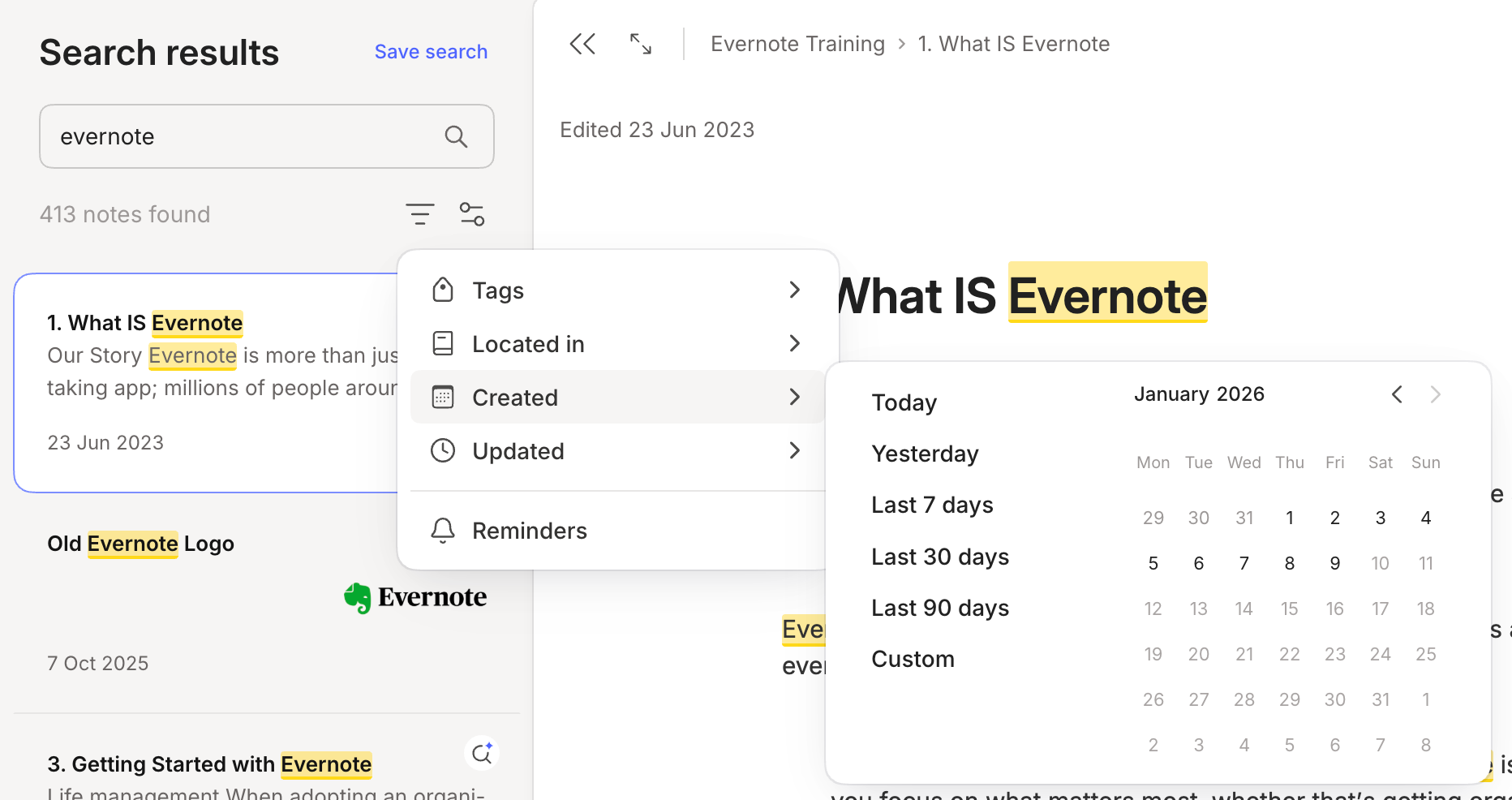
You can filter notes with certain tags or in specific notebooks, spaces or stacks.
You can also filter by created and updated dates and if the note has a reminder.
There’s also an icon at the top of the list for sorting.
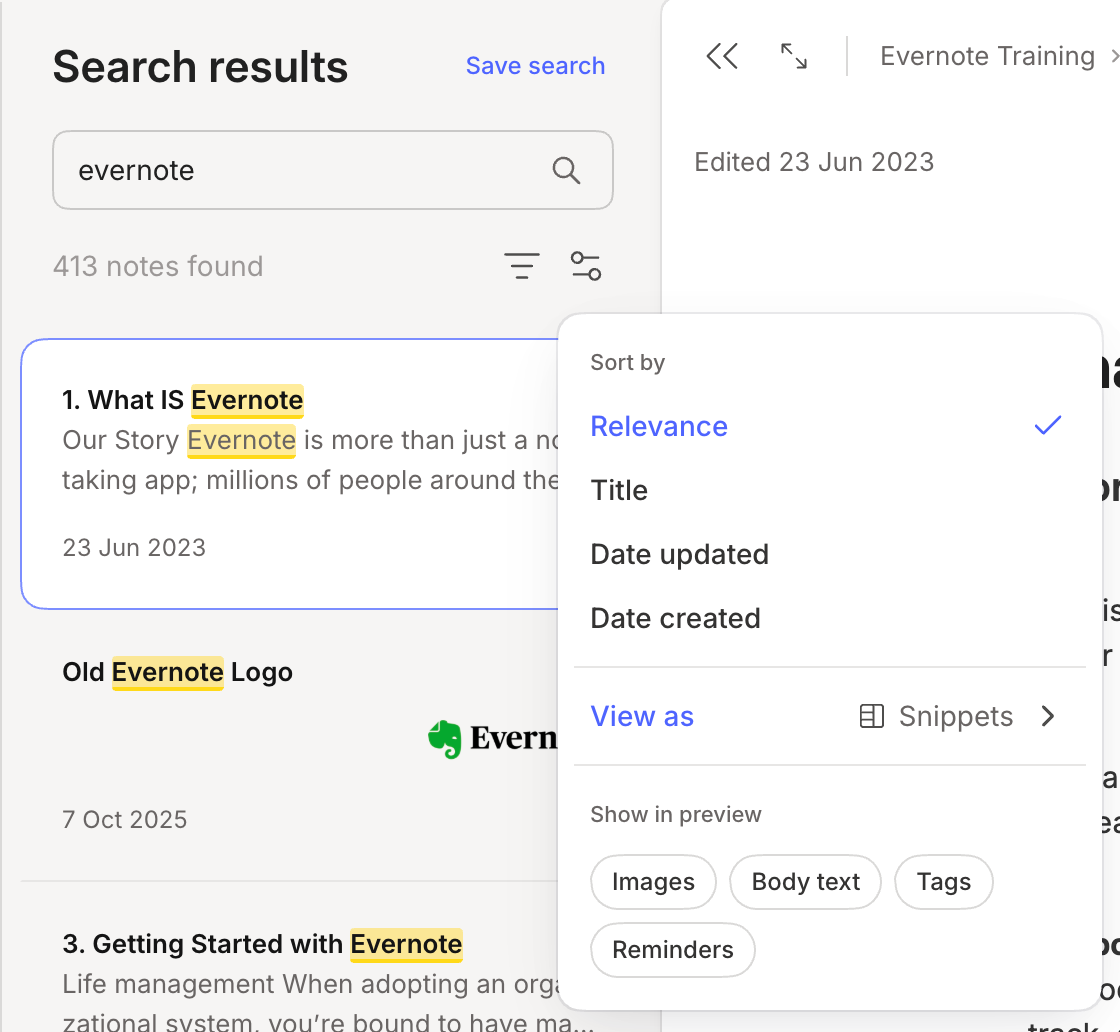
Sorting by relevance is the default and this means the priority is the search terms in the title of the note and also when the note was last updated.
You can also sort by Title A-Z or Z-A.
You can sort by created and updated dates and again swap the order.
You can also change the view of the search results, see them in card, snippet and side/top list view.
Lastly you can remove things like image thumbnails, tags, body text and reminer icons from the display of the search results.
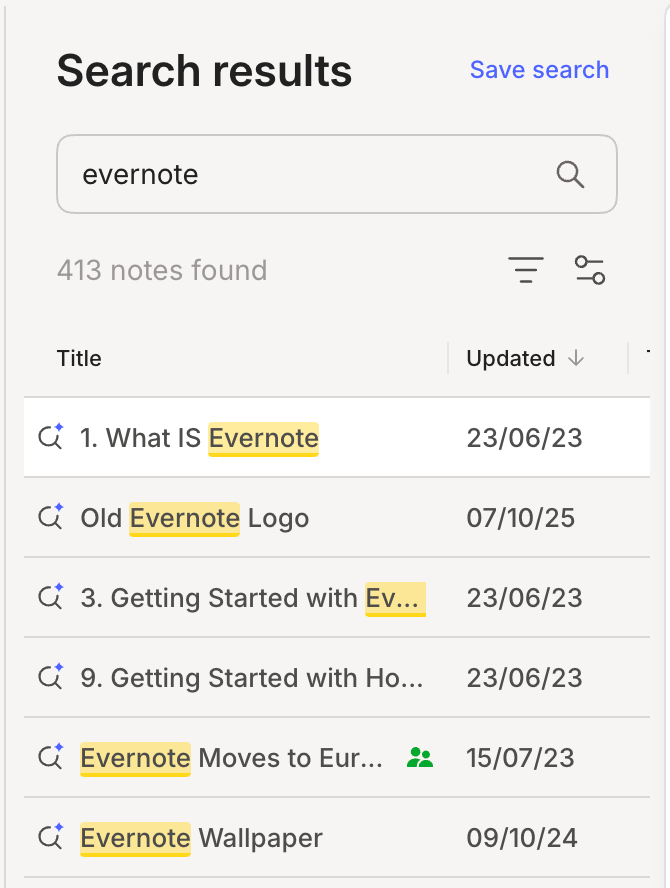
These results are in side list. The magnifying glass on the left indicates if the search is pulled in from semantic search and this tends to show more when sorted by relevence.
You can still perform advanced searches
Advanced search still works but it’s best to hit enter after you’ve typed in the search term. Don’t expect the results to show in the pop up box exactly how you want them.
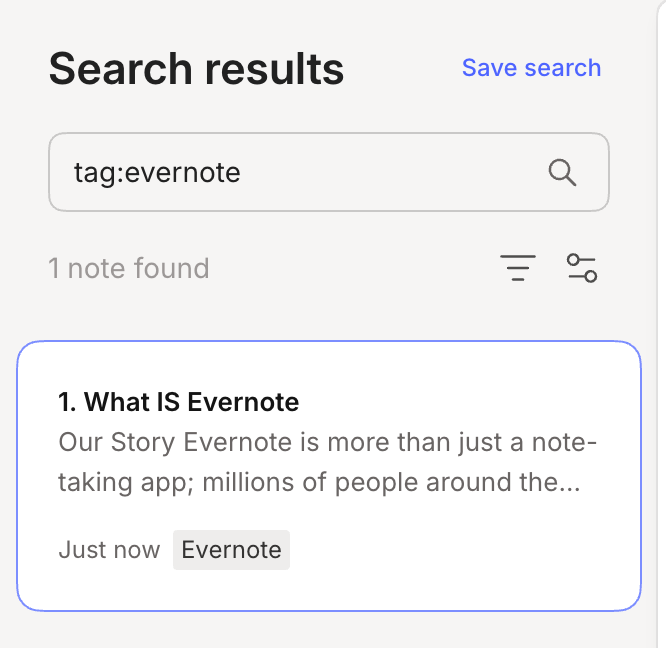
Here’s a simple tag search. I entered ‘tag:evernote’.
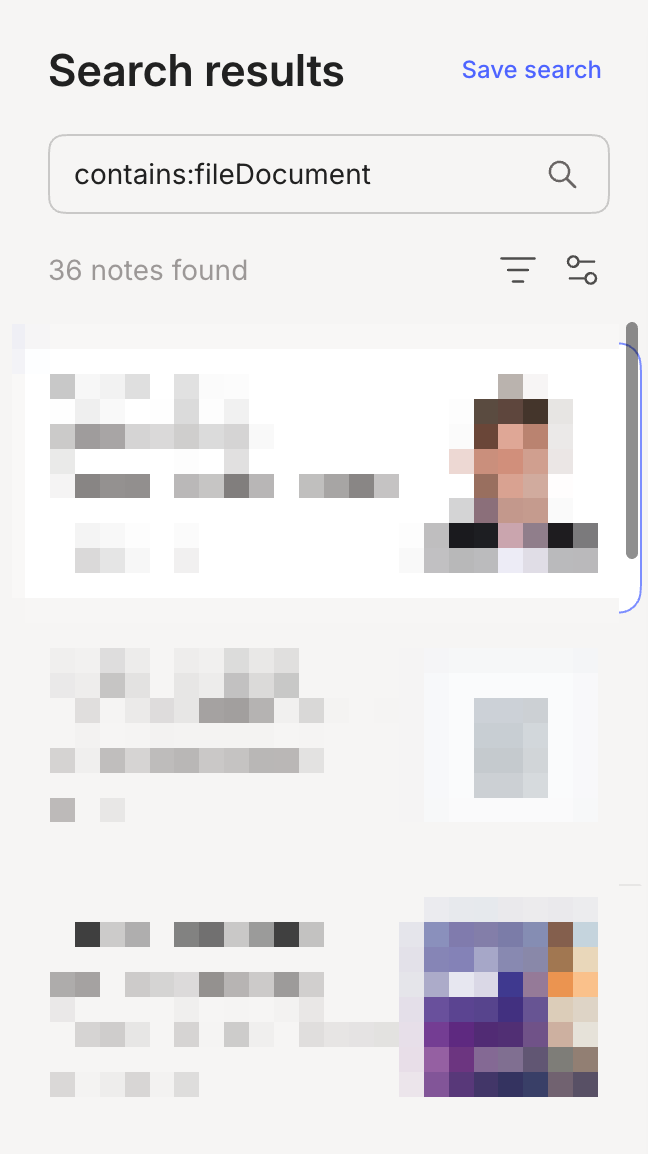
This advanced search looks for all my notes with Word documents. I searched for ‘contains:fileDocument’.
Here’s Evernote’s documentation for advanced searches. You can do a lot with it, but remember to hit enter after typing in the search terms.
Here’s an article I wrote sometime ago about finding specific files in notes.
Conclusion
Search does work the same as it did before, but it’s also different.
Don’t expect sensible AI results for simple keyword searches.
To get the most out of AI search, make sure you ask a question or ask for something specific.
You can still do advanced searches, but hit enter after typing them.
Hopefully this will help folk understand how Evernote search has evolved over the last few months. I find it more powerful than it was before mainly because of the semantic and AI answers. I don’t have to fiddle around iterating searches or messing with tag structures to find exactly what I want. I just ask Evernote.
Let me know in the comments what you think about the search changes? Are you finding search more useful?
Have a great weekend
All the best
Jon
Evernote Search has frustrated me for years. Although a paid subscriber, I still don't have the semantic search, the "relevancy" algo is very poor, the AI search is really just pre-beta. When you have over 10,000 notes, search just plain doesn't provide value. I've been with Evernote since the VERY beginning and while Bending Spoons has created some excellent new value worthy of the annual price (plus I'm stuck after so many years), the search is unfortunately not what it should be. Thanks for the explaination.
Hi JON.
Much has been mentioned about the new features of EN v.11, specifically regarding AI. In addition to everything mentioned by the certified experts, what other things would version 11 bring or everything it brings has already been treated in some way?