


A huge thank you to all paid subscribers and many thanks to David who bought me a coffee. Taming the Trunk is 100% reader supported, no ads or commission links and your support is really appreciated.
Newsletter housekeeping: The latest version for PC & Mac is 11.15.2. You can grab it from the download page. Latest mobile version is 11.15.2.
If last week’s new stuff wasn’t enough, here’s another fairly big new feature that quite a few folk have been asking for.
Mermaid has arrived in Evernote.
Not the sea sirens but the chart syntax that makes it sort of easy to create different kinds of charts.
You write text and you get a chart.
If you want to learn the Mermaid code, then head over here.
If that looks little like hard work, don’t worry, the Evernote AI Assistant knows how to write the code and we’ll look at this later.
Simply put, we can now create charts in our Evernote notes. Lots of different charts like this:
Flowcharts
Sequence diagrams
Class diagrams
Gantt charts
Pie charts
Mind-maps
XY charts
Venn diagrams
And quite a few more charts. Check this page under diagram syntax.
How to create a Mermaid chart in Evernote
Head over to the Insert menu at the top left of the note or use a slash (/) command for Mermaid.
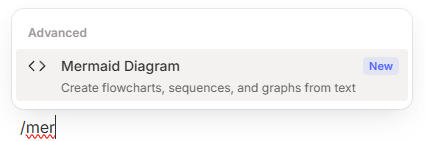
A box appears in Evernote with a very simple chart already inserted.
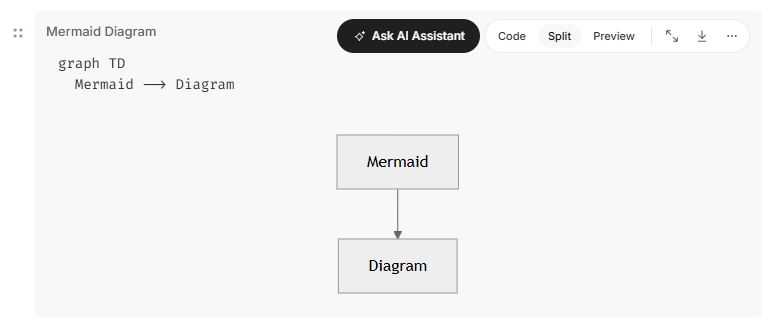
There are some different views that you can select at the top right of the chart block.
Code lets you just see the code that creates the chart.
Split is the default and lets you see the code and the chart at the same time.
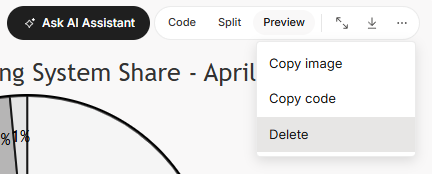
Preview lets you see just the chart, no code.
When you’re in Preview mode, you can click the little expand icon at the top right of the Mermaid block and make the chart full screen.
The little down icon at the top right will download the chart for you as a PNG image file.
The three-dot menu gives you the following options.
Here’s what a mind-map looks like.
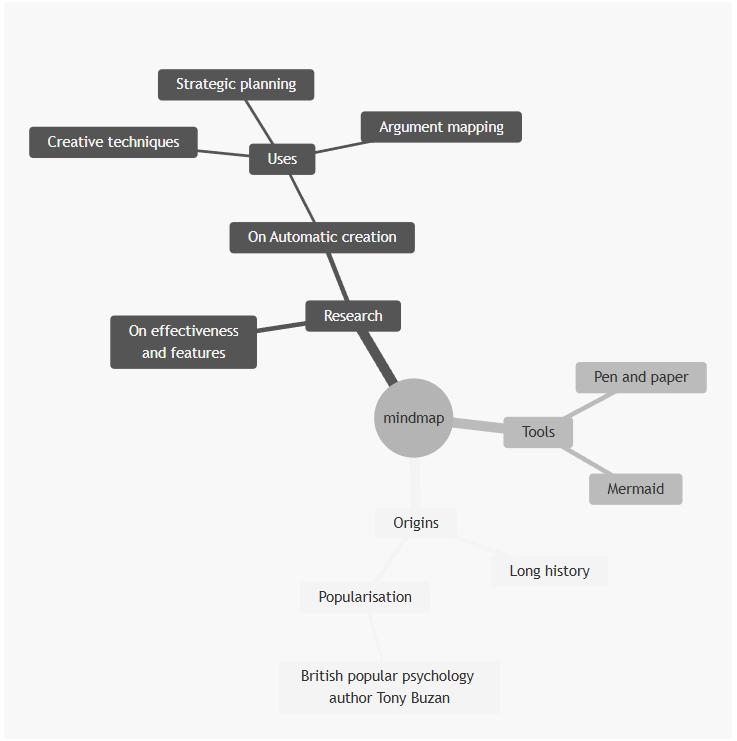
This is the code that creates it.
mindmap
  root((mindmap))
    Origins
      Long history
      ::icon(fa fa-book)
      Popularisation
        British popular psychology author Tony Buzan
    Research
      On effectiveness<br/>and features
      On Automatic creation
        Uses
            Creative techniques
            Strategic planning
            Argument mapping
    Tools
      Pen and paper
      Mermaid
This is what an XY chart looks like.
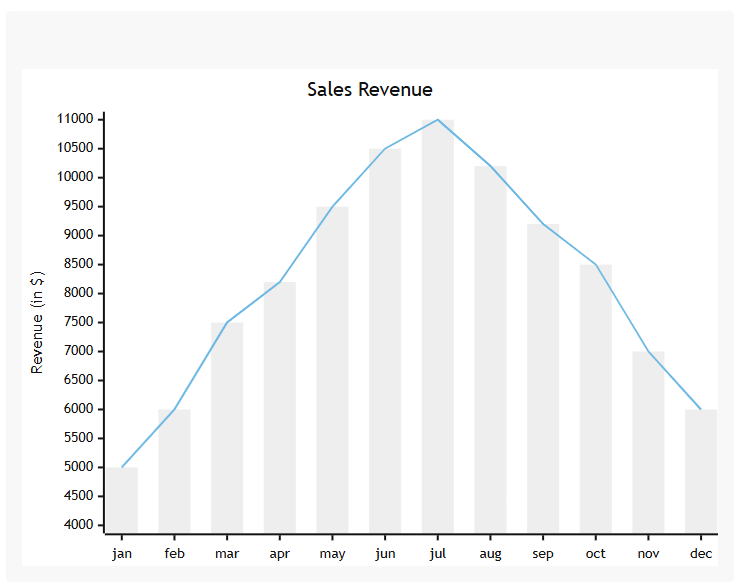
This is the code that creates it.
xychart
    title "Sales Revenue"
    x-axis [jan, feb, mar, apr, may, jun, jul, aug, sep, oct, nov, dec]
    y-axis "Revenue (in $)" 4000 --> 11000
    bar [5000, 6000, 7500, 8200, 9500, 10500, 11000, 10200, 9200, 8500, 7000, 6000]
    line [5000, 6000, 7500, 8200, 9500, 10500, 11000, 10200, 9200, 8500, 7000, 6000]
Once you get the hang of it, you’ll find it’s pretty powerful and you’ll be able to create all kinds of charts for your notes.
The only issue is that you need to know the code. That’s kind of the stumbling block.
Thankfully, we have our little friend at the bottom right of our notes.
Create Mermaid charts using the Evernote AI Assistant
Our little AI mate knows how to code Mermaid script, so we can just prompt it for the chart we want using natural language.
When you first add a Mermaid chart to your note, you’ll see the AI Assistant button at the top.

Click on this and the assistant will open and be ready for creating your chart.
I used this the other day.
As part of my job, I sometimes have to plan out automated email marketing drip campaigns and I’m embarrassed to say I always create the flow charts in PowerPoint and copy/paste the screen shot.
Not any more. The other day, I used the AI Assistant to make me a chart.
This is the prompt I used:
I need to create a Mermaid flow chart showing how an email marketing drip campaign should be designed.
At the top the Trigger for the campaign is the tag NationalPlan is added to a contact.
The next stage is a tag added called Drip.
The next stage is Introduction Email Sent.
The next stage is Wait For 3 Days.
The next stage is Send Email 2
The Next stage is conditional. If a specific link in Email 2 is clicked then send Confirmation Email. If the link is not clicked then send Reminder Email.
Next stage for the Yes branch is Remove Drip Tag.
Next stage for the No branch is Wait 3 Days.
Final stage for Yes branch is END.
Next stage for No Branch is Send Final Reminder Email.
Next Stage for No branch is Remove Drip Tag.
Final Stage for No branch is END.
The assistant gave me this Mermaid code.
flowchart TD
    A[Trigger: Tag "NationalPlan" added to contact] --> B[Add tag "Drip"]
    B --> C[Introduction Email Sent]
    C --> D[Wait 3 days]
    D --> E[Send Email 2]

    E --> F{Link in Email 2 clicked?}

    F -- Yes --> G[Send Confirmation Email]
    G --> H[Remove "Drip" tag]
    H --> I((END))

    F -- No --> J[Send Reminder Email]
    J --> K[Wait 3 days]
    K --> L[Send Final Reminder Email]
    L --> M[Remove "Drip" tag]
    M --> N((END))
The chart it came up with was perfect. I’ve downloaded it as an image and this is what it looks like.
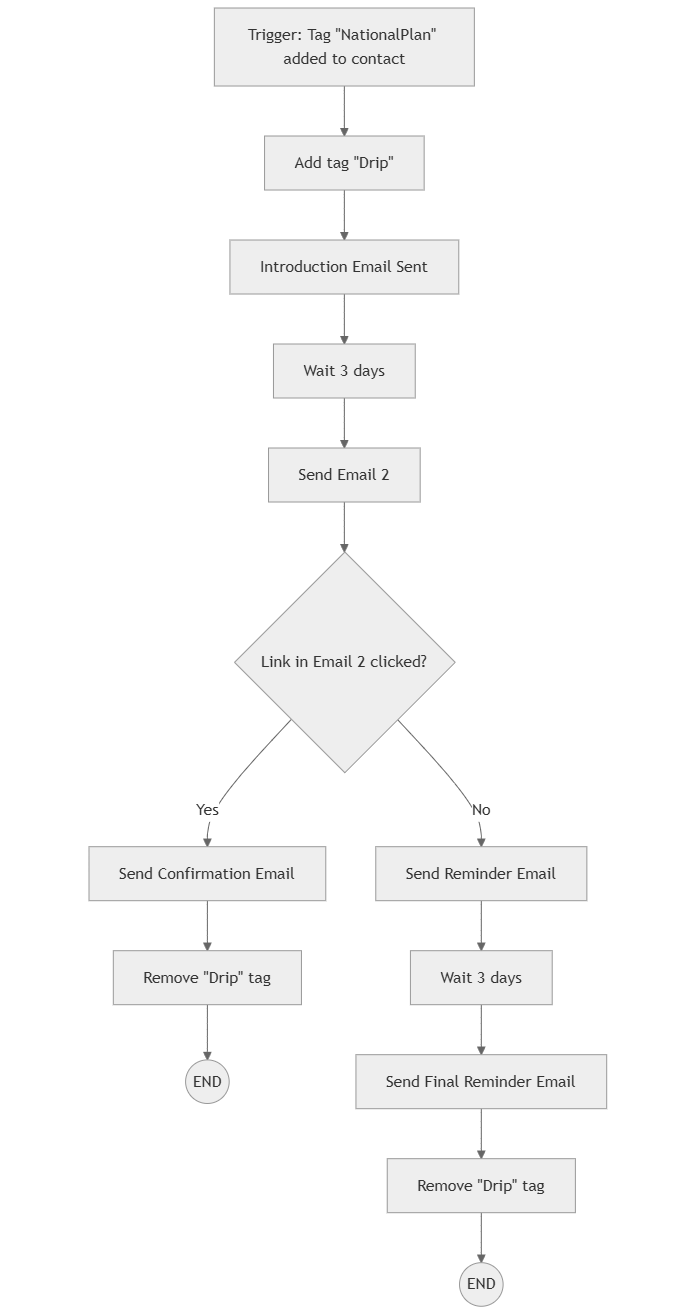
I inserted this image into the strategy document I was working on.
Being able to just type what I wanted in natural language and have it come up with a chart was brilliant. It was also really quick. I think I’ll be using this a lot.
OK, here’s a final example. This is an Ishikawa diagram. Never heard of this before, but it looks cool!
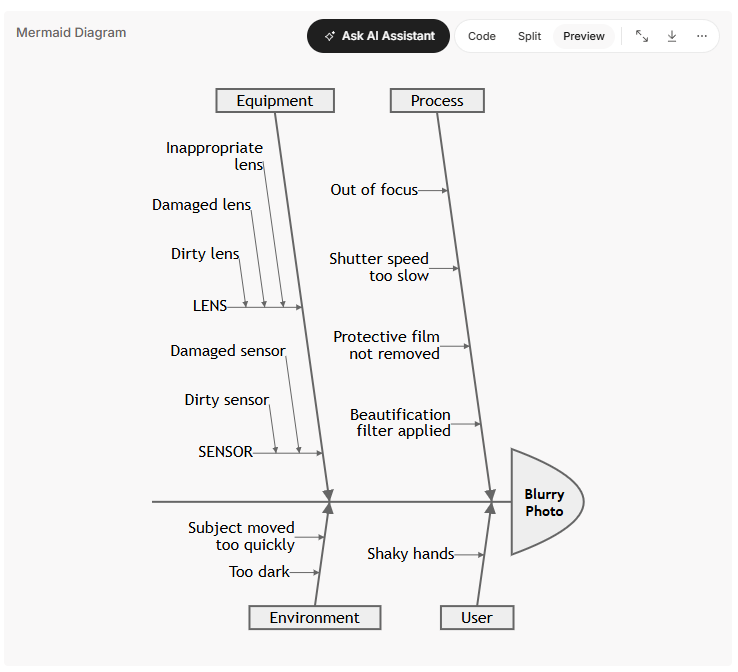
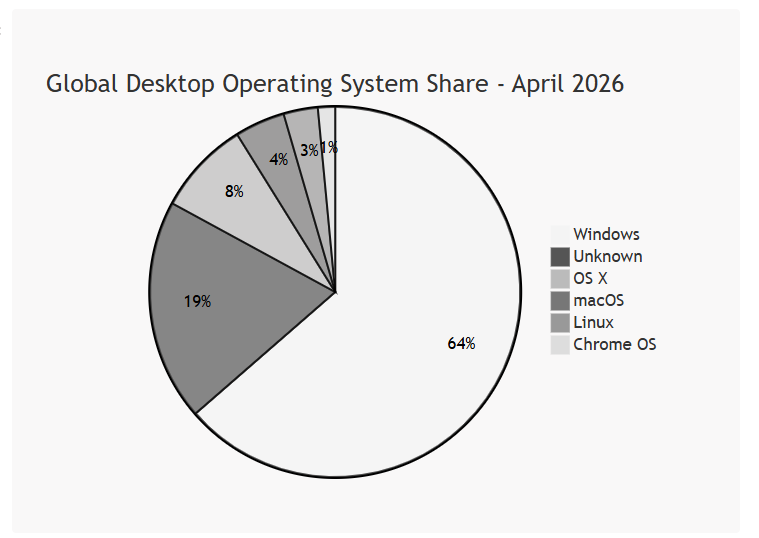
The one big improvement I’d like to see is the addition of colour. The pie chart example above looks a bit grey.
Mermaid charts should be available on desktop and phones. Just make sure you’re on the latest version.
So, what do you think? Are you going to be using this? Have you ever had the need for diagrams and charts? Let me know in the comments.
Official April recap video is out
These are always worth a watch. All the new things and improvements that have happened during April.
And finally...
The paid subscriber private chat thread for May can be found here.
If you’re not a paid subscriber, then you can still access the chat and post questions by going here.

If you’re new, then say hello.
That’s it for this week.
Have a great weekend
All the best
Jon
fantastic addition i think and your use case with the marketing campaign flow is an example where i would have always been too lazy to make that in powerpoint and would just handout written flows to people but now can easily create a flow chart. isn't this an example where AI has eliminated a small but annoying barrier to better communication? it’s always been so frustrating trying to create charts.
I love diagrams. Your explanation was extremely helpful. I must admit that when I went over to the Mermaid site, my head started spinning... but it helped me realize that Mermaid is just a kind of code language. And I recognized the Ishikawa diagram; I know it by its other name, fishbone diagram. It is used for root cause analysis, among other things. (FYI, if my comment makes it sound as if I know a lot about this, I promise you I DO NOT!)