


A huge thank you to all paid subscribers and many thanks to Marc who bought me a coffee. Taming the Trunk is 100% reader supported, no ads or commission links and your support is really appreciated.
Newsletter housekeeping: The latest version for PC & Mac is 11.14.2. You can grab it from the download page. Latest mobile version is 11.14.3.
There’s a lot to get through this week, so apologies for a long one.
We’ve got some big things, a few extremely useful small things and some gossip!
Let’s start with this.
Add call outs to your notes
This is very useful. I’m most likely going to use this quite a bit.
Make sure you’re on the latest version. Call-outs are available on desktop and mobile devices.
You can now add a call-out item to your note. It’s somewhere you can write something that’s important, that stands out from the content.

To insert a call-out head to the Insert menu at the top left of the note or use a slash (/) command.
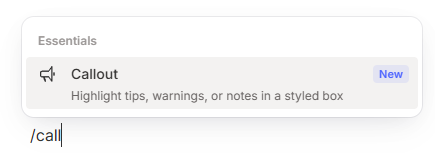
You can also use an alias slash command to kick off a call-out.
So far I’ve managed to find /alert, /warning, /info, /danger and /lightbulb.
Once you have your call-out in your note, you can change the emoji icon by clicking on it. You get the full emoji picker so you can choose what you want.
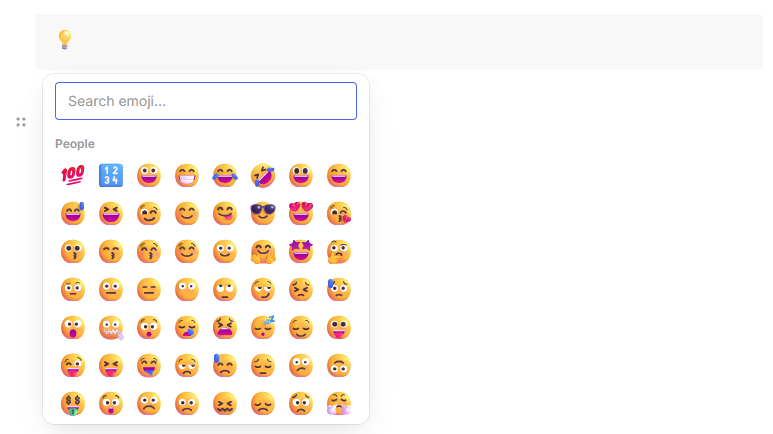
Most text formatting works inside a call-out. You can use bold, italics, underline and strikethrough. You can change the font and font size and add bullet or numbered lists.
One thing you can’t seem to do is add a header to the call-out. Not sure if this is a bug or by design, an easy workaround is to increase the font size.

There’s a lot of flexibility around call-outs, add whatever emoji you want and use them to make certain information stand out.
One thing I would love to see is the ability to change the background colour of the call-out. Maybe using the selection of colours you get for table cells?
Will you use call-outs? Let me know in the comments.
AI Generated Note Titles
I posted a video demonstrating how this works the other day, so make sure you take a look.

This works on desktop and mobile, just make sure you’re on the latest version.
When you hover over a note title, you’ll see a little icon to the left (on mobile its’s a button below the title) and when you click on it, the AI suggests a title.

You can keep clicking the icon and the system will rotate around five different titles. If you don’t like any of those, you can click out of the title, then back into it and get some more suggestions.
One thing to point out is that this feature uses Evernote’s own AI. It doesn’t send any information to a third party AI and it doesn’t use note information for training. Everything is done on the Evernote servers.
If you want to switch off this feature, head over to Settings -> Preferences -> AI Features and toggle it off.

I’ve found this useful for some notes. I still use my own naming convention on a lot of notes, but I have found this useful. I usually edit what the AI comes up with, but it does give me some ideas.
I’d love to see some sort of global instructions built in where we could say things like “Always add the month and year to the end of a title” or “Always use British English”.
What do you think? Will you use this? Let me know in the comments.
Note tabs get more keyboard shortcuts
This is HUGE!
It’s a really small thing, but it makes a big difference.
You can now use CTRL+TAB to cycle through your note tabs. This is great!
You can also use CTRL+SHIFT+TAB to go the other way.
This has made a huge difference to how I use tabs. I always use these shortcuts to make my way through browser tabs so its easy to apply this to note tabs in Evernote.
Another new shortcut is using Cmd+Ctrl+1-9 or CTRL+SHIFT+1-9 to go to a specific tab.
I have my tasks pinned all day to the top left and I can now use the keyboard to get to them quickly.
Will you use these shortcuts? Are you using tabs? Let me know in the comments.
Tasks kingdom now has a right click option for notes
This is useful. Especially for opening notes in a new tab.
When you’re looking at your tasks in the main task area, you can now right click on the name of a note and make actions on that note.
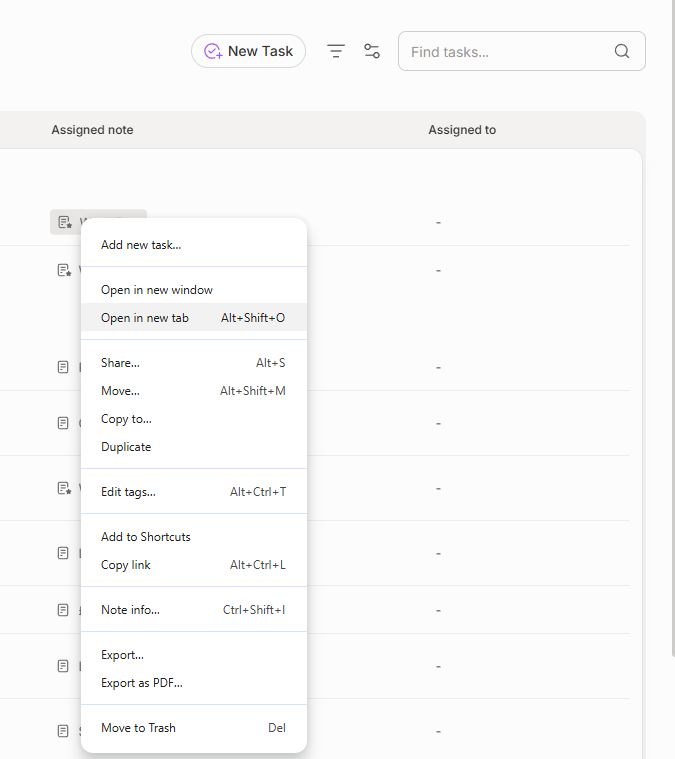
This includes opening the note in a new tab which is what I mainly use it for. You can also export, share, see the note info and perform other actions on the note from the task window.
I like this, do you? Let me know in the comments.
Evernote could be getting an MCP
Some gossip!
So, I found this reply to a Tweet/X the other day.
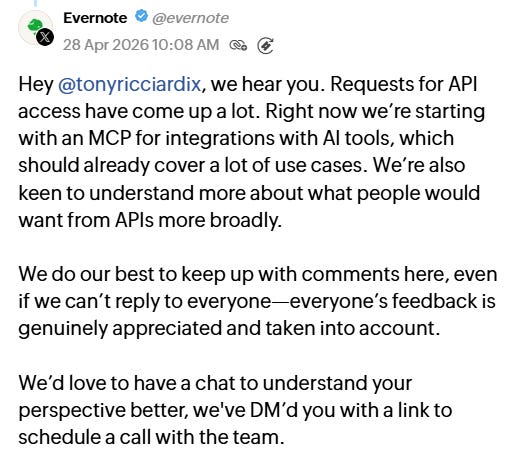
I also know from a couple of the Evernote Expert meetings that this could be coming at some point and now they’ve made it public I can post something about it.
If you’re wondering what the heck an MCP is, its a way for AI tools like ChatGPT, Claude etc to connect to Evernote and see your notes.
You could in inside ChatGPT and have the ability to call information from your Evernote notes directly into your AI chat. There could also be the possibility of being able to add/edit notes from the AI tools as well.
I have no idea what the final functionality could be, it may only be read only, it may let us update and change notes. We’ll have to wait and see.
No idea when it’s coming out either.
Would you welcome this? Let me know in the comments.
Evernote AI Assistant could be coming to mobile
Something else leaked on Xitter... the AI Assistant is coming to mobile.
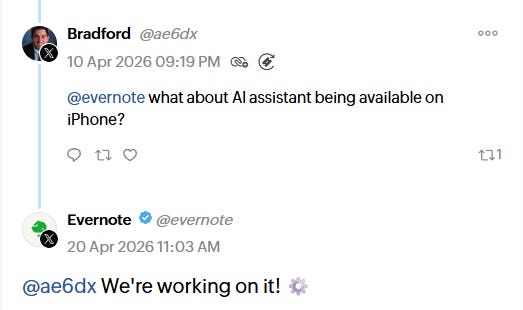
Again, I know from some of the Evernote Expert meetings that this is being worked on but no idea when it will be launched.
I also have no idea how this will work on a small screen. Its going to take some clever user interface skills to bake it in.
It will make mobile much more useful.
Do you want the AI Assistant on mobile? Let me know in the comments.
And finally...
A new official video has dropped which explains the various aspects of search in Evernote including keyword searches, semantic search, OCR and boolean.
It’s a good watch.
That’s it. Sorry it was long!
Have a great weekend
All the best
Jon
Is there a way to inactivate AI in Evernote?
Hi Jon:
I love tables so I prefer your callouts.