


A huge thank you to all paid subscribers and many thanks also to those who bought me a coffee. Taming the Trunk is 100% reader supported, no ads or commission links and your support is really appreciated.
Newsletter housekeeping: The latest version for PC & Mac is 11.24.3. You can grab it from the download page. Latest mobile version is 11.24.2.
A lot of folk have been waiting for this for a long time and it’s finally here! We now have access to the AI Assistant on mobile.
And it works pretty much the same as on desktop.
Make sure you’re using the latest version of the mobile app.
Just a quick note, this article is not about what to use the AI Assistant for, just how to operate the mobile version. I’ve written miles of text about what to use the AI for on Evernote and you can read them all in the AI section of Taming the Trunk.
How to open the Evernote AI Assistant on mobile
Open the app and you should see a new icon at the bottom of your screen.

Tap this and the AI Assistant will slide up from the bottom. It looks pretty much the same as it does on desktop.
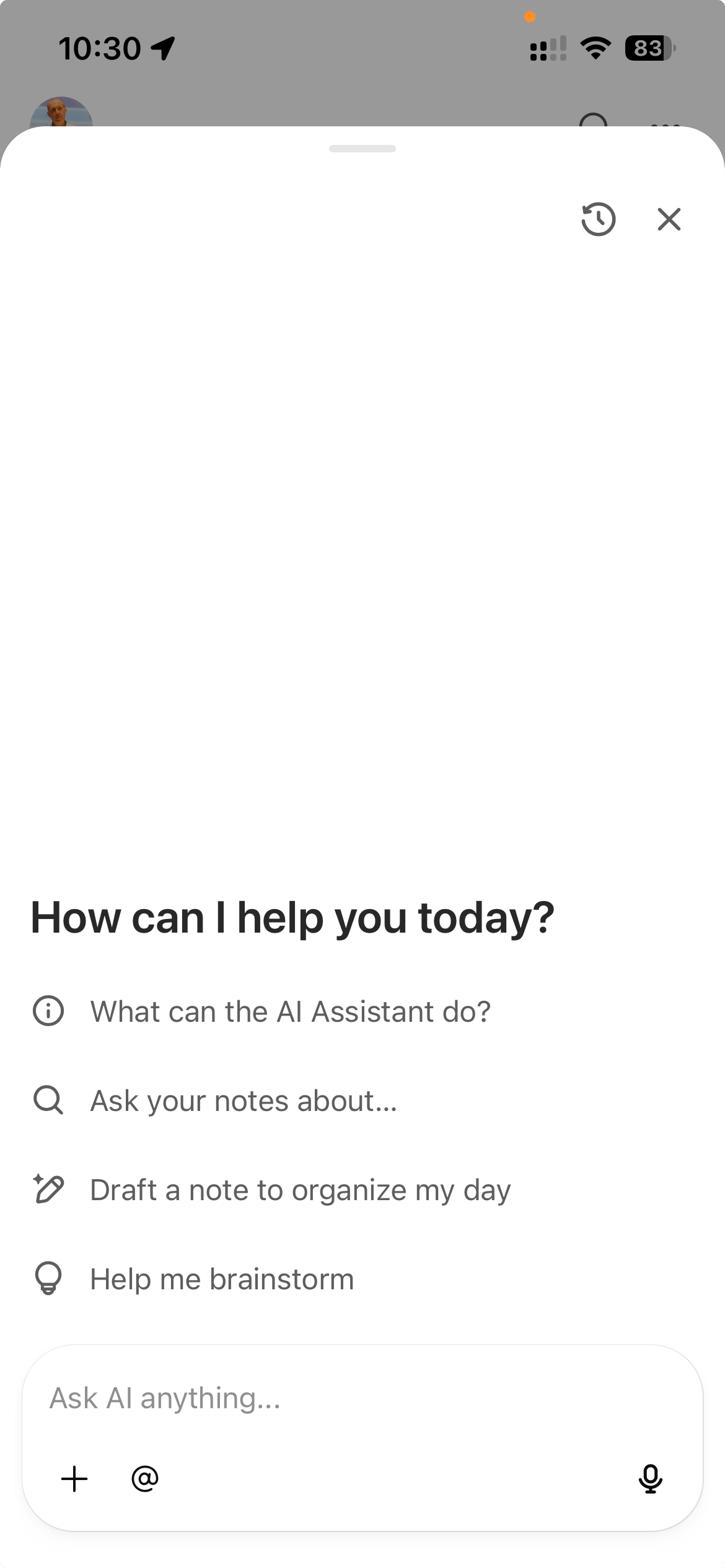
At the top of this window, there’s the usual icon for seeing your chat history and an X to close the window.
At the bottom of the prompt window you’ll find the + button and behind that is Add photos & files, Search the web and Evernote help centre.
At the bottom right there’s a microphone for voice input, more later.
How to move the Evernote AI Assistant Icon
Now, a lot of you may have noticed that by default, you lose a navigation slot at the bottom of the screen. The AI Assistant has replaced one of them. Not so good.
A big shout out to Allan in the Taming the Trunk chat who spotted a setting under AI Features to customise where the AI Assistant icon is positioned.
Go to Settings -> AI Features -> Choose position.
You see these options.
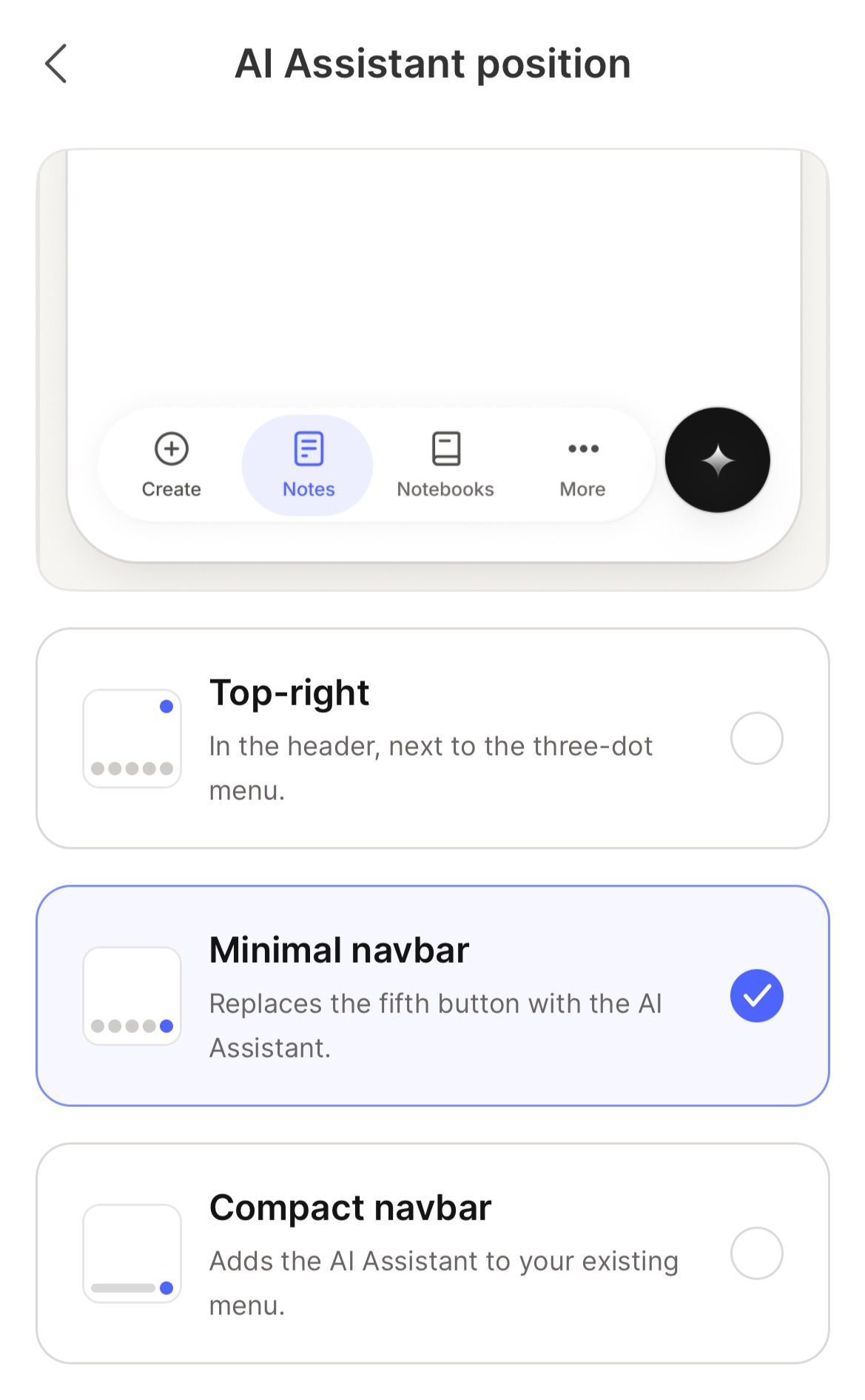
The minimal navbar is default.
Compact navbar adds the AI Assistant to the right of the standard navigation bar and make it a little more compact.

The top right option sticks the icon at, surprisingly, the top right of the screen. I’ve gone for this as my default. I like it easy to get to but out of the way.
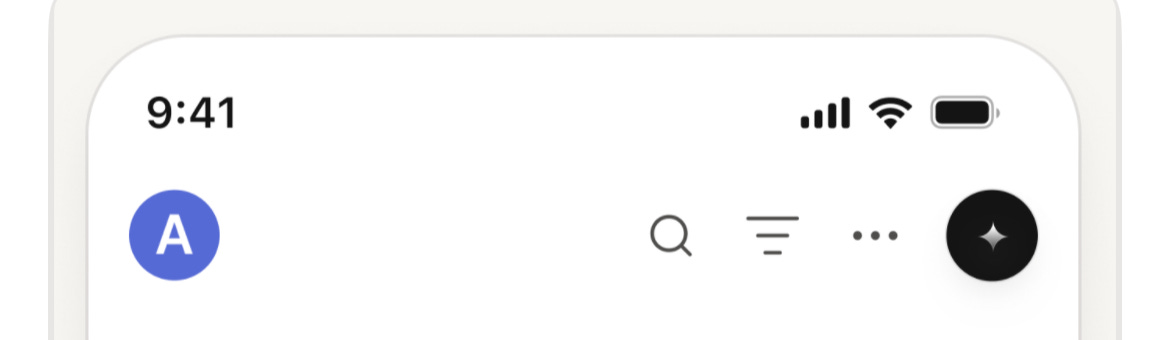
One thing I would love to see arrive is the chance to customise the icon. I much prefer using Mads the elephant on my desktop app.

Prompting the AI assistant by voice
I think this is probably more useful on mobile than desktop.
We all hate typing on mobile. It’s a pain and it’s much easier to speak into your phone.
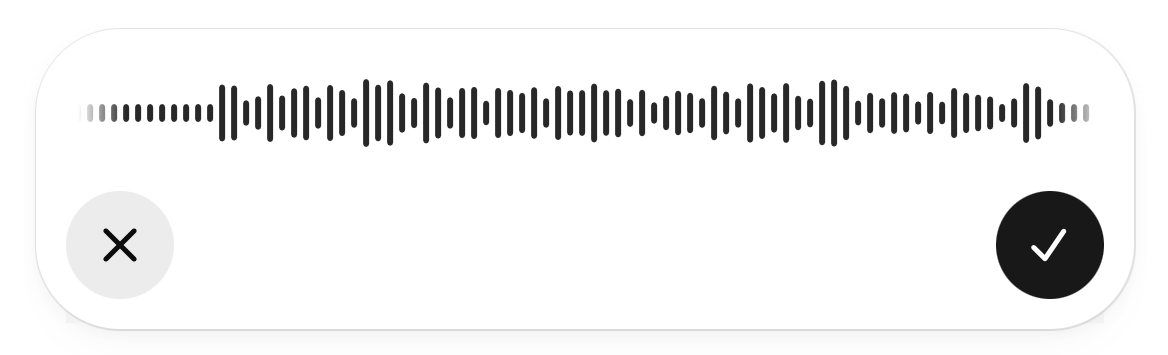
The icon at the bottom right of the prompt window lets us dictate our prompt.
Disable the Evernote AI Assistant on mobile
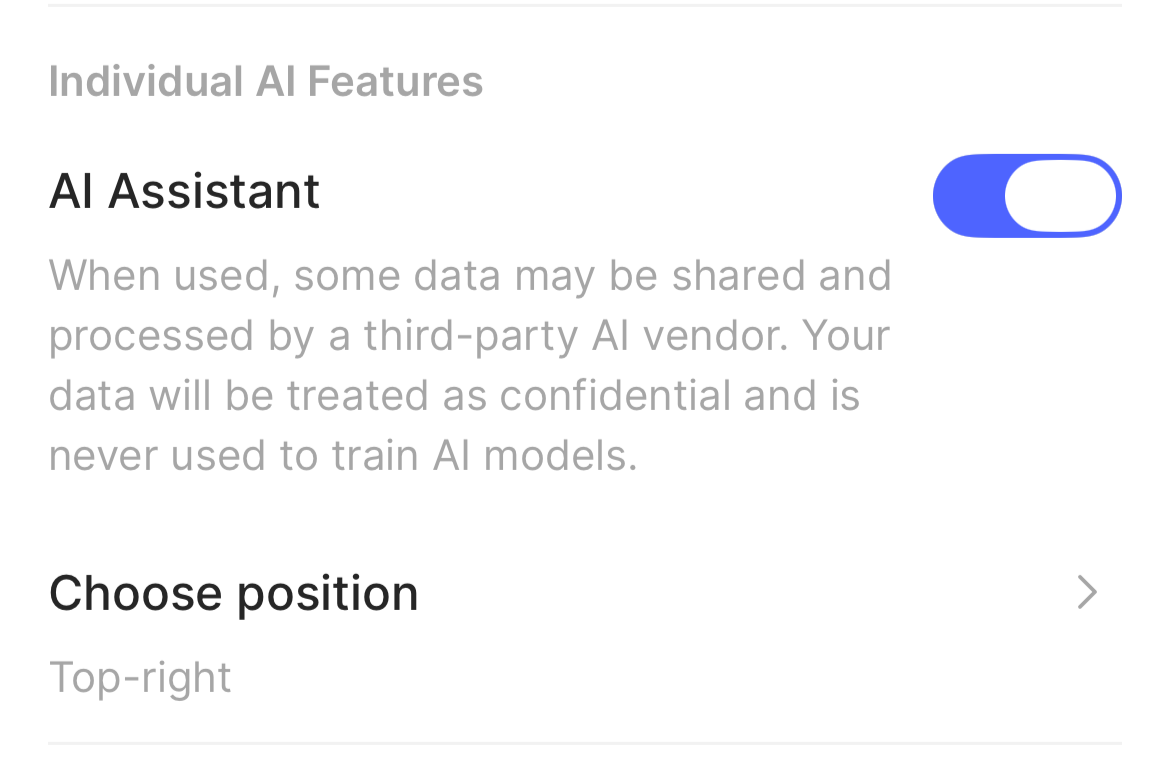
If by any chance you don’t want to use the AI Assistant on mobile, you can disable it in settings.
Go to Settings -> AI Features and toggle off AI Assistant.
How to use Evernote AI Prompts on mobile
It’s a little bit hidden, but it is there. I would love to see an easier way to get to this on mobile.
One important thing to mention is that all the AI Prompts that you create on desktop automatically sync to mobile.
If you want to learn more about what AI Prompts are for, then check out last weeks article and this video.
So, there are two ways to get to AI Prompts. The first is to create a new note and then scroll the AI note suggestions to the far right, where you’ll find More AI Prompts.
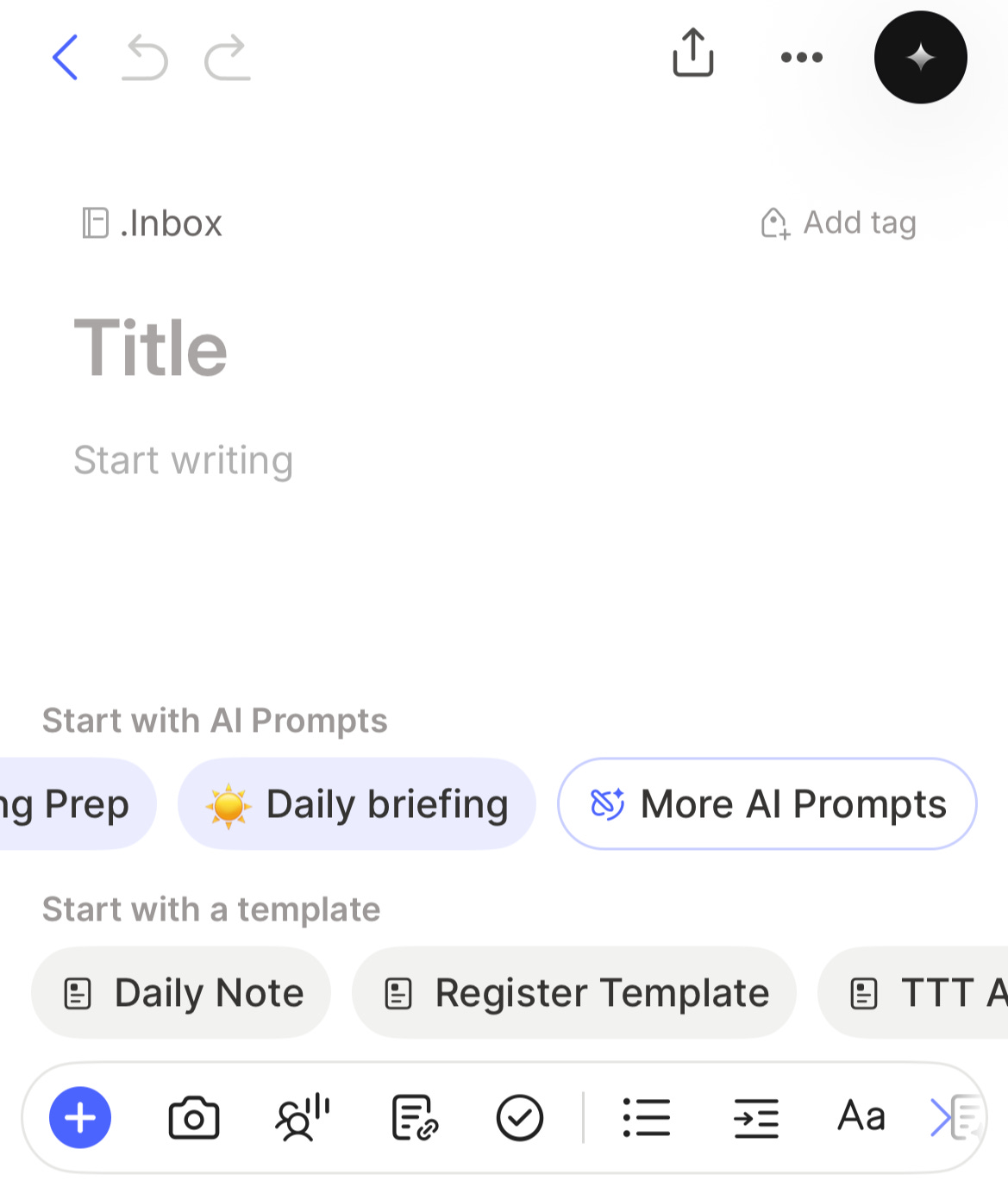
The second way is to select some text in an existing note and then scroll to the far right of the AI Prompt menu, which looks the same as above.
When you tap on More AI Prompts you’ll see all your prompts in the library and you can search them.
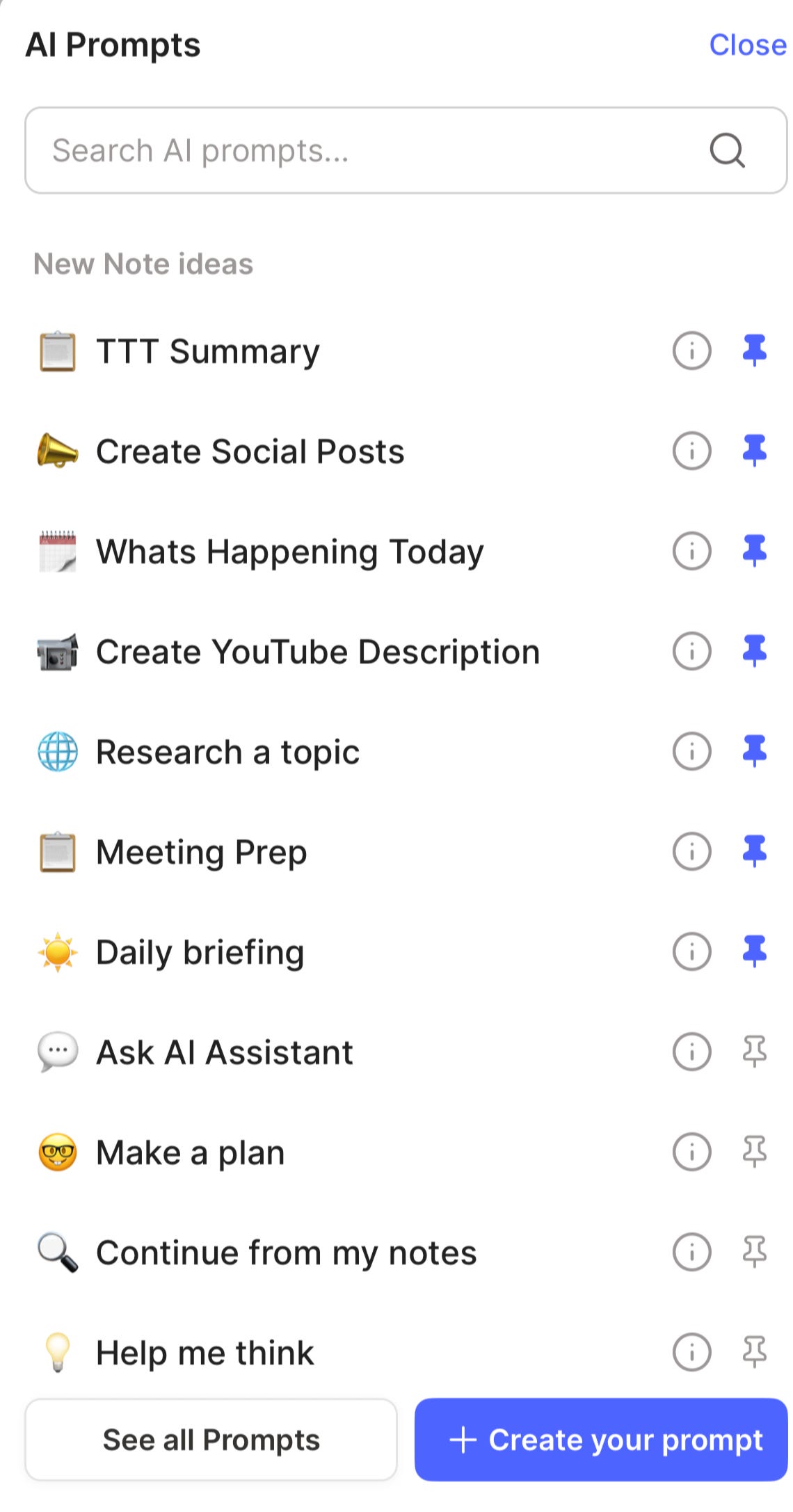
You can then run a prompt against some selected text or within the new note. This works the same as on the desktop app, so check out the article and video mentioned above.
Now, when you select See all Prompts, you go to the entire AI Prompt library.
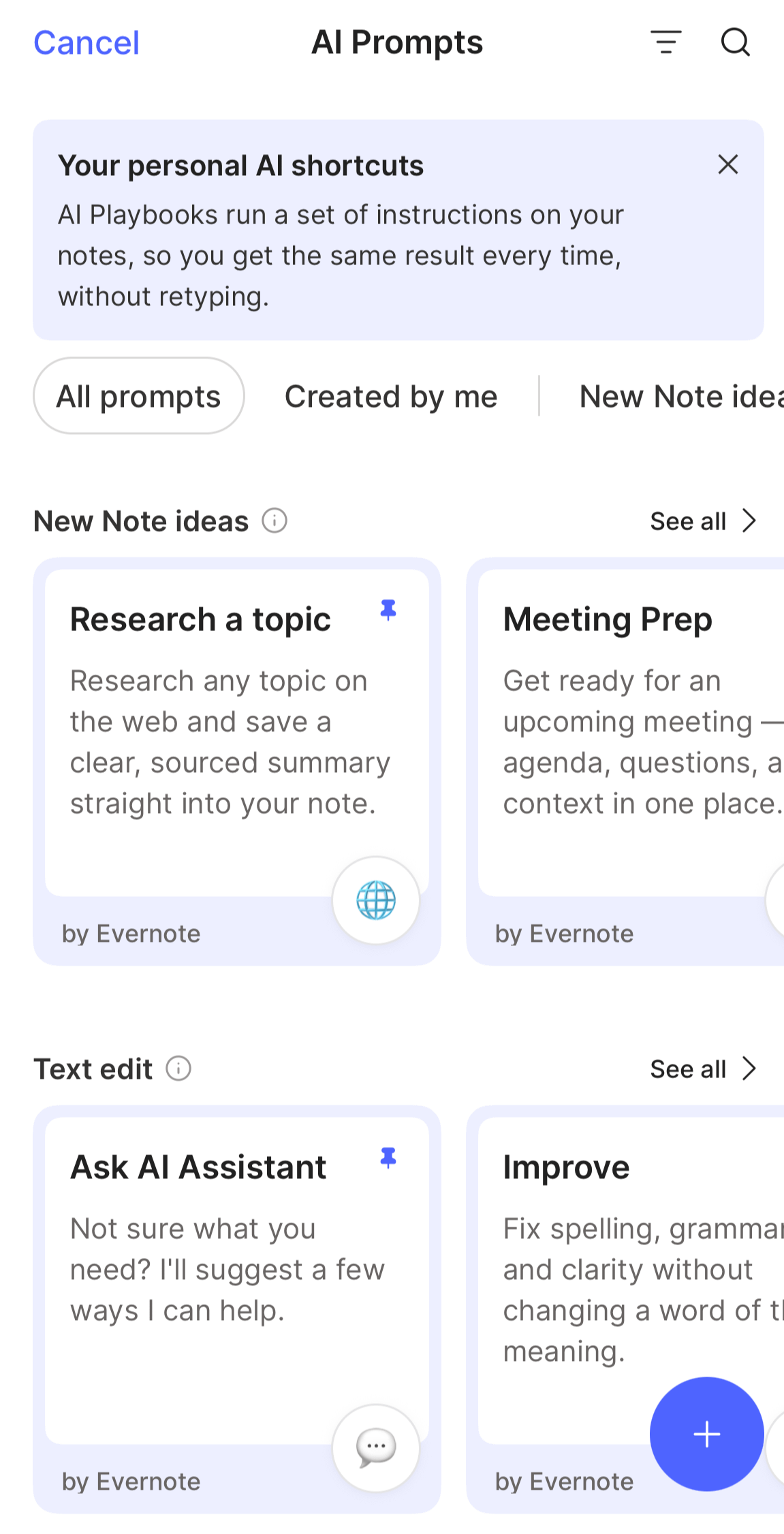
From here you can browse all your own custom prompts and the pre-installed ones from Evernote.
You can also create a new custom prompt by clicking the blue plus button.
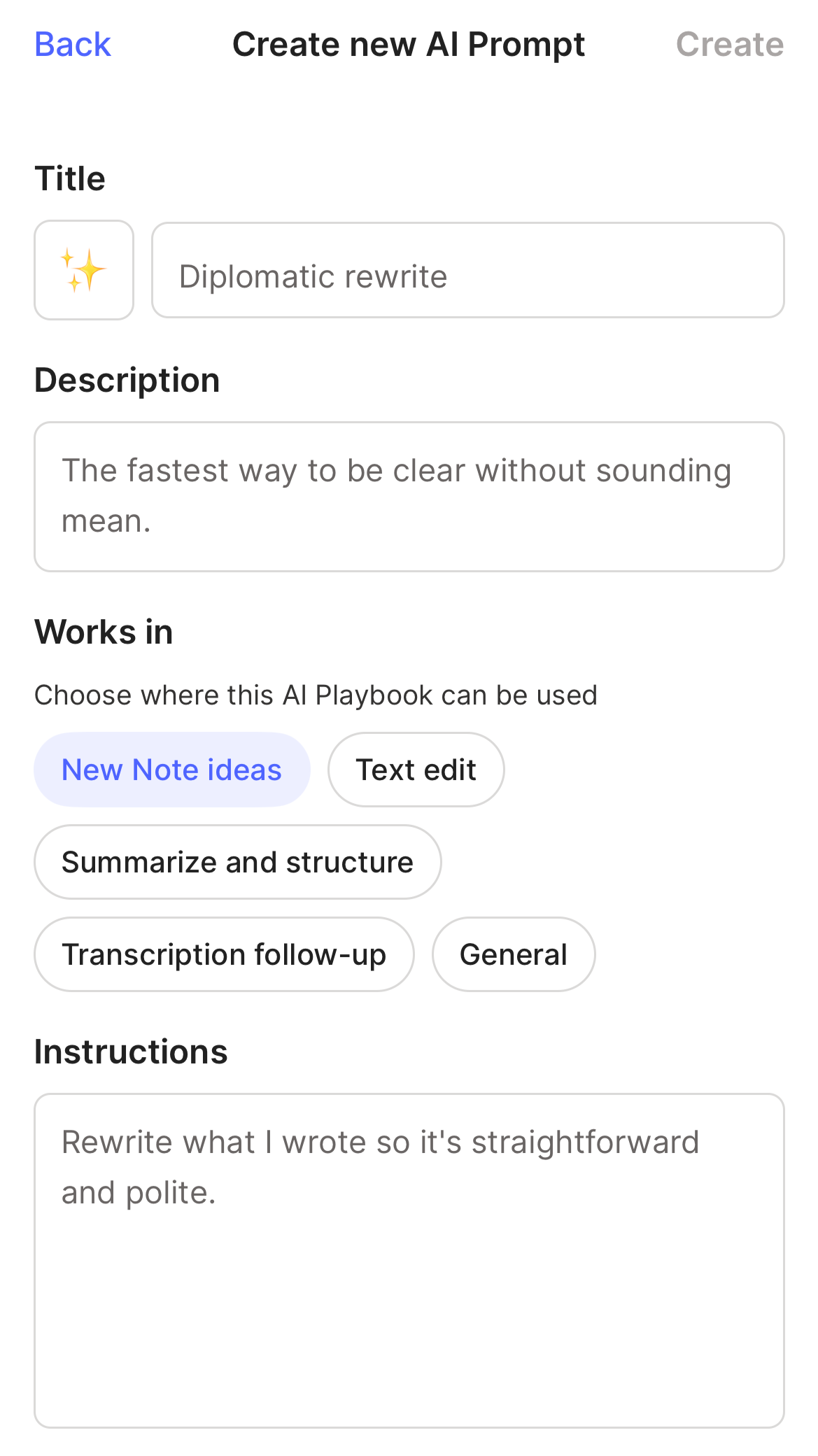
Again, this works the same as on desktop, so check out the video mentioned earlier on how to create a custom prompt.
Improvements I would like to see
I would very much like a web search button next to the + and @ icons in the prompt box.
I’ve been testing the Evernote AI Assistant for a few weeks and use it almost as a search engine. It’s faster to open and easier to use than ChatGPT and if I want to make a note about what I’ve searched for, I can.
I would also love to see an easier way to get to the AI Prompts section. Maybe a diamond icon at the top of the chat window, similar to how it is on desktop.
What do you think? Have you used the AI Assistant on mobile yet? What improvements would you like to see? Let me know in the comments.
There’s an AI section of Taming the Trunk so make sure you head over and you can find lots of articles about how and what to use the AI Assistant and AI Prompts for.
Have a great weekend
All the best
Jon
Thanks for this post, Jon. The AI Assistant on mobile is looking very useful.
Just one observation regarding "Prompting the AI assistant by voice" - on my Samsung Android mobile, when I click the microphone in the AI input box, I get a message "Microphone not available..." I can get round this by bringing up the keyboard and switching to the Google Voice Typing option, and all is good from there. As far as I'm aware, I have the correct permissions on my phone set to allow the Evernote app to use the microphone. This may not be an EN issue, but maybe there's some conflict with having Google Voice Typing installed? Just though I's mention that