


A huge thank you to all paid subscribers and many thanks also to Sven, who bought me a coffee. Taming the Trunk is 100% reader supported, no ads or commission links and your support is really appreciated.
Newsletter housekeeping: The latest version for PC & Mac is 11.23.2. You can grab it from the download page. Latest mobile version is 11.23.2.
A couple of weeks ago AI Prompts dropped as a new feature in Evernote and I’ve been hanging on for everyone to get this before doing the deep dive.
I think this is a bit of a game changer for the AI Assistant.
What are Evernote AI Prompts
It’s basically a library where you can save prompts that you use all the time.
It saves you typing them in over and over again.
It’s also somewhere you can start building workflows using the AI Assistant.
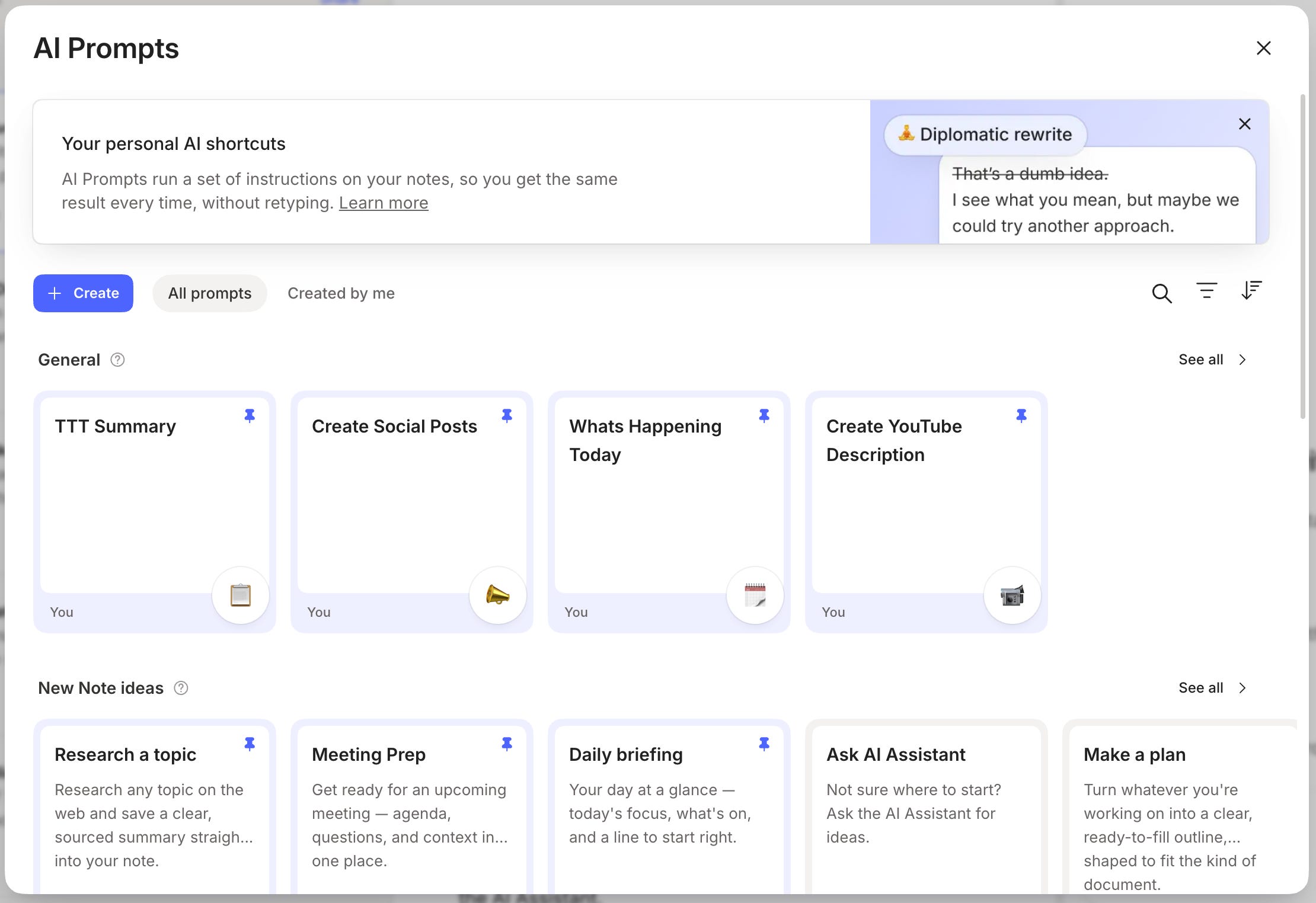
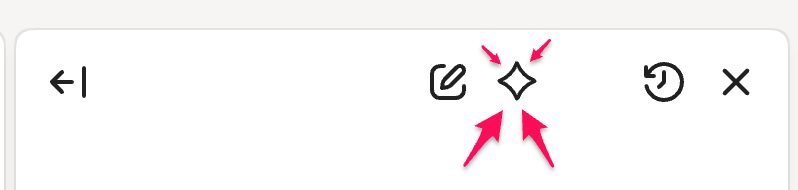
The easiest way to get to the AI Prompts is to click the little diamond-ish icon at the top of the AI Assistant window. There are other ways to get to it and we’ll cover them later.
AI Prompts is where you can search your prompts, run them against a note, or just run them, they don’t have to be dependent on a note.
Existing pre-installed prompts
Your newly minted AI Prompt Library comes with a whole bunch of pre-installed prompts.
You can’t edit these, but they are there if you need them.
They cover researching, planning, daily briefs and general rewriting of content.
There’s also a category designed to work with the transcriptions that you create, this section is very useful.
To give you an idea here’s the pre-installed prompt for pulling key items out of a meeting transcription.
Pull just the headlines from this meeting — the few things someone must know — as a tight ranked list of no more than seven bullets.
Work out the meeting type and surface what matters for it. Work only from the transcript: never invent anything; if something wasn’t stated write “not stated”; anchor to timestamps where present.
Be specific, not generic — what was actually said or decided, attributed by name (say so if speakers aren’t labelled), with names, numbers, dates, short quotes; don’t open with “The transcript…”. If the transcript is garbled or partial, say so and cover only what’s reliable.
Give a one-line TL;DR, then ≤7 must-know takeaways, decisions, and action items as one ranked list, most important first — flag decisions (Confirmed / Tentative / Deferred) and render any action item as a - [ ] checklist line with owner and due (or “TBD”), so it’s task-ready. Leave out everything secondary; don’t pad.
Self-check that no decision or action item is dropped.
If writing into a note, end here; if in chat, offer one next move (make the tasks, link related notes, draft a follow-up) and let me steer.
These pre-installed prompts are really helpful but sometimes you may want a response in a specific style or format and this is where you can create your own custom prompts.
Tip: Copying the text of a pre-installed prompt is a great starting point for your own custom prompt.
Creating a custom AI prompt in the library
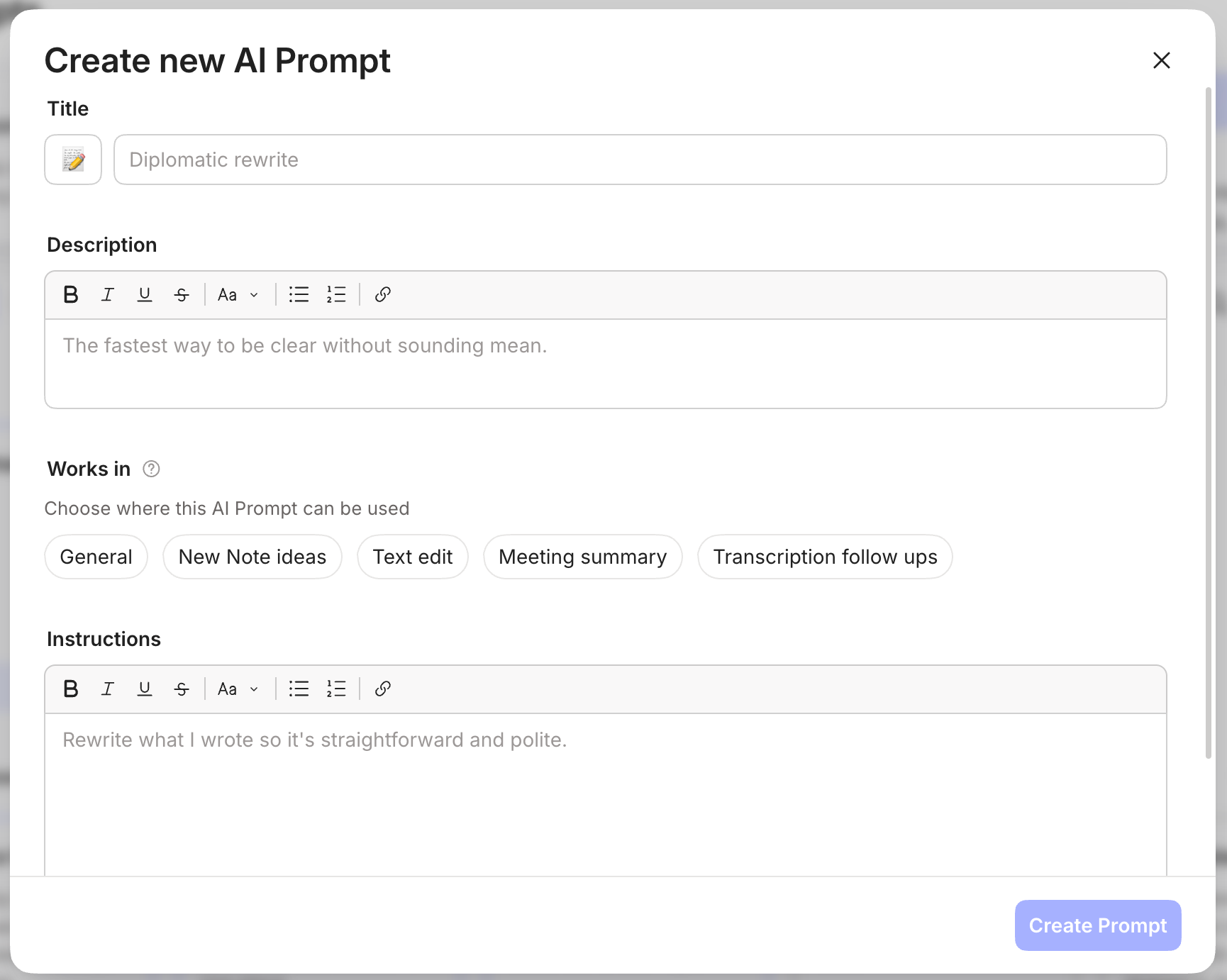
Open AI Prompts and click the Create button toward the top left and this screen appears.
You can also create a new prompt by going to the three-dot menu by the new note button in the left sidebar.
To create your custom prompt, select an emoji icon, a title for your prompt, a description and then you can put the prompt into a category.
Right now, we have categories for:
General
New note ideas
Text edit
Meeting Summary
Transcription follow ups
At the bottom of the prompt creation window, you’ll find a place to put your instructions. This is the prompt that you want to run.
It’s important to be specific. To tell the AI exactly what you want, in what format and in the voice and tone you want.
All AI prompts work better when you‘re absolutely specific with the instructions.
I created the eBUILDE Evernote prompting framework to help you get the most out of your prompts.
One of the custom prompts in my library is for creating YouTube video descriptions based on the transcription of the videos I create for Taming the Trunk.
Act as a YouTube content strategist..
Create a YouTube description from the contents of this note that helps viewers understand the value of the video and encourages them to watch.
The description should include:
A strong opening hook in the first 1-2 sentences.
A clear summary of what the video covers.
Key topics or takeaways from the video.
A friendly call to action to like, comment, subscribe, or visit a relevant link.
Use British English.
Don’t use EM dashes.
Don’t use Oxford commas.
Keep the tone conversational, helpful and natural. Do not make claims that are not supported by the transcript.
I also have a simpler prompt for telling me ‘what’s happening today’.
Give me a list of calendar events for today.
Then give me a list of uncompleted tasks for today and overdue tasks.
Then give me any notes in my .Inbox notebook that are tagged Flow.
Then pick a random way to tell me to have a nice day.
Experiment. You can edit and update a custom prompt at any time, so if you find you’re not getting exactly what you want, go into the AI Prompts library and edit your prompt to be even more specific to what you need.
Finding your custom prompts quickly
There’s a couple of ways to filter out your custom prompts.
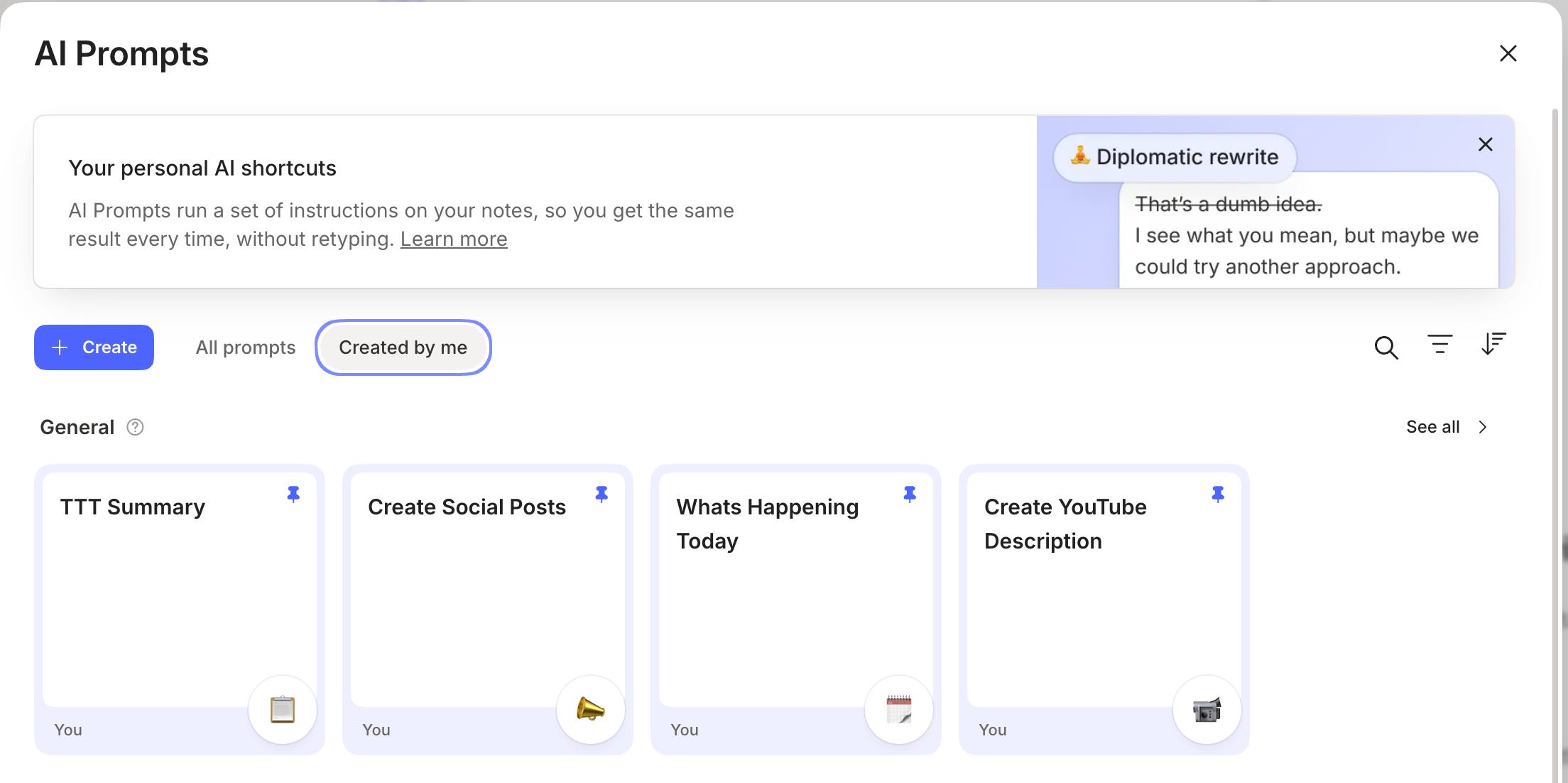
The first is to click the Created by me button and this gets rid of all the pre-installed prompts and shows your own creations.
You can also hover over a prompt card and click the pin icon at the top right. You’ll pin the prompt to the top of the category.
Running a prompt against a note
There’s a couple of ways to do this.
The first way is to open the AI Assistant and go to the diamond icon and open AI Prompts.
Then click on the prompt you want to use and a window like this appears.
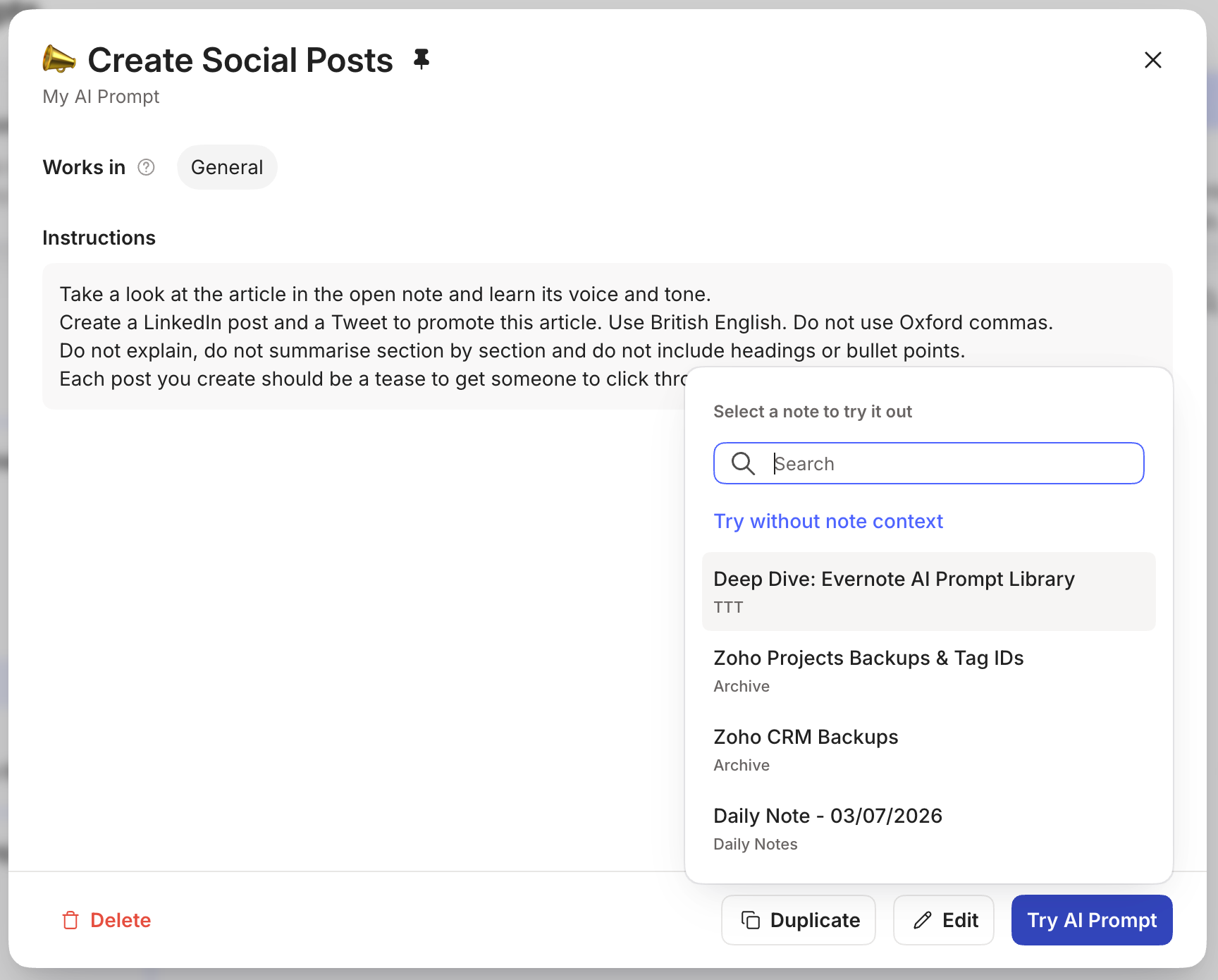
Click Try AI Prompt and a box appears with all your notes in it, most recent at the top.
If the note you want doesn’t appear, search for it and click it.
The prompt will run in the AI Assistant window.
The other way to run a prompt is to select some text in a note and run the prompt from the new floating formatting bar which I recorded a short video on the other day.
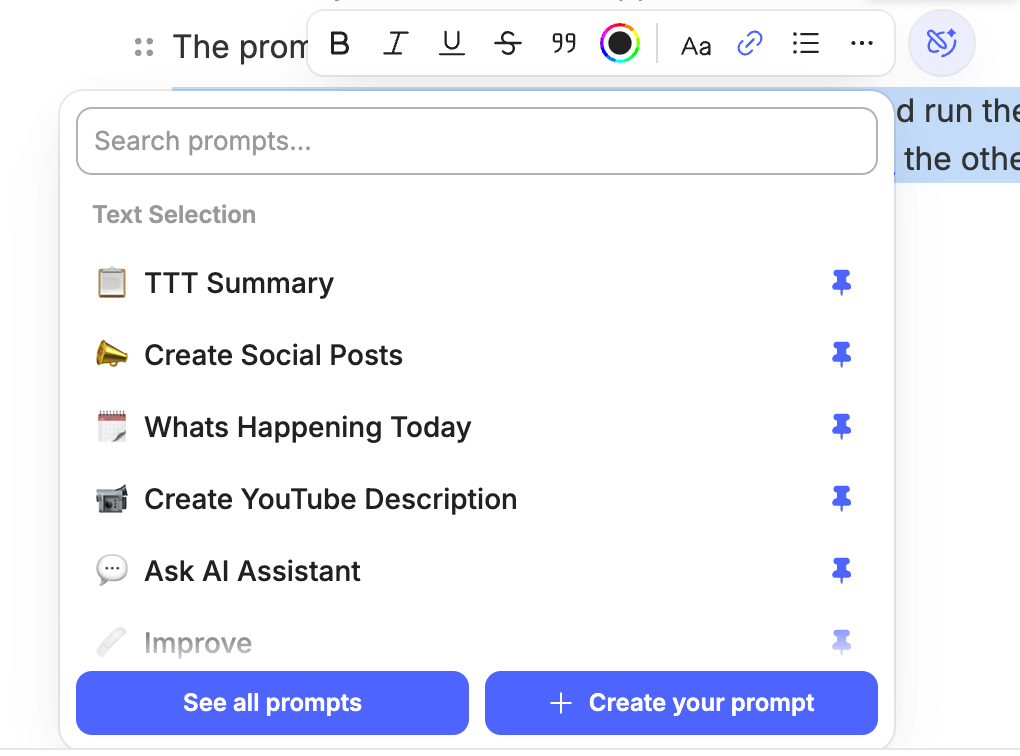
You can then search for the prompt you want and run it against the selected text.
This is really useful for editing text or simplifying a sentence.
Running a prompt on its own - no note
Now this is interesting. You can run a prompt on its own, not referring directly to note content and this opens up a different way to use the AI Assistant.
A good example of this is my ‘whats happening today’ prompt that tells me what I have to do today.
When I run this, I go to AI Prompts from the diamond icon at the top of the AI Assistant window, click on the prompt and then instead of clicking on a note I click on Try without note context.
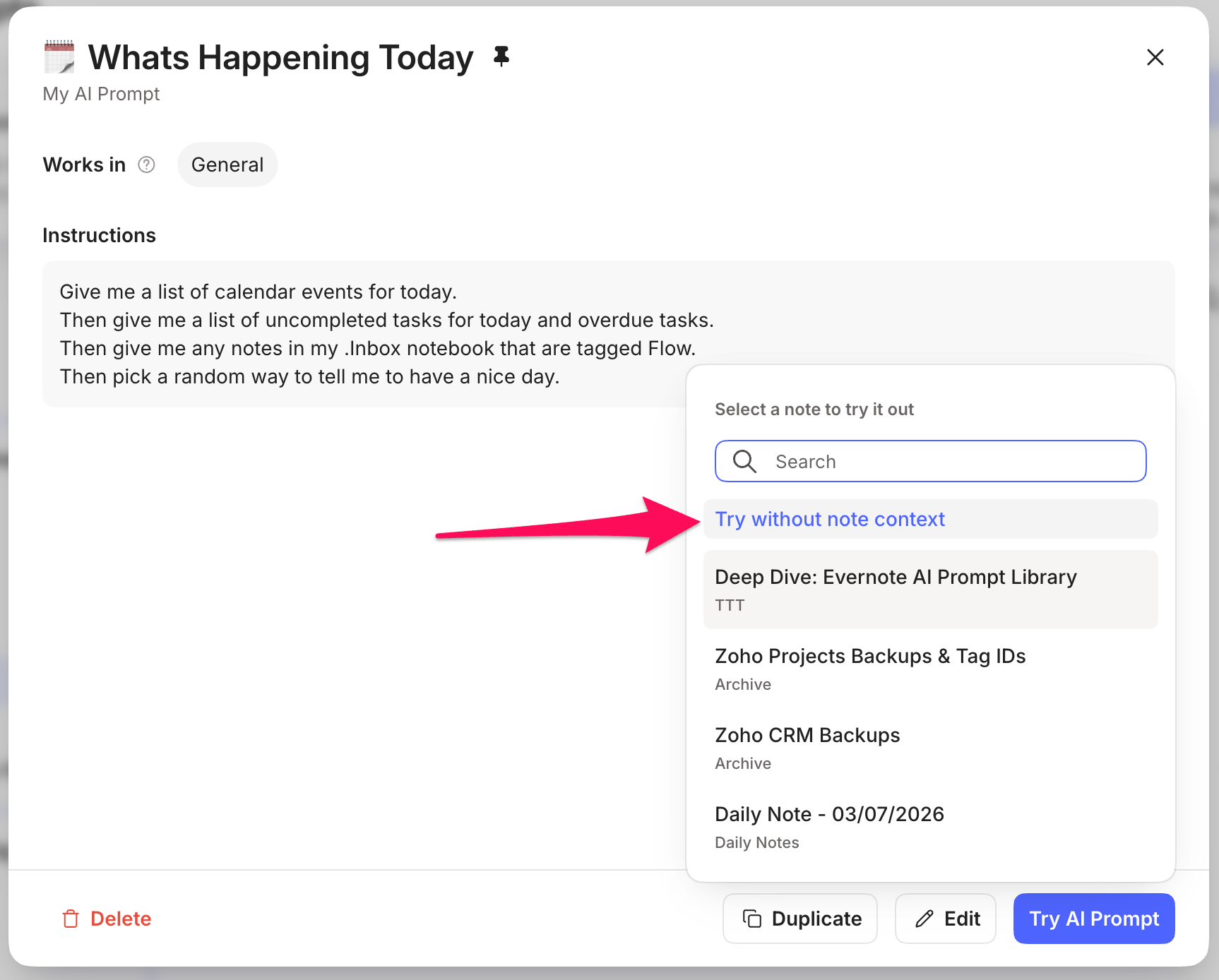
It then runs the prompt in the AI Assistant window and tells me what’s happening today.
Ideas for reusable prompts
The whole idea of this library is that you can store prompts and use them as much as you want without the typing.
Here’s a few ideas for custom prompts:
Rewrite text, but in your specific voice and tone - based on note content.
Write social media posts based on note content in your voice and tone.
List all the notes created today/yesterday - run without note context
A meeting transcription summary how you want it. Here’s my master meeting prompt - based on note content.
A daily briefing in exactly the format you want - run without note context.
Each one of us will probably have specific use cases for the prompts we create, so have a play and remember if you don’t get exactly what you want from the AI, go back and edit the prompt.
Will you be using AI Prompts? What kinds of prompts will you be creating? Let me know in the comments.
Have a great weekend
All the best
Jon
I've created a Prompt notebook in an AI stack. I use Claude and Gemini as well as Evernote's AI Assistant and the new Prompt functionality seems more fussy than I need and the layout of the Create a New Prompt screen and the screen that shows up when I recall a prompt I created are more involved than what I need. I may just create my own prompt template with only the essentials and use it instead of the new tool. I'm also starting to play with keeping prompts I use a lot in Text Expander so I can type just a few characters to insert a refined prompt that I use often.
Still a work in progress for me.
Thanks for this article, Jon. It prompted me to try and create a custom prompt that would be able to convert my long structured notes into markdown, suitable for use in various other Ai workflow tools that are quickly becoming part of my business life these days. Unfortunately though, my custom prompting attempt failed with Evernote's AI openly admitting that it was giving me "middle truncated" results. I appreciated the honesty :) ... and I will continue to anxiously await the arrival of Evernote's MCP.