

A huge thank you to Leonard who became a paid subscriber over the last week and many thanks also to those who bought me a coffee. Taming the Trunk is 100% reader supported, no ads or commission links and your support is really appreciated.
Newsletter housekeeping: The latest version for PC & Mac is 11.16.3. You can grab it from the download page. Latest mobile version is 11.16.4.
The Evernote AI Assistant is getting a memory and it’s going to make the AI much more powerful.
You need to be on the latest version and if you don’t see it right away then try a log out and back in again to kick things off.
The Evernote AI Assistant already remembers whats going on inside a conversation so you can refer back to information at the start of a conversation do the usual back and forth to get what you want.
This memory is a bit different. It’s more like global instructions that the AI Assistant will look at every time you prompt it.
Something like “Always use British English“.
Right now, if I want responses in British English, I need to tell the assistant every time I prompt it. If you use the AI memory, it happens automatically, all the time.
No more simplified English with zeds all over the place!
If you find yourself getting irritated by some of the replies you get from the assistant, then use the memory to correct it. I’m not a fan of Oxford commas, and I never got taught them at school, and I’ve never used them as they look weird, so you can instruct the AI assistant to ditch the Oxford comma.
How to access your AI Memory
Head over to Settings -> AI features -> AI memory and you should see something like this.
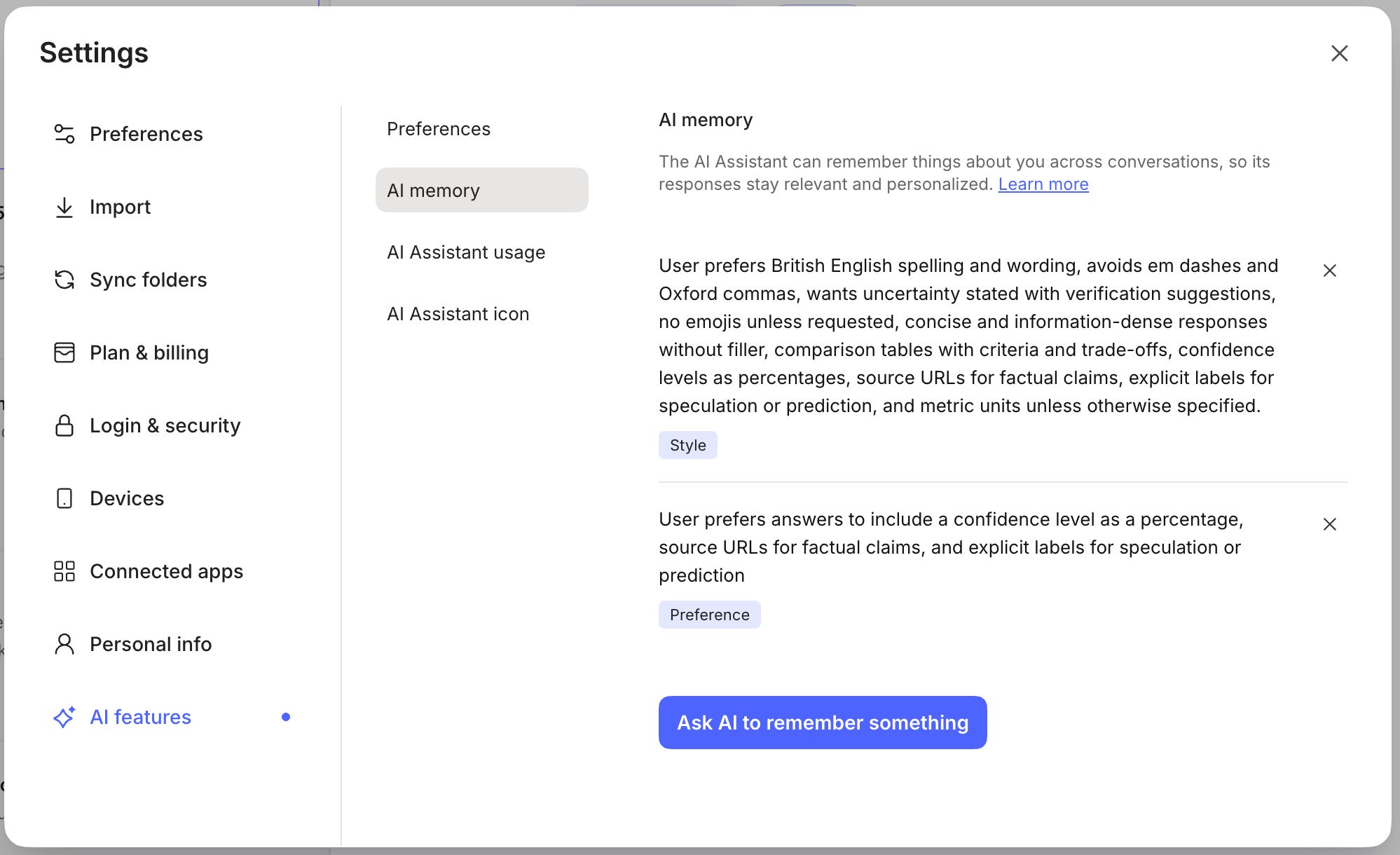
You can see a list of all the memories you’ve taught the AI and can remove them if you want. There’s a little X to the right of each memory.
You also get a little label under the memory that tells what type of memory it is. The AI sets this. I’ve seen labels for Style, Title Preferences and Preferences so far. There’s probably more.
If you want to add a memory, then click the button that says Ask AI to remember something.
The AI Assistant will open and you can tell it what you want. Say something like “Always use British English and never use em dashes”.
Hit enter and this will be saved in your AI memory section.
You can also add a memory directly from the AI Assistant. Just ask it like this.
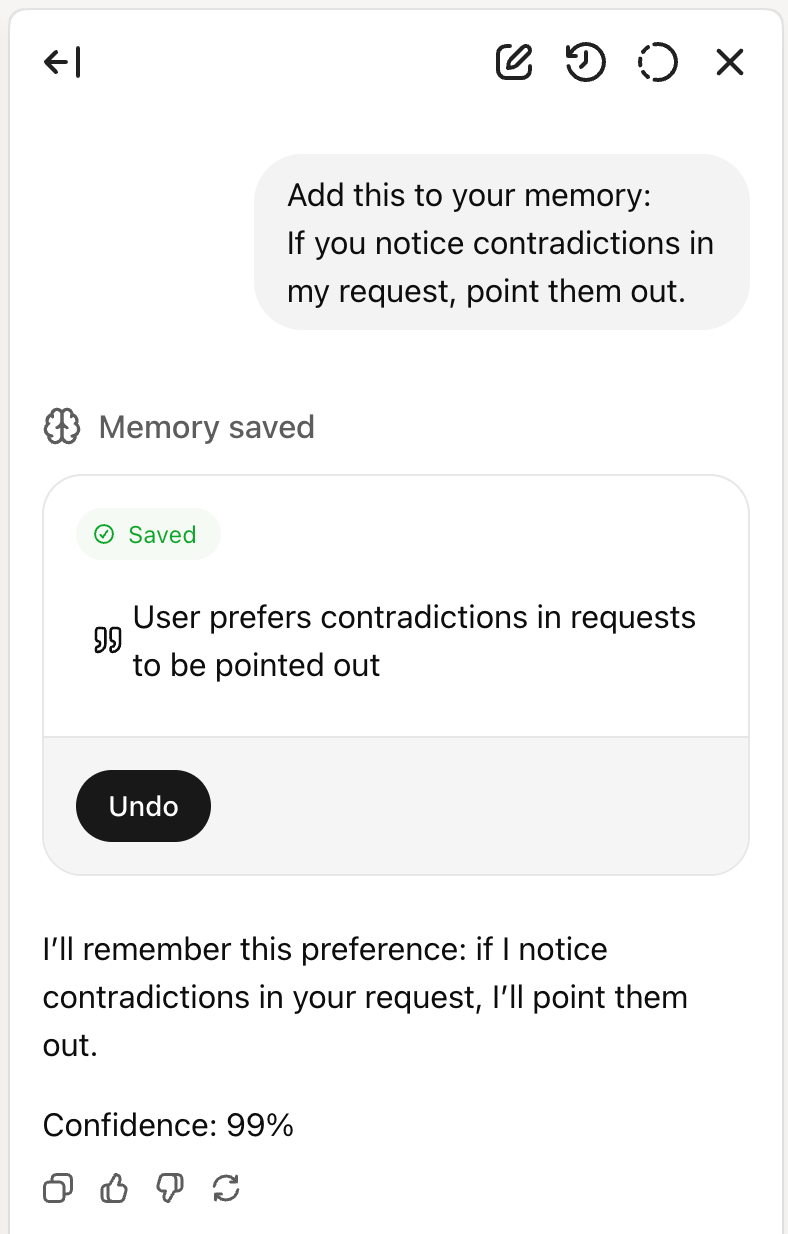
So, the AI Assistant now has a memory, which makes it much more powerful.
Which brings me to the question...
What do you use the AI Assistant memory for?
It’s all well and good saying here’s a cool new feature, but how does this impact you and your workflow? How does it make your Evernote better?
The first thing to jump on is training the AI to style responses how you want them.
Here’s how I trained it.
Always use British English.
Don’t use em dashes or oxford commas.
No emojis unless I say so.
Give me concise responses without filler.
If you do a comparison then use tables.
Always give me a confidence level for each reply as a percentage.
If you give me facts always cite the source.
Tell me if you speculate or predict.
Always use metric measurements unless I say otherwise.
This is what the memory looks like when saved.
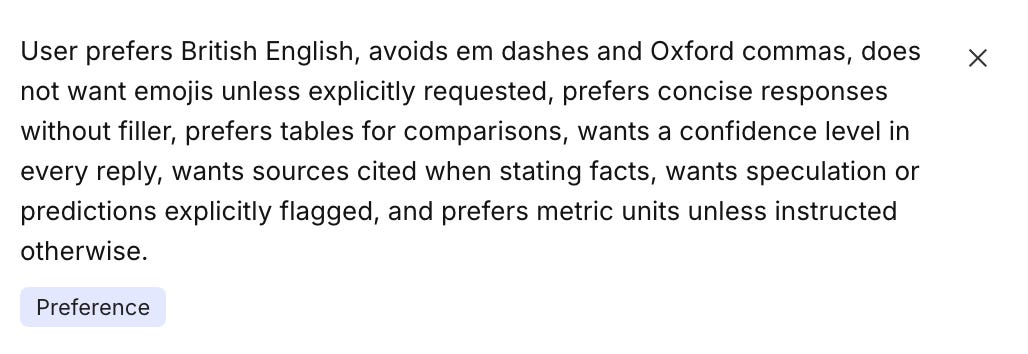
You can also influence the AI Title generator by adding some instructions.
If a note looks like a receipt or invoice make sure the month and year of the invoice is included in the generated title.
This is what is says in the memory after these instructions are given.

You could also tell it what format you want the date in, mm/dd/yy or dd/mm/yyyy or something else.
Now when I click the AI Title generator, it should put the month and year of the invoice in the title. Only if it appears in the invoice.
This was an AI generated title for a bill that I emailed in.
You should also be able to influence tagging and the moving of notes using memories. I’ve not tried it to a huge extent yet, but I’ve had some success.
As with all these AI tools, there is an element of trial and error and pestering the AI to do exactly what you want, but with a bit of persistence, you should be able to customise how things work a little better.
Another quick note. None of the memories you add or conversations you have are used to train the AI.
Will you find this useful? Will you be creating some AI memories? Let me know in the comments.
Reorder pinned tabs
This kind of completes my want list for tabs.
We can now drag and reorder our pinned tabs.
I like to keep my tasks to the far left of the tab bar, but after a busy day of having way too many tabs open, it sometimes migrates elsewhere.
Now I can just drag it back in place.

Tabs have changed the way I use Evernote. My workflow is much smoother now.
Let me know in the comments how you’re getting on with them.
That’s it for this week.
Have a great weekend
All the best
Jon
The release notes mentioned a bug fix re F2 to rename title notes. Just tested it and working like it used to which is good as, for me at least, F2 wasn't working for a long while
“No more simplified English with zeds all over the place!” I rezemble that comment!