

A huge thank you to Jim who became a paid subscriber over the last week and many thanks also to those who bought me a coffee. Taming the Trunk is 100% reader supported, no ads or commission links and your support is really appreciated.
Newsletter housekeeping: The latest version for PC & Mac is 11.31.5. You can grab it from the download page. Latest mobile version is 11.31.7.
Quite a bit to get through this week.
The first is something folks have been asking about for ages, the ability to find things in notes a lot easier.
On the desktop apps you can use CMD + F or CTRL + F to open the note search box.

You type something to find what’s in the note and click the forward/backward arrows to navigate to the search words.
The big change is that this now includes paging through PDFs so if the word is included inside a multi-page PDF you can navigate directly to that search word.
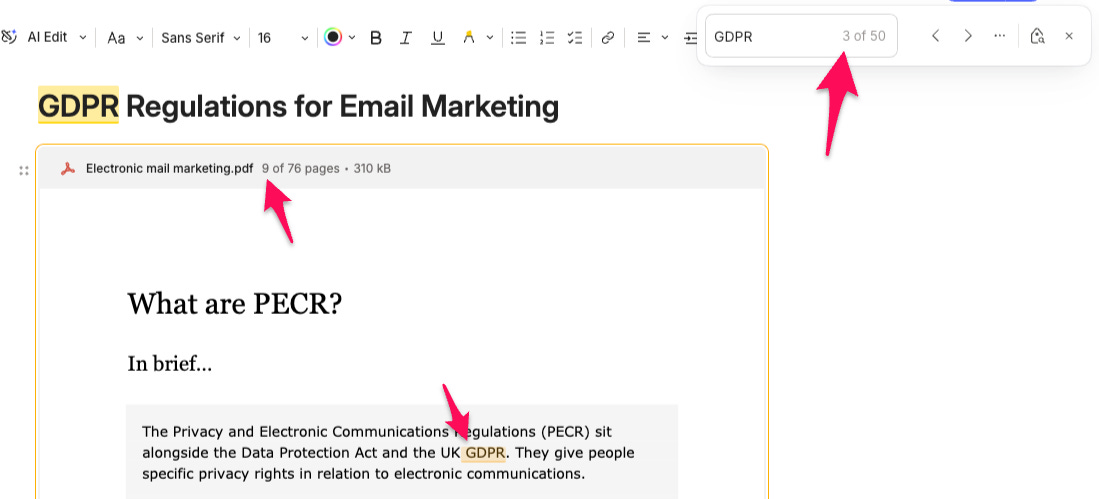
This example uses my copy of the GDPR regulations, fun eh!
Its 76 pages long and when I now search for a word(s) in the note it picks the results up in the PDF.
I’ve searched for GDPR.

When I click the forward/backward arrows, it not only navigates through the note but also the pages of the PDF and jumps to where the word is in the PDF.
In the screenshot below you can see I’ve clicked to the third occurrence of GDPR and the PDF has jumped to page 9.
This is a huge improvement for note search.
Search for inline tags in a note
Another big improvement is the ability to search for inline tags in a note.
We now have a little tag icon in the note search box and when you click it you can see the inline tags applied to that note.
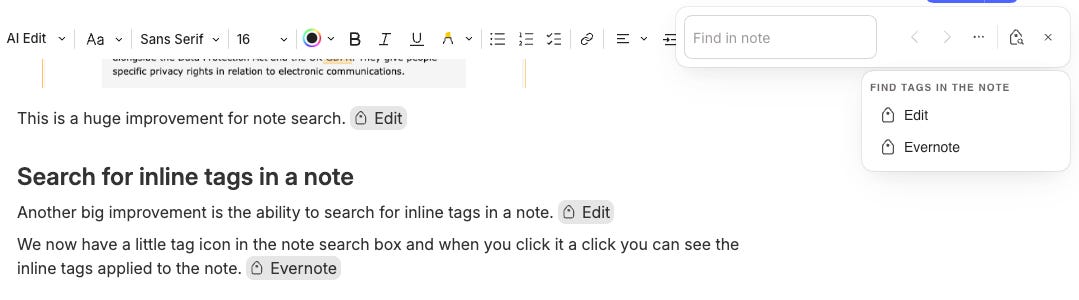
When you click on one of the tags, they become highlighted in the note and you can use the forwards/backwards arrows to move through the tags.

This is going to please a lot of folk.
Let me know what you think about the note search improvements in the comments.
Automatic image captioning
This is something interesting. You can now apply an automatic caption to your images.
Here’s the image from last week’s article and you can see the caption icon in the toolbar at the top right.

Click this and Evernote uses its AI to look at the image and caption it.
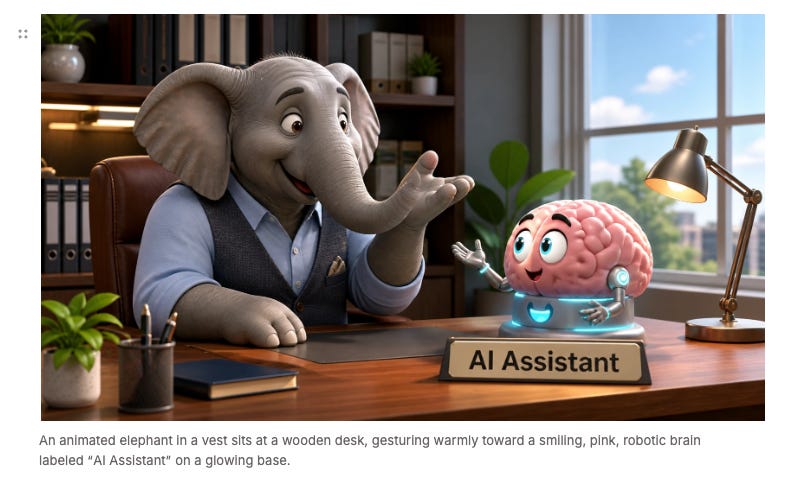
It’s pretty accurate. It thought the suit was a vest, but it’s close enough and you can click your cursor into the caption and edit it.
The words in the caption will also show up in note search.
I didn’t think I would use this much, but I have, not for every image but for some.
Let me know what you think in the comments? Will you be using this?
AI Assistant is now working on the latest AI model
Over the last couple of weeks the AI Assistant has been bumped up to version 5.6 of ChatGPT so it’ll hopefully be able to find information and answer question a little better.
Remember Evernote has a deal with OpenAI so that no note data is used to train the ChatGPT and there’s no data retention.
Pin notes, add them to shortcuts and manage stacks using the AI Assistant
Some more improvements to the AI Assistant include being able to pin a note and add them to shortcuts.
Just use a simple prompt like this.
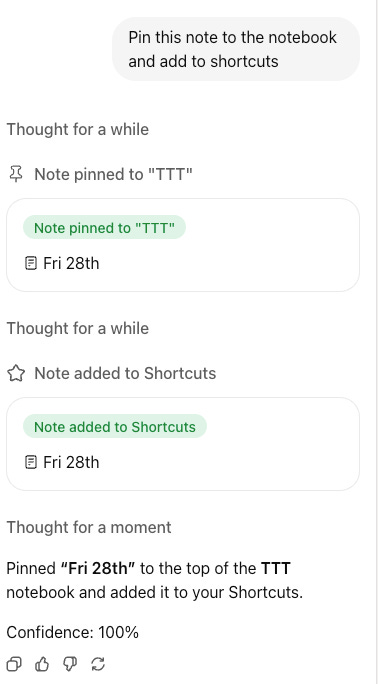
It does both quickly.

I must admit I’m finding it easier to use voice input when using the AI Assistant. A lot less typing.
Another little improvement to the AIA includes being able to manage stacks.
Here’s the prompt. I used the @ symbol to define the notebook and stack.

It did this really quickly.
An in reverse.

I’m going to find this very useful. It’s always been a faff adding and removing notebooks from stacks so being able to do this in natural language through the AIA will be much quicker.
Let me know what you think of these little improvements. Leave me a comment.
That’s it.
Have a great weekend
All the best
Jon
I tried using the assistant to move all notebooks out of a Space, but it claimed that the Space was empty. Same when I tried it for a single notebook. I can see how much faster and aligned with my thought process it is to move notes and notebooks around with speech rather than moving to the mouse and clicking around though.
Another feature I'd like is AI file renaming. I have a lot of notes with receipts and screenshots called 'snapshot' or 'CleanShot 2026....' etc. It would be great to rename the files automatically, even better if you could specify a naming convention in settings like 'YYYY-MM-DD something.png' for a receipt.
Re "find what’s in the note and click the forward/backward arrows to navigate to the search words"
On my machine (Win11), you can just hit enter repeatedly after doing the Ctrl F search to jump to each new instance of the search term which is nice and easy. Tried Shift Enter to see if it would also work backwards but alas no (perhaps something that EN can add in due course). Can also tab from the Ctrl F search box to get to the inline tag search