


A huge thank you to Ben who became a paid subscriber over the last week and many thanks to those who bought me a coffee. Taming the Trunk is 100% reader supported, no ads or commission links and your support is really appreciated.
Newsletter housekeeping: The latest version for PC & Mac is 11.21.5. You can grab it from the download page. Latest mobile version is 11.21.4.
OK, stand by for a long one. Sorry.
There’s been a lot released and I’ll be doing some deep dives over the next couple of weeks that will go into more detail about some of these new features, with some good use cases.
Here we go. First up is...
AI Prompt Library
We now have a place to keep the prompts we use repeatedly.
Don’t underestimate this. It’s a game changer for the AI Assistant.
This is desktop and web only right now.
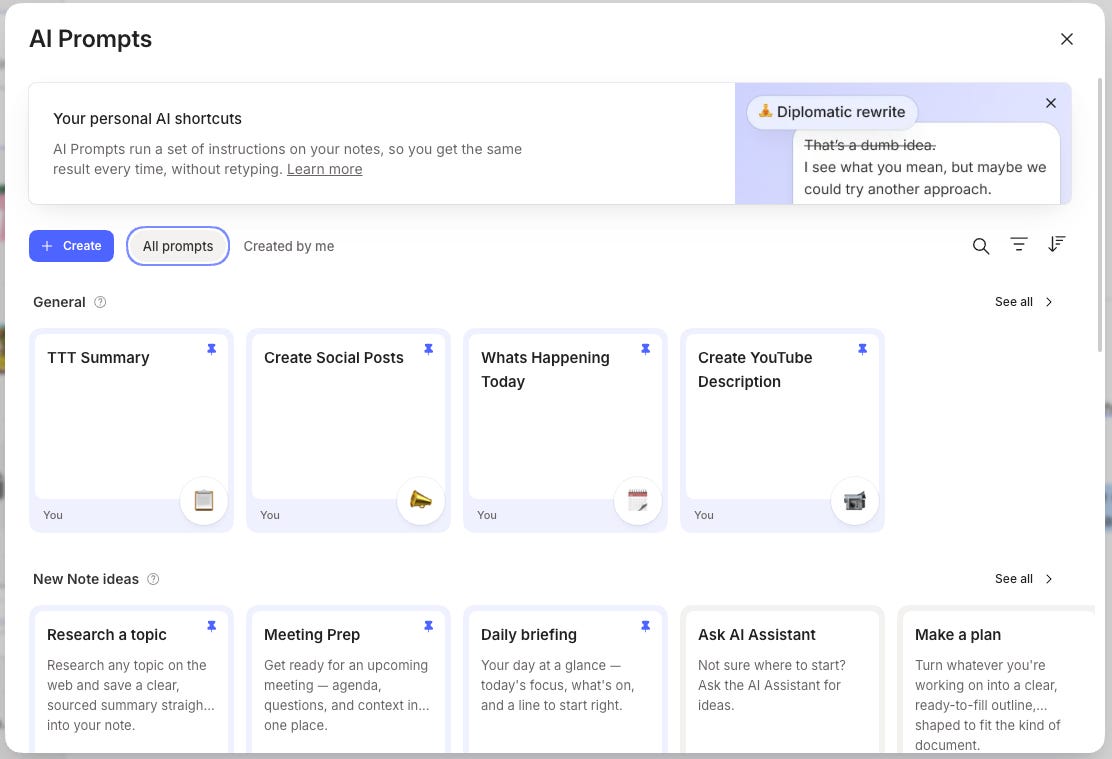
You get to AI Prompts by selecting some text and going to the new AI Prompt button at the side of the new floating formatting bar (more on this later). Click See all prompts.
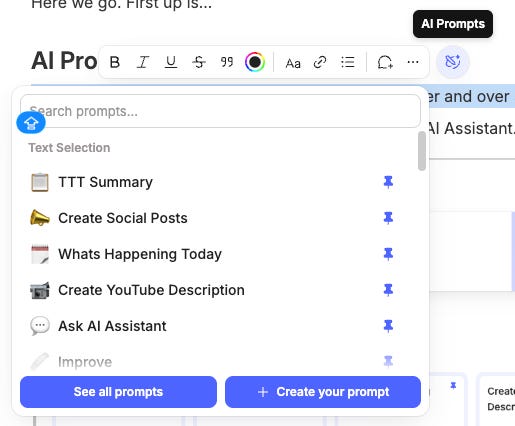
I believe there’s a new button coming soon in the sidebar that will speed up getting to the prompts.
The idea is that you store reusable prompts and then use them whenever you want.
To create a new custom prompt, just hit the Create button at the top left. You’ll see this window appear.
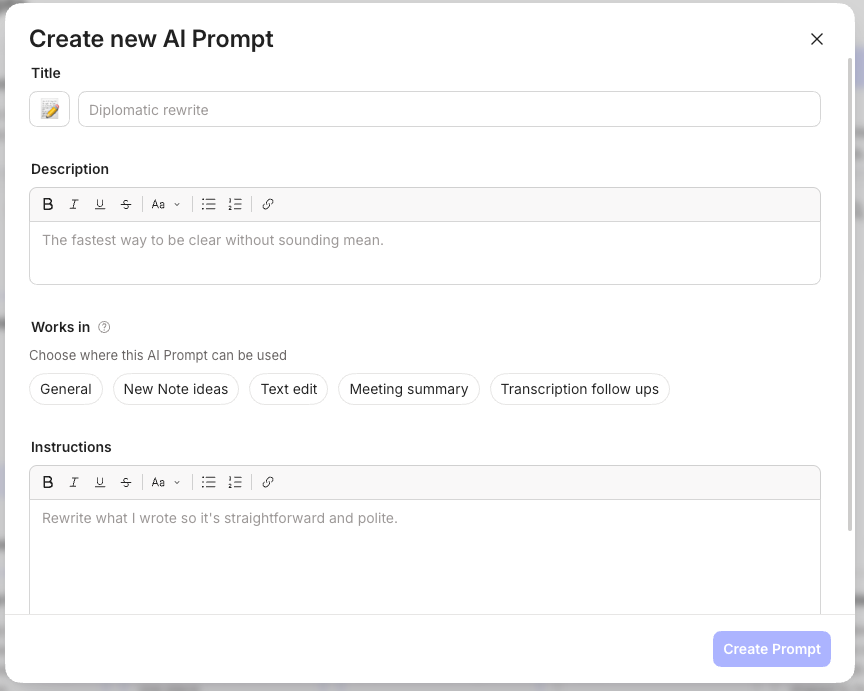
You can change the icon, give the prompt a name and description, select a category and add your prompt.
This is what it looks like.
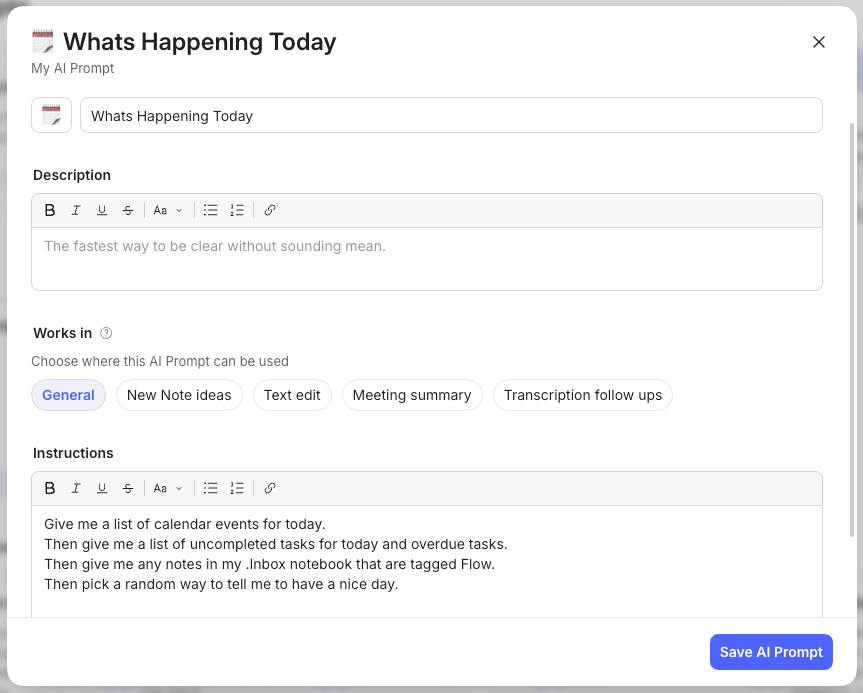
To run a prompt, head to the AI Prompt library, click on the prompt you want and then click Try AI Prompt.
You then get to select a note to run the prompt against, or just run the prompt without note context.
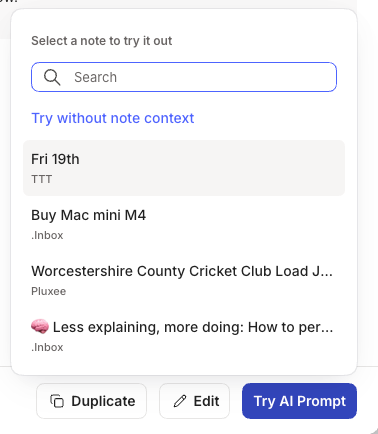
So, for example, my “What’s happening today” prompt which you can see above in the screen shot, doesn’t need any specific note context to run as its just telling me what I have to do today, so I’ll select Try without note context.
If I was using my custom meeting transcription summary prompt, I would select the note I want to run this prompt against.
The AI Assistant will open and automatically run the prompt.
Have a play with this. I’m planning a deep dive post around it as I think this is probably one of the most important improvements for the AI Assistant.
One note. It is awkward to get to right now. I’m hoping that another point of entry appears soon either in the sidebar or the AI Assistant window.
Let me know what you think in the comments.
We have a new inline formatting editor
This is something that has been in testing for quite a while now and when I first played with it, I wasn’t sure I liked it. It was a change.
After using it for a few weeks, I’m now getting used to it and using it almost all the time. I don’t really go to the main toolbar at the top of the note anymore.
This is what it looks like.
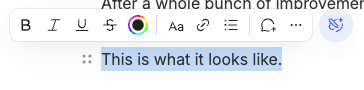
When you select some text, the toolbar pops up and you can change the formatting to whatever you want.
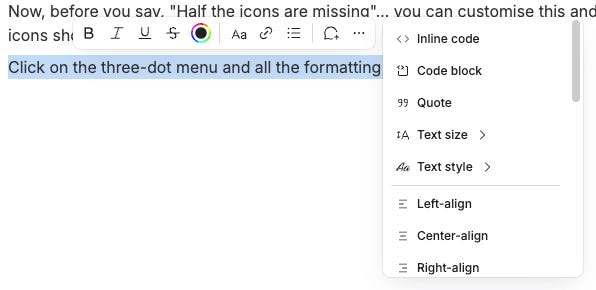
Now, before you say, “Half the icons are missing”... you can customise this and have whatever icons showing in the toolbar that you want.
Click on the three-dot menu to the right of the floating toolbar and all the formatting options appear.
To customise the toolbar, just scroll and find the formatting you want and click the yellow favourite star to the right hand side.
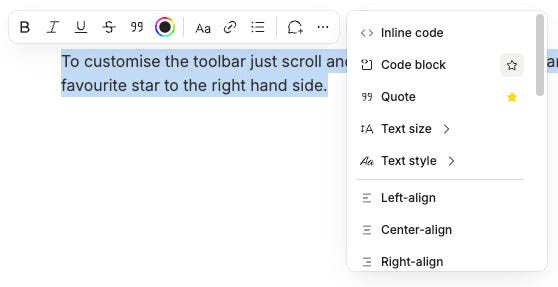
In the screen shot above, I’ve just added the quote format to the tool bar.
If you scroll all the way down to the bottom of the list, you’ll see all the favourites in the toolbar and you can remove them if you don’t want them there.
There’s a bit more to this toolbar than just formatting. You can click the AI icon at the far right and get access to a whole bunch of AI prompts, including your custom prompts.
I’m hoping to record a video on the new toolbar soon, so watch out for that.
There’s also a new setting to switch this off under Settings -> Preferences -> Notes and look for Hide floating toolbar.
Don’t be too quick to turn it off. It is a big visual change, but after a week or two, I’ve got used to it and find it helpful.
Let me know what you think in the comments. Will you be using it?
New AI meeting recorder and live transcription
The AI Meeting Notes feature has proved to be really popular, I know of a lot of folk joining Evernote just for this.
It’s just been updated with a bunch of new things.
For a start, the recorder now appears at the bottom on the screen and looks like this.

You can pause, restart and stop the recording the same as before, but we have a couple of new features.
On the right hand side, there’s a new microphone icon. Click this and you’ll be able to select which microphone to use for the recording.
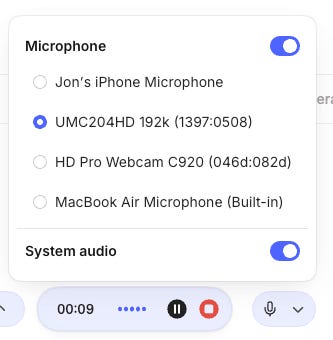
It gives you a list of all the microphones connected to your device so you can pick the one you want and there’s also an option for system audio, which is the audio coming from your computer like your browser, Teams, Google Meet, Zoom and any other apps. If you select remote recording, this is already ticked for you.
Now for the exciting bit.
Click the icon to the left of the voice recorder and you can see a live transcription as you talk.
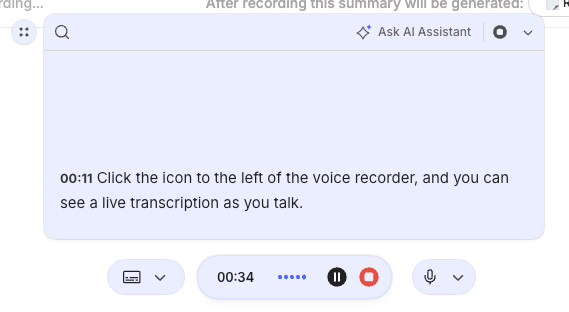
Once you hit stop Evernote still goes through the normal transcription process.
I’m struggling to understand all the use cases for this, but I think one benefit of the live transcription is that you can grab little bits of text from the conversation as it’s happening and paste them somewhere. Saves doing it afterwards.
I also believe the backend transcription process has been upgraded. When you transcribe, it now says things like “adding punctuation” and “cleaning up background noise”. The quality of the transcription is getting much better.
Let me know what you think of these changes in the comments and if you have a use case for live transcriptions.
Dictate your notes with live speech to text
We have a new slash command.
Do slash (/) Dictation and you’ll be able to talk and have the words appear as you’re speaking.
This is really cool and I think when I get the hang of it, I’ll be using this quite a lot.
I just dictated this sentence.
When you’re speaking there’s a little mini audio recorder thingy at the bottom of the screen where you can stop the dictation.

I know this is something folks have been asking about for a very long time.
The text that appears will automatically insert commas, full-stops, question marks, etc. But there is no way to start a new paragraph or add something like bullet points for dictating a list. I hope this gets improved soon.
The quality of the voice recognition does seem very good.
Will you be using it? Let me know in the comments.
Rich text in task descriptions
This is something very useful, especially if you paste links into your task description.
We now have a rich text area to play with.
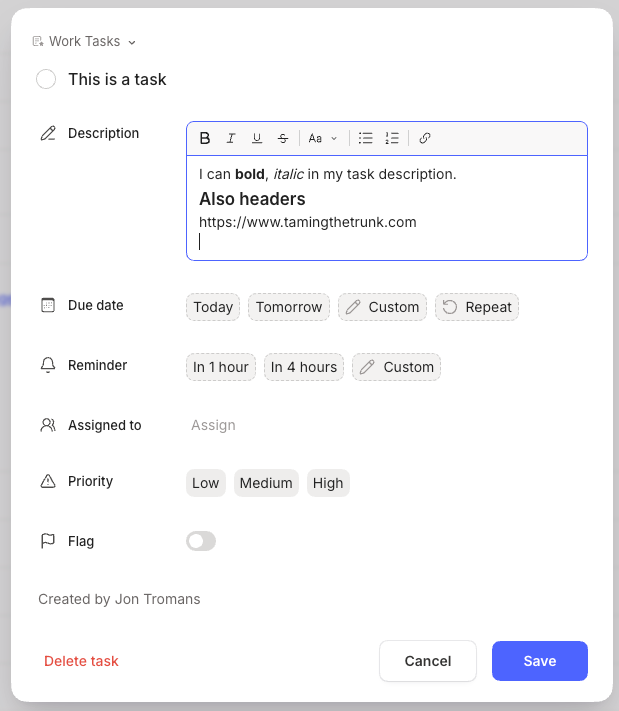
I’ve spotted a bug when adding links inside the box. They appear but move around. I’ve mentioned this, so I hope it gets fixed soon.
This will please a lot of folk as having web or Evernote internal links in the task description will be very useful.
Let me know what you think in the comments.
Inline tags is now a thing
Folks have been asking for this for years, if not decades.
Wherever you are in a note, just type a # and a tag selector appears.
Pick a tag and it shows inline in the note.

The tag will also appear at the bottom of the note in the normal tag section.
This may have made tags much more useful for a lot of folk.
Let me know what you think in the comments.
Sorry this was a long one. I’ll be sharing more deep detail on some of these new features soon, so keep an eye out for the next posts and don’t forget to subscribe.
Have a great weekend.
All the best
Jon
Lots to digest here.
Personally, I'm actually beginning to feel a little overwhelmed with all the new stuff being added. Just can't keep up. 😜
Thanks Jon
I really like the live dictation, just wished there was a way to add it to formatting/tool bar at the top of the note (or bottom, in the iOS app) for quicker access and not having to wade through the ever longes Insert menu.
On desktop it’s easy enough to type the slash command, but having a quick and easy way to start dictation in the mobile app would be great.
Or even better, being able to start a new note with dictation right away (it would be the perfect action for the Action button on my iPhone!)
Being able to add #tags anywhere in the note without having to target the tags field is great (and I’ve always felt it being weird having the tags field at the bottom of the note in the desktop app).