

A huge thank you to all paid subscribers and many thanks also to those who bought me a coffee. Taming the Trunk is 100% reader supported, no ads or commission links and your support is really appreciated.
Newsletter housekeeping: The latest version for PC & Mac is 11.4.4. You can grab it from the download page. Latest mobile version is 11.4.3.
The Evernote AI Meeting Notes feature has been out a while now and from talking to folks here on Taming the Trunk it’s probably the most useful feature added to Evernote in years.
However, one grumble has been that the summary generated by the AI transcription is a little short with not a lot of information.
So, this week I’ve put together an ultimate meeting analysis prompt using my eBILDE prompt framework that you can use with the Evernote AI Assistant to analyse your meeting in a lot more detail.
The first thing to do is record your meeting using the remote or in-person recorder.
If you’ve not used the AI Meeting Note feature before, check out my deep dive.
When you’ve got your meeting transcribed, open up the AI Assistant using the round button at the bottom right of the interface. We’re now ready to prompt.
You’ll need to make sure your meeting transcription note is open when you’re entering the prompt.
The ultimate AI Assistant meeting analysis prompt
This is a long prompt and based on my eBILDE prompt framework so I’m going to go through the different stages and explain what they do.
BASE
This tells the AI exactly what to look at in your note and I’ve told it to read it carefully!
Look at the entire transcript in the open note. This meeting transcript is created by Evernote AI Meeting Notes. Read it carefully from start to finish.
INSTRUCT
This is where you tell the AI Assistant exactly what you want it to do. No messing, treat it like a 5 year old and explain everything.
Act as an advanced meeting analyst and produce an output that includes:
- Main topic: Identify the single main topic of the meeting (one short line).
- Summary: Summarise the important information and outcomes from the meeting. Keep it concise and avoid over-explaining.
- Agreed items: Extract key points that were agreed or decided.
- Tasks & actions: List all tasks/actions that need completing.
- Where possible, assign a task to a responsible person’s name exactly as written in the transcript.
- If no owner is stated, write “Owner: Not stated” (do not guess).
- If a due date/timeframe is stated, include it. If not, write “Due: Not stated”.
Formatting rules (must follow):
- Use bullet points and short, clear phrases.
- Use neutral language.
- Avoid buzzwords.
- Do not speculate and do not offer opinions.
- If something is unclear in the transcript, label it “Unclear” rather than guessing.
I’ve made sure to ask it for a clear topic title for the meeting and a clear and concise summary without any over-explaining. I don’t want the AI to waffe on.
I’ve also aked it to extract what was agreed or decided and create a list of tasks or actions assigned with the name of a person.
Regarding the formatting of the analysis, I’ve asked it to use bullet points, neutral language that avoids buzzwords and the most important part is I’ve asked it not to speculate or make things up.
LIFT
This step could be optional or you could use it in the BASE element of the prompt but for now I’ve slotted this here.
LIFT is there to instruct the AI to look at the web and ‘lift’ the note contents. In this scenario I want to make sure it doesn’t search the web.
Do not use web search. Rely only on the transcript in the open note.
I only want the AI Assistant to look at the note contents.
DEVELOP
This part of the prompt tells the AI what you want to happen when the main task is completed.
After the bullets above, add a final section:
- Open questions / follow-ups: Brief bullet list of questions the team should answer next, or areas worth exploring further (keep this short).
The final prompt
Here you go. Open up one of your meeting transcripts and the AI Assistant and paste this into the prompt box, see what happens.
This is the full prompt.
Look at the entire transcript in the open note. This meeting transcript is created by Evernote AI Meeting Notes. Read it carefully from start to finish.
Act as an advanced meeting analyst and produce an output that includes:
- Main topic: Identify the single main topic of the meeting (one short line).
- Summary: Summarise the important information and outcomes from the meeting. Keep it concise and avoid over-explaining.
- Agreed items: Extract key points that were agreed or decided.
- Tasks & actions: List all tasks/actions that need completing.
- Where possible, assign a task to a responsible person’s name exactly as written in the transcript.
- If no owner is stated, write “Owner: Not stated” (do not guess).
- If a due date/timeframe is stated, include it. If not, write “Due: Not stated”.
Formatting rules (must follow):
- Use bullet points and short, clear phrases.
- Use neutral language.
- Avoid buzzwords.
- Do not speculate and do not offer opinions.
- If something is unclear in the transcript, label it “Unclear” rather than guessing.
Do not use web search. Rely only on the transcript in the open note.
After the bullets above, add a final section:
- Open questions / follow-ups: Brief bullet list of questions the team should answer next, or areas worth exploring further (keep this short).
Quick self-check before finalising: confirm you have not invented owners, dates, or decisions. If any tasks lack an owner or due date, ensure they are marked Not stated.
Feel free to edit and change this as you want. Change the formatting or ask for different information.
It works really well. I can’t post the full response I got to my meeting as it’s quite long but here’s a few snippets from what the AI Assistant gave me when I used it on a real meeting.
When you get the reply, the AI Assistant should ask you if you want to insert the reply into the existing meeting note or create a brand new note.
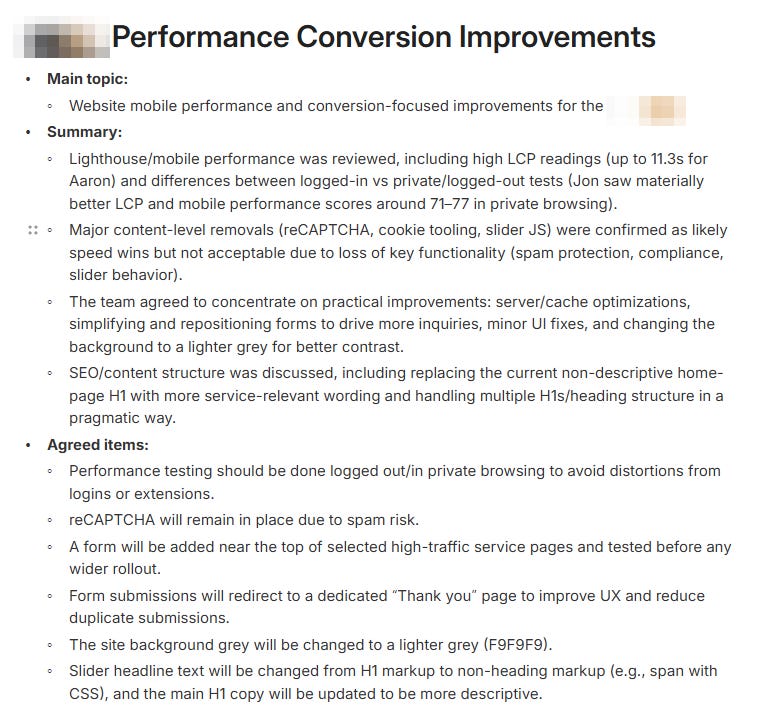
This was the summary and agreed items it gave me from an hour and half meeting.
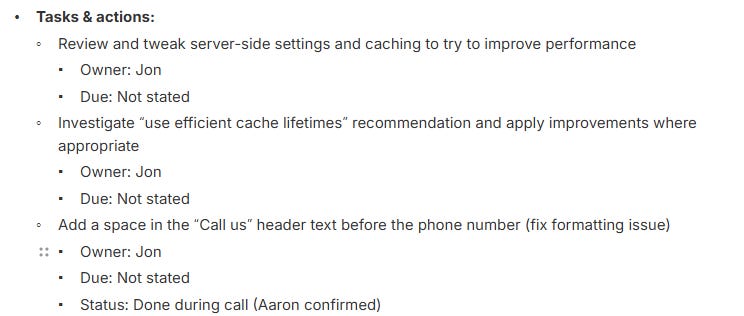
This is what the tasks looked like. The AI managed to pull everything I needed.
This is what it came up with for follow up questions and thoughts.

It did well because the prompt was very specific in what it was asking for. The more precise you are with the prompt the better the result.
I also checked the AI usage in the settings and running this prompt on an hour and a half meeting used up just 1%, so not a lot at all.
Grab it, save it in a note, edit it and just copy and paste it into the AI Assistant whenever you have a meeting.
Let me know what you think? Would you add anything to this prompt? Let me know in the comments.
Have a great weekend
All the best
Jon
thanks.. I'll give it a go... as I think you Brits would say???
Excellent. I'll add to my prompt list.
I have another issue with the current transcript feature: it assumes everything is a meeting, whereas I also use the feature to record ideas and rough drafts of writing projects. Sometimes a summary would be useful, but the app contorts the content into a "meeting" and is not useful at all. (I could send an example if this is not clear.) I think i should be able to use a prompt that says something along the lines of: . This is not a meeting transcription. Read the notes and create an outline of the topics included.... yes?