


A huge thank you to all paid subscribers and many thanks also to those who bought me a coffee. Taming the Trunk is 100% reader supported, no ads or commission links and your support is really appreciated.
Newsletter housekeeping: The latest version for PC & Mac is 11.36.4. You can grab it from the download page. Latest mobile version is 11.36.3.
Quite a bit to get through this week and I think(?) we’re having an AI free episode today!
First up is some new functionality that’s gradually rolling out and I’m planning a deep dive on this very soon so watch out for it.
We can sort and filter tables!
I repeat, we can sort and filter tables!
Folks have been asking for this at least 100 times a day for the last 15 years and we’ve finally got it.
Tables have been revamped to offer basic sorting and filters plus a few other cosmetic changes.
One of the very useful changes is being able to switch on a Header row or column, which makes the top row or left column of the table a header and colours the background. You can change the colour if you want to.
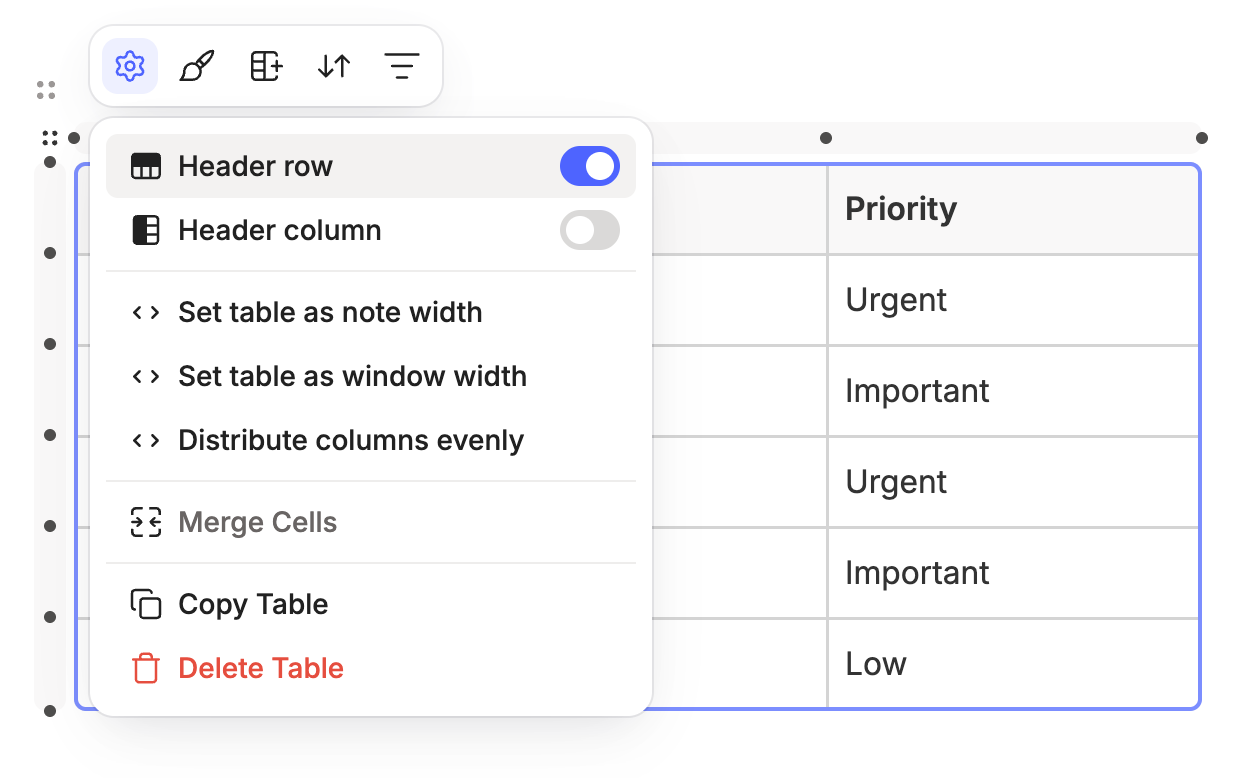
Now we’ve set the header, let’s quickly look at filtering.
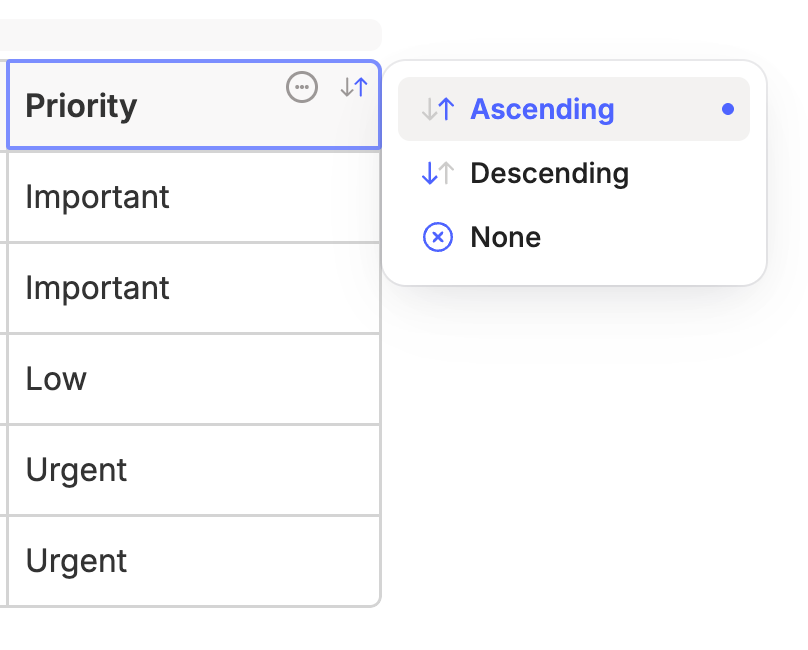
Here’s a table column with priorities. Click the three-dot menu at the top right of the column header and you’ll see this.
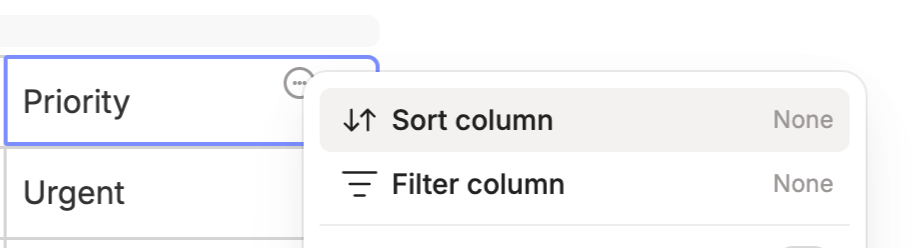
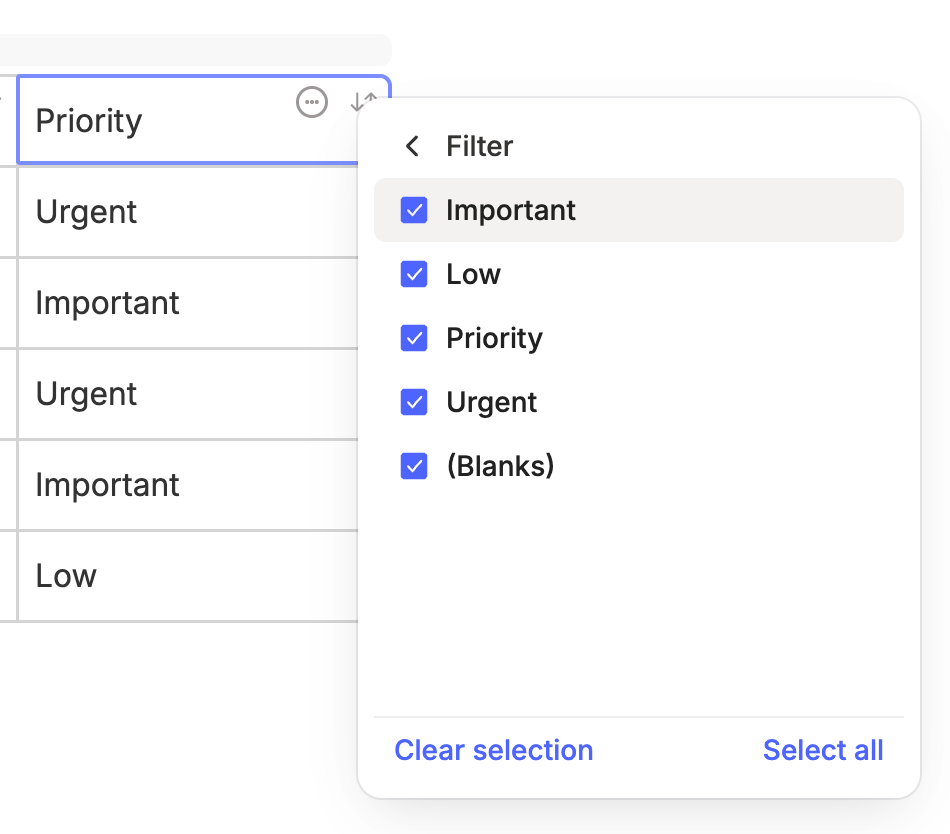
There’s an option to Filter column. Click this and you can see all the items in the column and you get the chance to filter them.
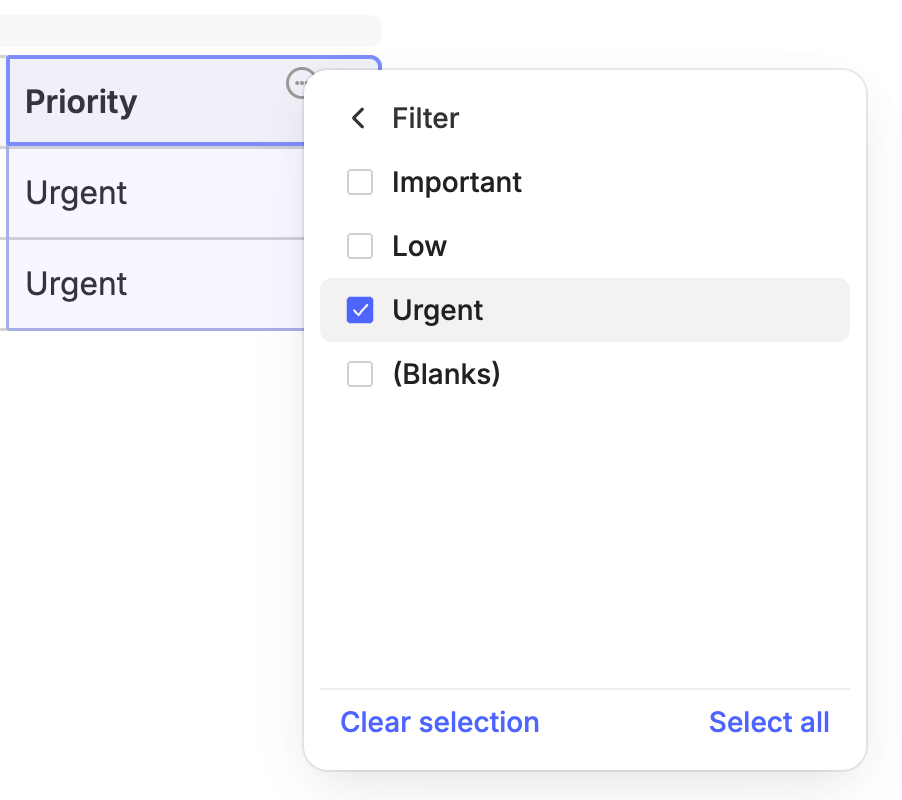
Deselect everything apart from Urgent and you’ll only see Urgent items.
Each column header also has a sorting icon. Click this and you can get the usual ascending/descending sorting options with a None for resetting everything.
There’s also a lot of new cosmetic options hidden behind various cell, row and column settings that control things like border style and width, background colours and text aligning.
There’s a lot to cover, so once this is rolled out to everyone, I’ll do a deep dive article.
If you see the update now, let me know what you think in the comments.
Note lists have had a bit of a revamp
Quick note. This is being gradually rolled out, so you may or may not have it right now. Everyone should see this in a few days.
I quite like this change and it’s pretty subtle. The cosmetic view of the note list has changed a little.
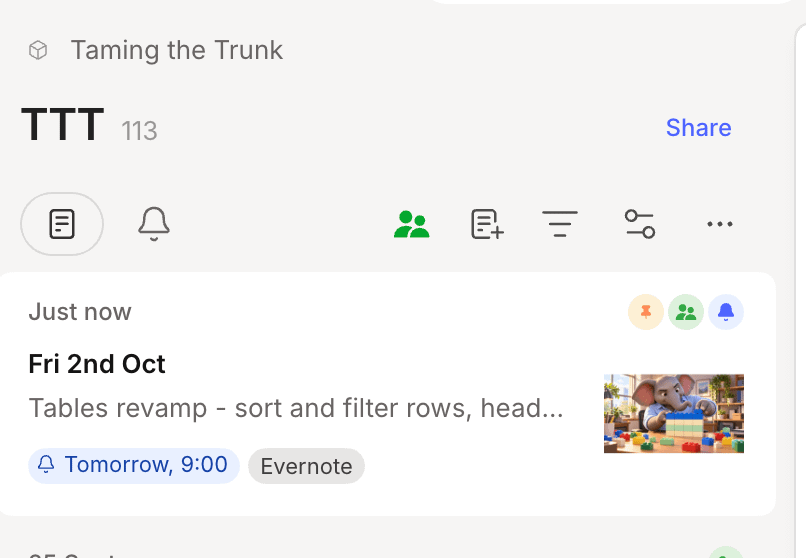
The style is softer and the items you see are more configurable.
Hit the little slider control at the top of the note list and you can control what you see in the snippet.
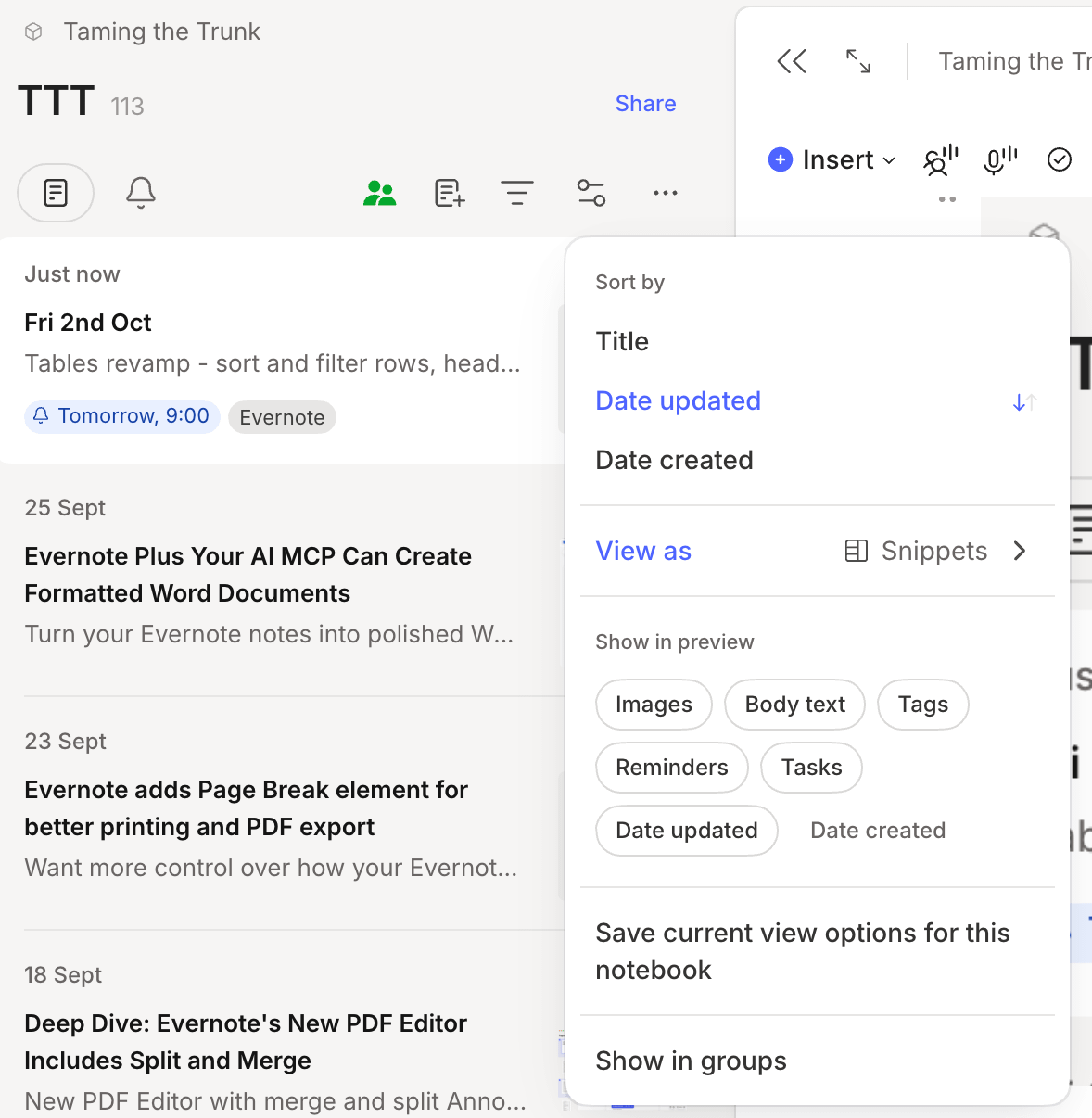
You can click the pills under Show in preview and show/hide the different options.
This is what it looks like for Side list view.
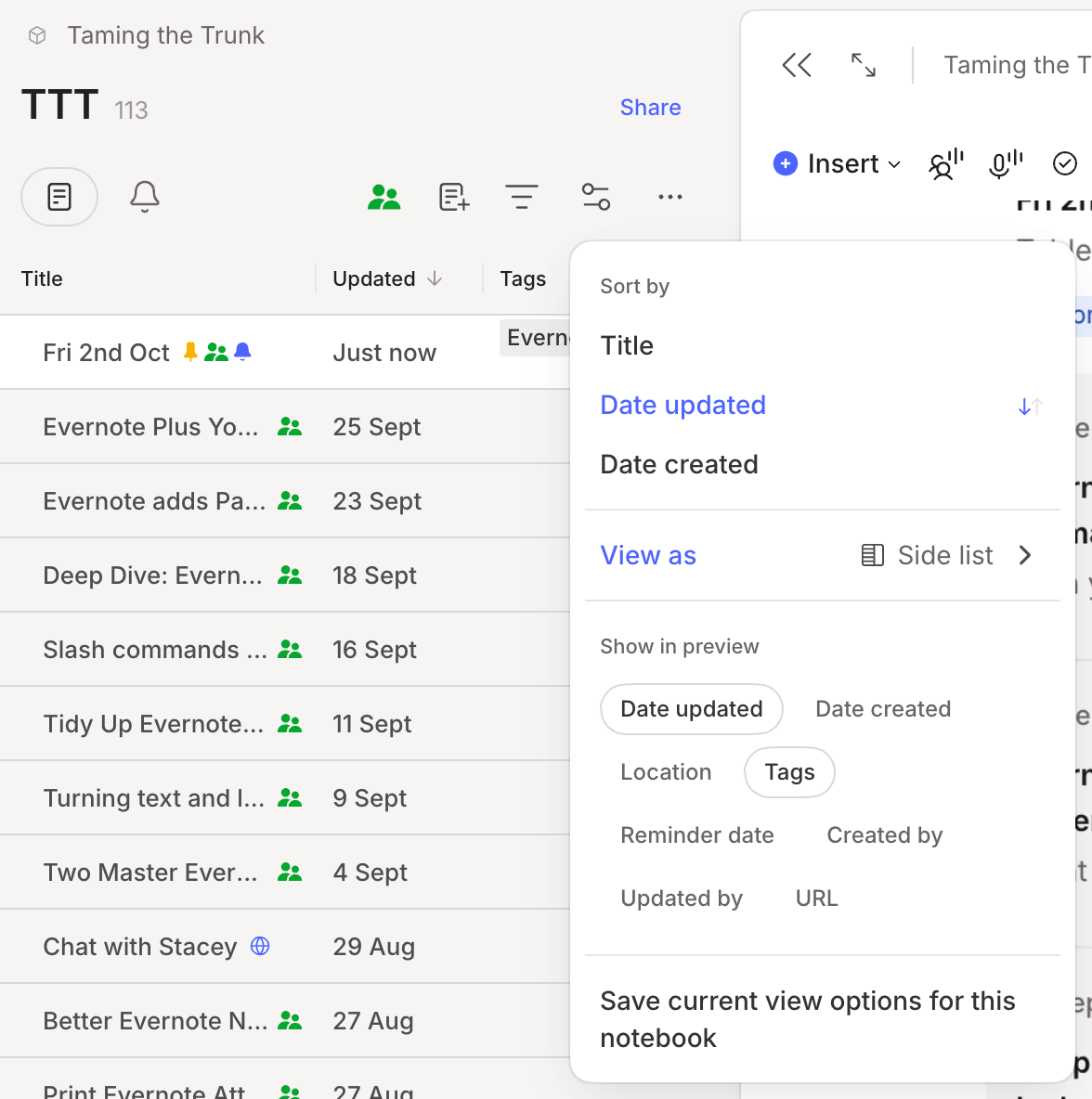
You get a slightly different set of options.
I quite like this small update. Let me know what you think in the comments.
More options for closing Evernote tabs
Are you a tab hoarder? On the odd occasion, I’ve found myself to have more tabs open that is healthy.
We now have a couple more options for closing unused tabs.
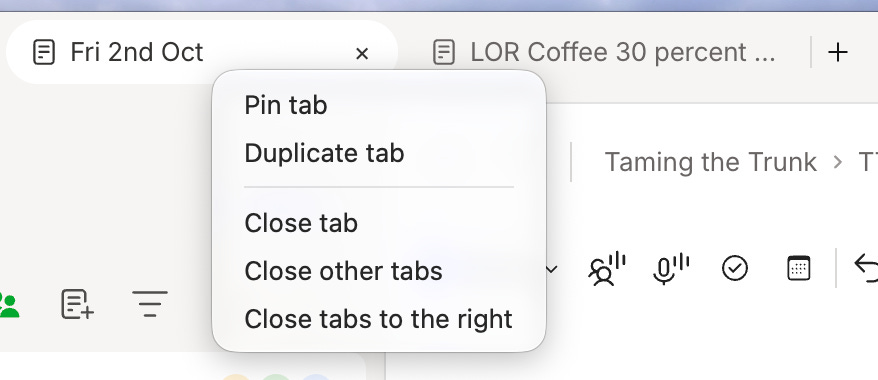
Right click a tab.
Choose Close other tabs to close all tabs apart from the one you’re clicking on.
Choose Close tabs to the right to surprisingly close all the tabs to the right.
At least once a day, I find myself with so many tabs open I don’t know what’s open and what’s not so I can quickly close a whole bunch and start again.
Let me know in the comments if you’ll be using this.
Export to PDF and printed notes are working much better
This has been a bugbear of mine for a while. I export a lot of training registers, which are in table format and the table always used to break, so I had to copy/pasta into Word and then export into a PDF.
Not any more. There’s been a lot of work done improving exporting notes as a PDF and also printing them so more elements are supported and everything looks how it should in the final copy.
We’ve also seen the introduction of the Page break Slash (/) command, which forces a PDF and printer to start a new page anywhere you want in the note.
Let me know how you get on.
Daily note bug finally fixed
If you use the daily note feature, you’ll most likely have been irritated by multiple notes being created each day. This bug is now fixed.
I’m only getting one a day now.
If you switched off daily notes because of this bug, try it out again and let me know how you get on.
A change to what updates a note
This is small but big as it’s been irritating me and other folk for a while.
Moving a note into another notebook or adding a tag to a note will no longer change the updated date of a note. This no longer constitutes an actual update.
I’m happy with this and I think the plan is to set some of the other actions within Evernote to update or not update the date much more consistently.
A small change when clicking images and attachments
A small workflow change here that makes sense to me.
If you now single-click an image or attachment, it selects it.
If you double-click an image or PDF it opens in the Evernote editor.
If you CTRL or CMD click an image or attachment it opens in your devices default editor for that file.
This makes sense to me and its more consistent. Let me know what you think in the comments.
Mobile Evernote gets a hide keyboard icon
Have you ever been irritated about not being able to close the keyboard when editing a note, you want to read or see something, but the keyboard is hiding it?
Not any more.
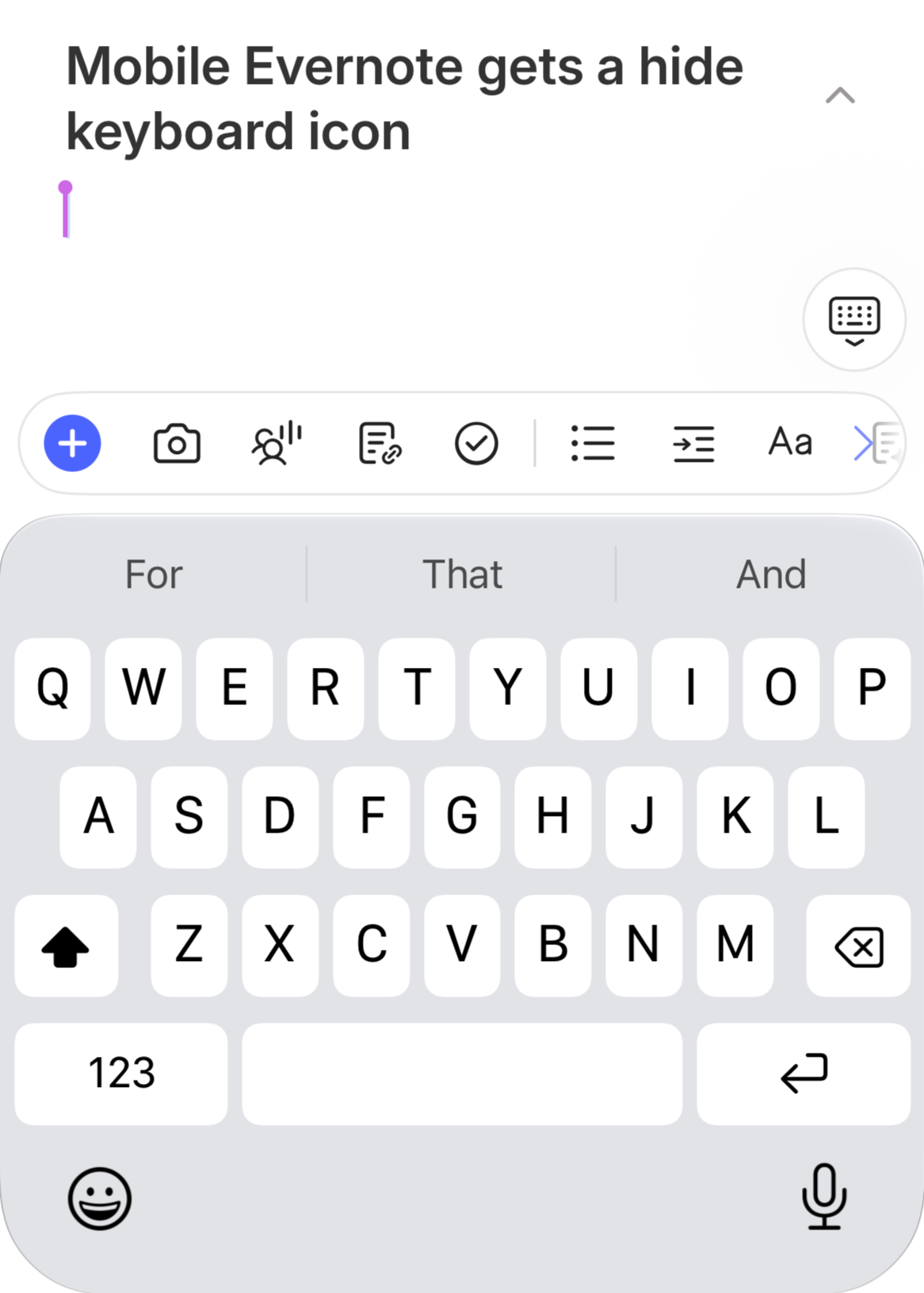
Just above the formatting bar on the right hand side is a new icon for hiding the keyboard. Just tap it.
And finally...
Mobile gets AI Edit mode! Oh no, AI... I thought this was going to be AI free... almost.
When you head into the AI Assistant on mobile, you can now put yourself into Edit mode and get the AI to sort, arrange and format your note.
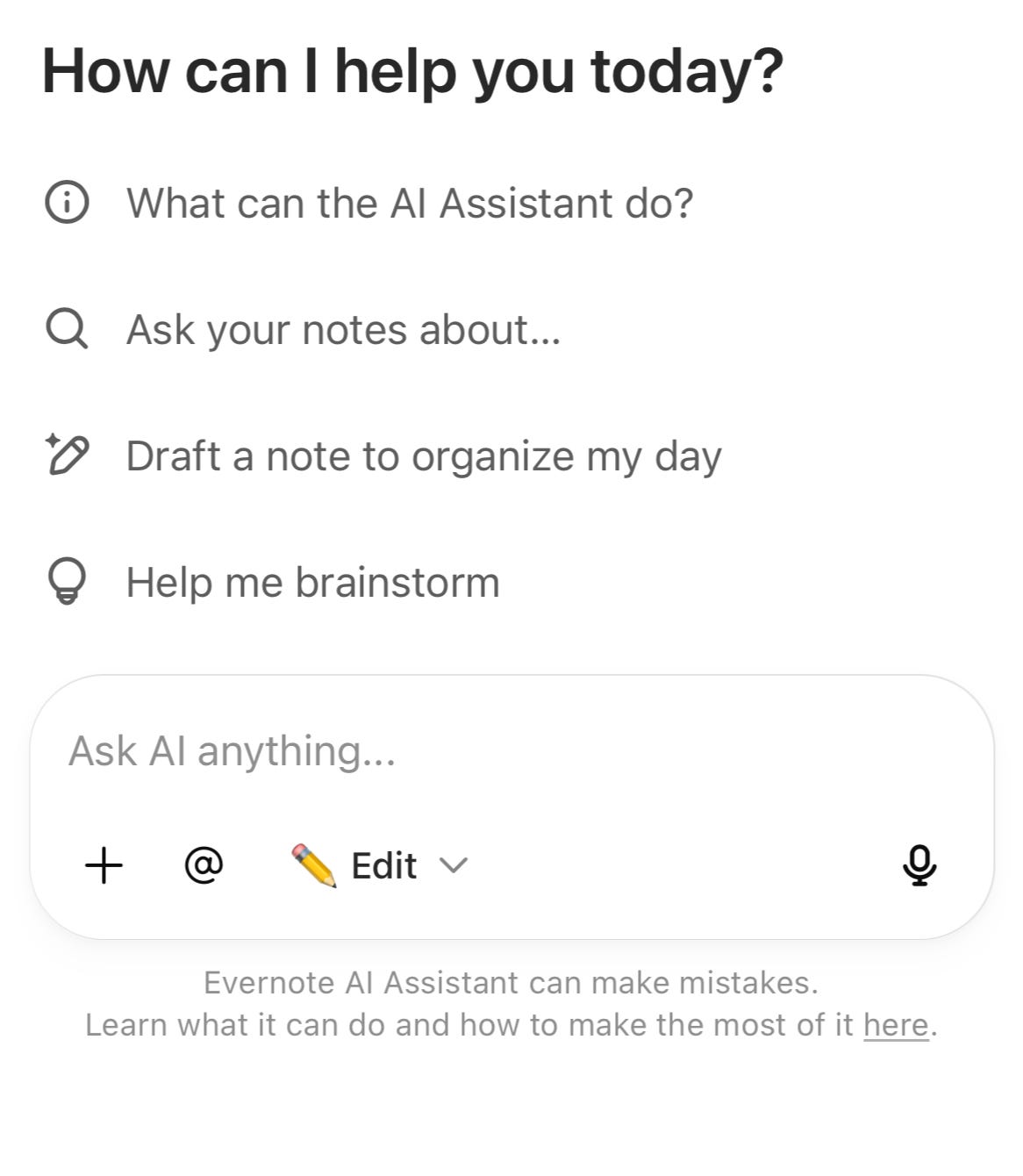
You can read more about Edit mode here.
That’s it. Quite a lot to pack in this week, so let me know your thoughts in the comments.
Have a great weekend
All the best
Jon
I just wish there was a footer row option with a SUM now! 🤞