


A huge thank you to all paid subscribers and many thanks also to those who bought me a coffee. Taming the Trunk is 100% reader supported, no ads or commission links and your support is really appreciated.
Newsletter housekeeping: The latest version for PC & Mac is 11.8.1. You can grab it from the download page. Latest mobile version is 11.7.1.
A few small improvements that make a difference have just been released, so a busy episode of Taming the Trunk today.
Lets go.
Evernote tasks now work in tables
This is something folks have been wanting for ages and there’s already been a ‘game changer’ message in the Taming the Trunk chat (for subscribers).
Evernote tasks came out around 2020/2021 and gave us a way of adding a proper task with a due date and a flag to a note without having to use a checkbox. You could then pull up tasks in its own view, sort and filter them.
One thing you couldn’t do was put a task inside a table.
A lot of folks wanted this. The ability to create a small table with column headings and tasks underneath is a nice way to categorise tasks within a project.
Update your Evernote to 11.8.1 on desktop and tasks now work inside tables. This also works on mobile.
We can now create a kind of DIY Kanban board.
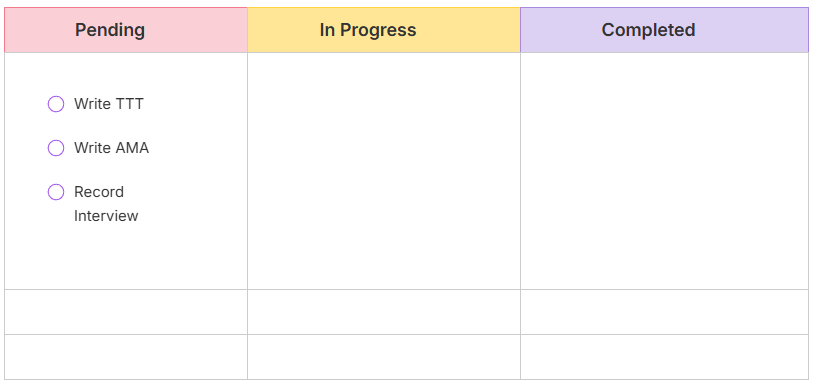
What I’ve done here is create a 3 x 3 table using the shortcut [][][]x3.
I’ve then added column headings at the top using shortcut ### for heading 3.
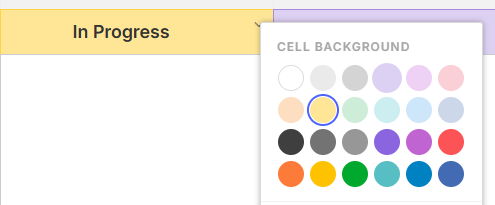
I’ve then added a background colour to the headings using the little drop down menu to the right of the table cell.
Then, using the shortcut () I’ve added tasks to the Pending column. You can add flags and due dates as well if you want.
What’s great about a Kanban board is that you can move your tasks from one column to another based on what stage that task is at.
Each column is a stage of the task and you can have as many as you want.
To move a task to another stage, you hover over the task, click the little four dot grab handle and drag the task to another column.
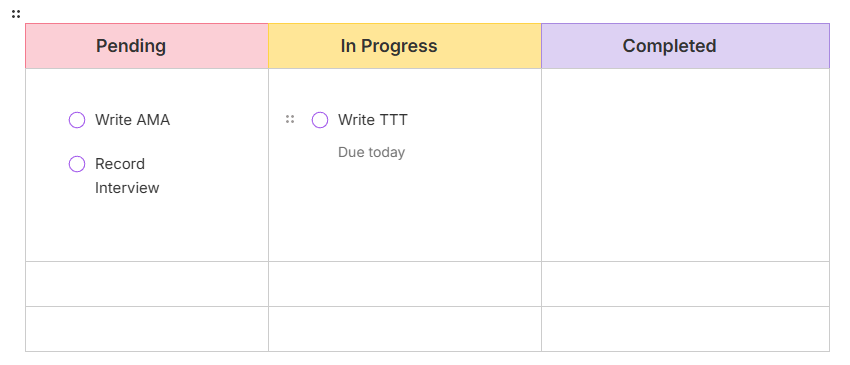
In this screenshot, I’ve dragged a task to the In Progress column and added a due date.
The great thing about this kind of task based Kanban board is that is can be unique to everyone. You can create stages/columns that are important to you and build your own system.
Do you use Kanban boards? Are you happy you can add tasks to tables? Let me know in the comments.
Dictate AI prompts
Something new for the Evernote AI Assistant. We can now dictate a prompt.
Just click the microphone icon in the prompt window and start talking.
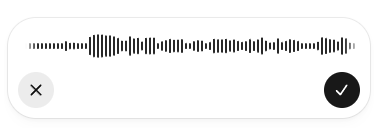
What you type appears in the prompt box.
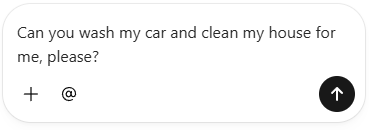
Hit the up arrow icon and you’ll send the prompt to the AI and get the answer.
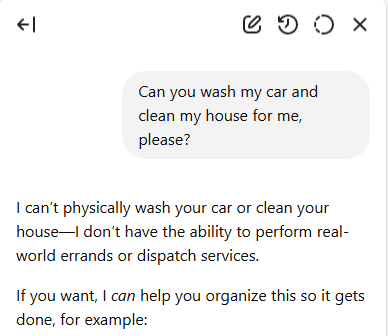
Will you find this useful? Let me know in the comments.
AI Assistant usage meter icon
We now have a new icon at the top of the prompt window for quickly checking your AI usage.
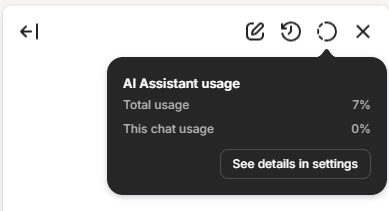
There are two different limits at play here.
One is for your overall use of the AI Assistant and the other is for the length of each individual conversation.
Using this icon, you can see what your usage is.
This is what it looks like for an active Ai chat.
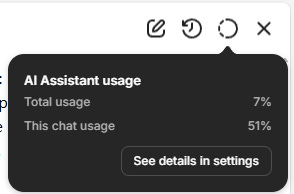
I’ve used 7% of my overall assistant usage and 51% of my individual chat limit.
We don’t know what the exact limit is as each chat can use a different amount of AI tokens, but at least we know when we’re getting close.
Semantic search separated from main results
So, semantic search is cool. I did a deep dive not long ago and I find it useful but it has slowed down search a little and this improvement will help speed things back up again.
Before, when you typed in a search term and hit enter, semantic and standard search was run at the same time and then the results were shown, but as the semantic search takes longer to work out, it made standard search a lot slower.
What’s changed from version 11.8.1 is semantic and standard are run separately and the difference between the two different types of search are more defined.
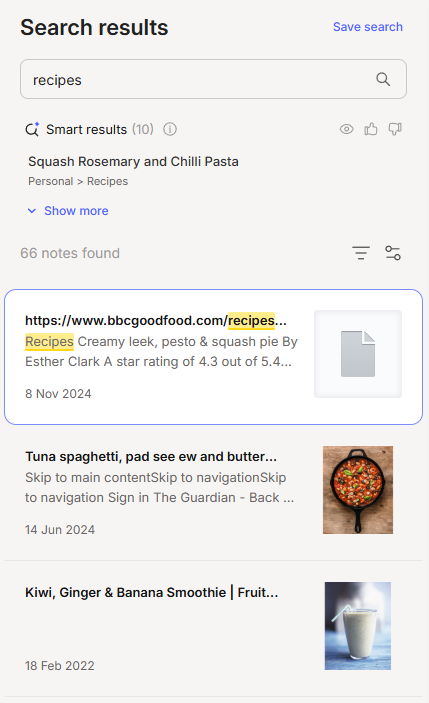
With this search for recipes, the semantic search is at the top and called Smart results and the standard notes are below. It’s still a teeny bit slow but from what I understand this will be improved on again, soon.
If you ask a question, the semantic search tries to find an answer.
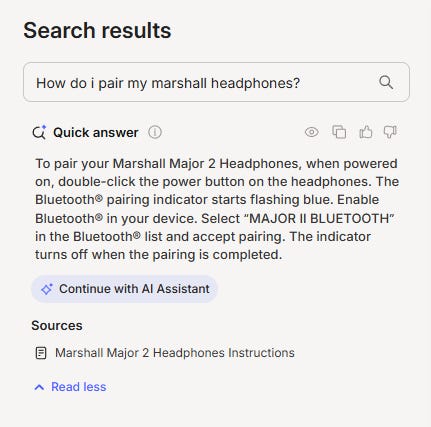
Let me know what you think? Remember, you can always turn off semantic search in the settings.
We have a new emoji picker
Finally, in this bumper episode of Taming the Trunk, we have a brand new emoji picker.
Type a full colon and then start typing the emoji you want and a picker appears.
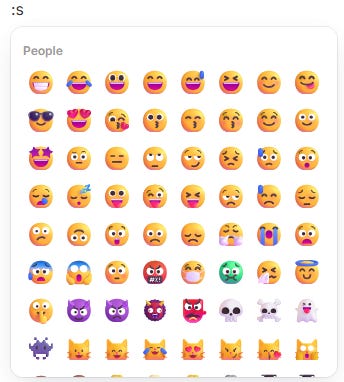
The more you type, the more relevant emoji’s you see.
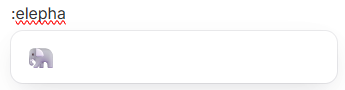
The picker also works inside tasks.

That’s about it.
As always, let me know what you think about all these new things. Leave me a comment below.
Have a great weekend
All the best
Jon
Not being able to put tasks in tables has always irked me so I'm disproportionately delighted they've fixed this
Very helpful, as always. Question: Unlike Notes, we cannot link Tasks from other Notes into a Kanban? Can one create a Kanban of Notes and Tasks? Or, do Tasks in a Kanban only exist in that Note?