


A huge thank you to all paid subscribers and many thanks also to those who bought me a coffee. Taming the Trunk is 100% reader supported, no ads or commission links and your support is really appreciated.
Newsletter housekeeping: The latest version for PC & Mac is 11.28.2. You can grab it from the download page. Latest mobile version is 11.27.3.
Lets get this quick one out of the way.
I have no idea if this is new or not, but as I only found it the other day, so I’m calling it new. It may have been around forever.
If you’re a tag user, one of the issues you’ll have at some point is having a bunch of orphaned tags, or tags not being used.
Here’s a quick way to find them.
Open the tag drawer by clicking Tags in the sidebar or using the keyboard shortcuts ⌥ + ⌘ + 7 for Mac and Ctrl + Alt + 7 or PCs. You can also remap these shortcuts to anything you want.
Click the sorting icon at the top right of the tag drawer and sort by Note count.

Click the arrows at the far right to charge the sort order and you’ll be able to see all the tags that are not being used.
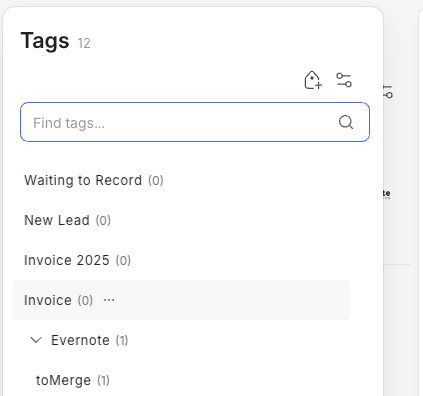
This is useful if you’re a heavy tag user, so take a look at them from time to time and do some pruning.
Did you know about this? Do you use it? Let me know in the comments.
Mention notes, tags and notebooks in your saved AI prompts
If you missed the news from a few weeks ago Evernote has an AI Prompt library which means you can create pretty elaborate prompts, save them and reuse them as much as you want.
A little improvement has just arrived where you can now use the @ symbol to direct the prompt to use a specific note, tag or notebook.
A simple use case would be to add multiple tags to a note.
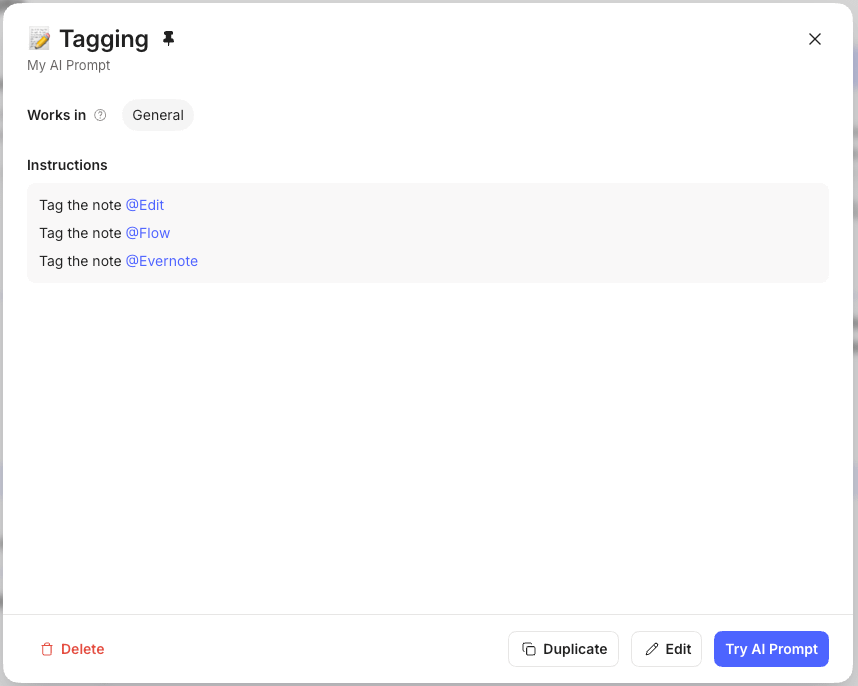
Another new thing added this week to the AI Assistant is the ability to create a new note and you can build this into the AI Prompt you’re creating.
Here’s an example where I’ve created a saved prompt to create a new note called Today with today’s date at the end of the title. I’ve then asked the AI Assistant to list my overdue and current tasks together with any notes tagged #flow in my .Inbox notebook. The flow tag is something I use a lot, they are notes created by my CRM and invoicing software, basically things I need to check or do.
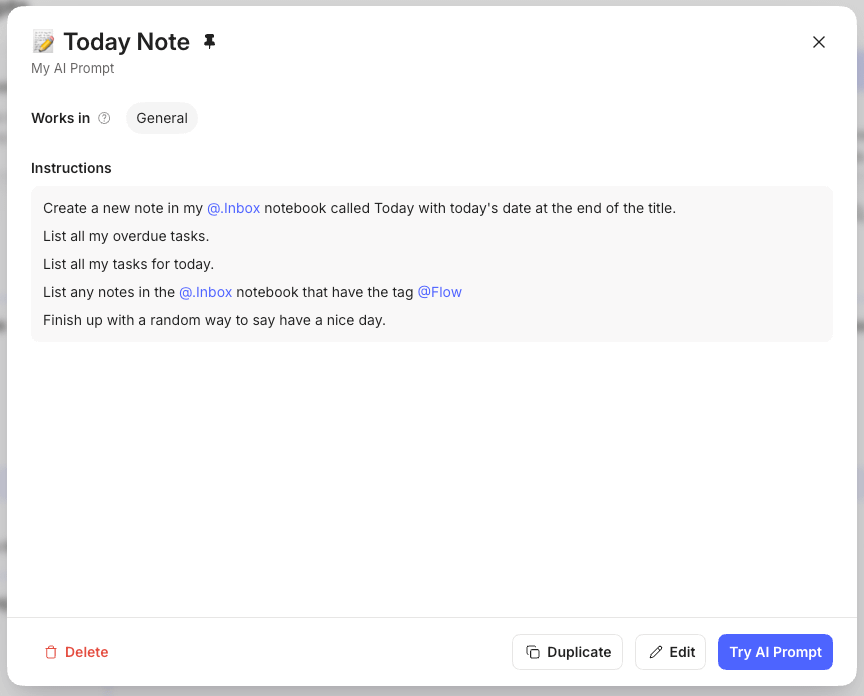
The prompt in plain text if you want to try it out is:
Create a new note in my .Inbox notebook called Today with today’s date at the end of the title.
List all my overdue tasks.
List all my tasks for today.
List any notes in the .Inbox notebook that have the tag Flow
Finish up with a random way to say have a nice day.
Remember to use the @ symbol when creating the prompt to mention the correct notebook and tag.
Running this prompt with no note context creates a new note that looks like this:
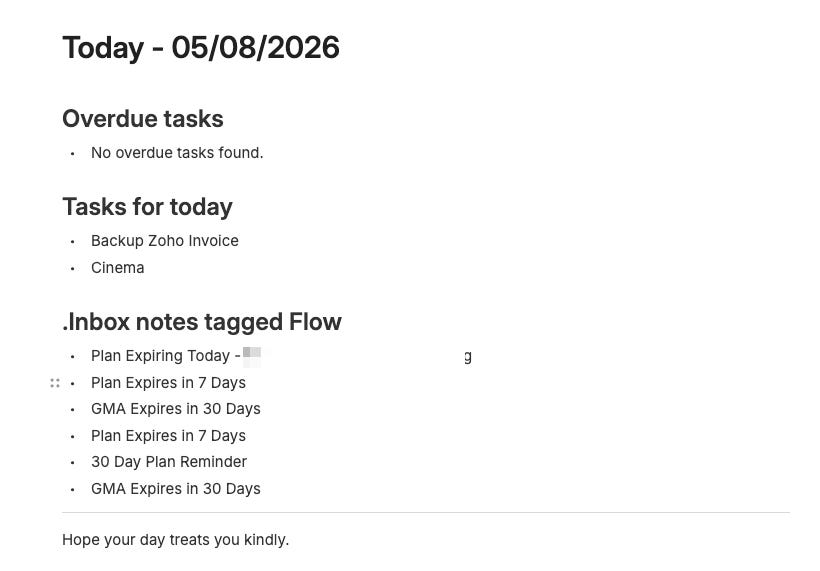
The use cases for this new functionality are pretty much unlimited and a lot depends on your workflow, but being able to kind of automate little tasks and general note creation is going to be helpful.
Are you using the AI Prompt library? Let me know in the comments.
And finally...
The August private chat thread for paid subscribers is up and running, so feel free to ask questions, have a moan etc.
The general chat is also open for any free subscribers so hop along and say hello.
And finally, finally…
A new video is out on the official channel showing how to plan a holiday with some real use cases. Hopefully they’ll do some more of these types of videos.
Have a great weekend
All the best
Jon
Word of warning about tags list before you delete... if you use nested tags the number on the top tag does not represent the number of notes where the nested tags are used.