

A huge thank you to Cop Wind and Tom who became paid subscribers over the last week and many thanks also to those who bought me a coffee. Taming the Trunk is 100% reader supported, no ads or commission links and your support is really appreciated.
Newsletter housekeeping: The latest version for PC & Mac is 11.13.2. You can grab it from the download page. Latest mobile version is 11.13.2.
Quite a few small things to mention this week, but one of them has made a big difference to my workflow.
I used to managed my tasks in a separate window in the web version of Evernote. I have dual monitors when I’m working in my office and on the left screen was the Evernote app and the right screen had the web version of Evernote open with my tasks on view. I kept this open all the time.
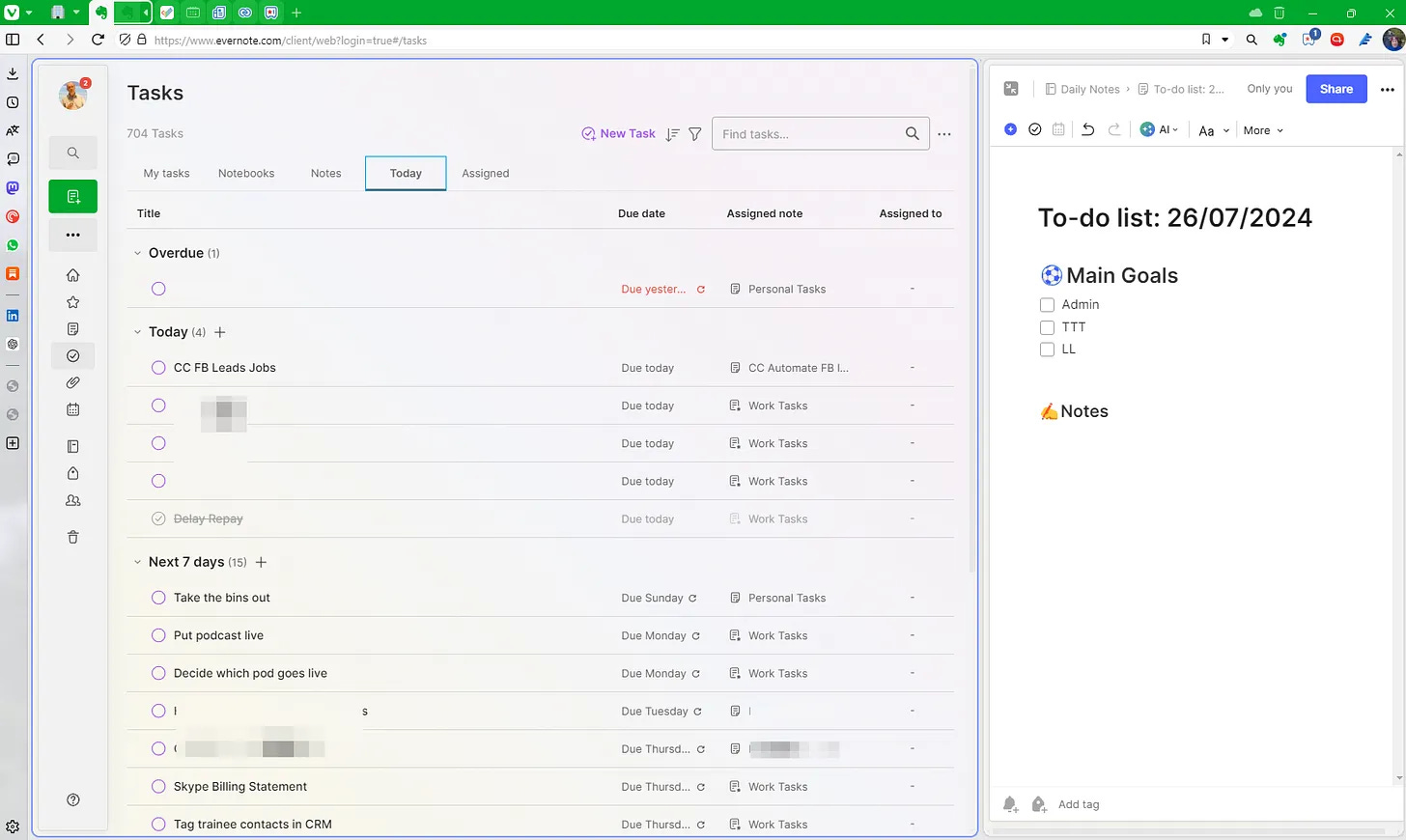
In the screen shot above, tasks are open in the web on the left and a daily note is on the right. I don’t use this workflow anymore.
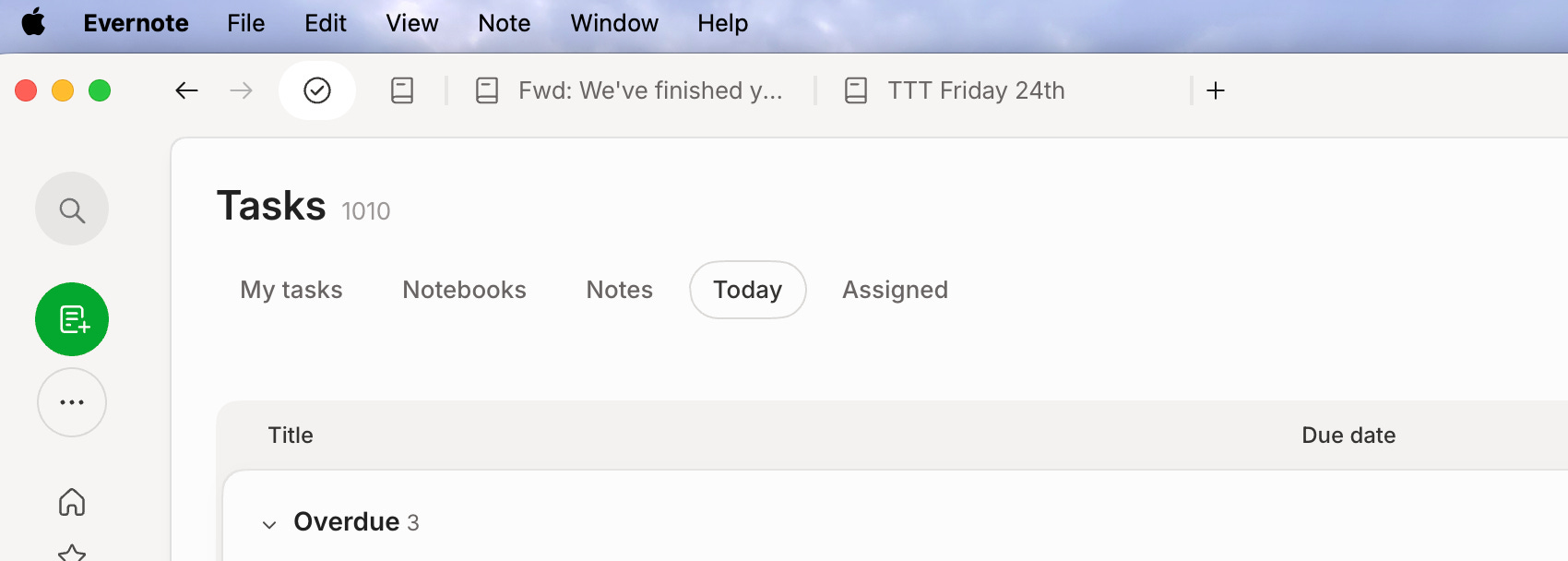
When the note tabs feature arrived a few weeks ago, I started keeping the task window open all the time in a tab to the far left of the note bar and this changed my workflow completely.
For a start I don’t have to open Evernote in the web every morning. Secondly I can get to my tasks and daily note very quickly no matter what I’m working on in Evernote.
I don’t use a daily note every day, but when I do, I have this open in a tab to the right of my tasks.
My tab bar in Evernote now looks like this. Tasks on the left, a daily note and then the notes I’m working on.
Which brings me onto another new thing...
Pinned tabs arrive in Evernote
This has made my new workflow perfect. Being able to pin my Evernote tasks to the top left as a pinned tab gets them out of the way but easy to access.
To pin a tab, just right click it.
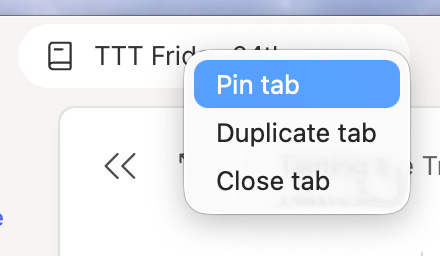
Just like in your browser, it moves over to the far left of the tab bar.
Right click the pinned tab to unpin it.
This workflow change is for the better.
I’ve been testing pinned tabs for a few weeks now and it’s made its way into my muscle memory very quickly, probably because it behaves like a browser tab.
If I’m working on a project, I’ll pin a couple of notes that I need to use over and over again, my daily note is pinned if I’m using it and my main training jobs note is usually pinned next to my tasks as I look at this note multiple times a day.
Everything seems to be working a lot smoother.
Are you using tabs much? Are pinned tabs useful? Leave me a comment.
Wrap text around images
Another little something that folks have been shouting ages for.
We can now wrap text around our images so it appears to the left or the right.
A little bit like this.
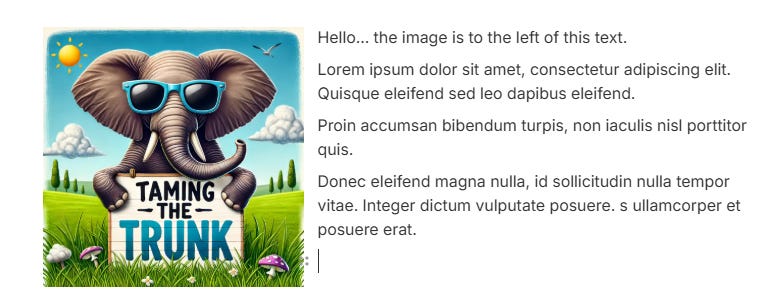
The way to get this working is to insert an image, resize it so it’s smaller by clicking on the image and dragging one of the corners to alter the size.
You then hover over the image, click the alignment icon and you can select wrapping text to the left or the right of the image.
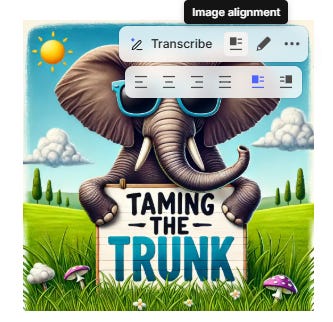
It works well and gives us another formatting option.
Will you find this useful? Let me know in the comments.
And finally...
Another Markdown shortcut arrives, which will please a bunch of folks.
You can now type
**hello**
Hit space and it turns to bold.
There’s quite a selection of Markdown shortcuts available in the editor. Here’s the full list.
# or ## or ### gives you hearer 1, 2 or 3
() gives you a task
(x) is a checked task
[] is a checklist box
[x] is a checked checklist box
1. or 1) starts a numbered list
* or - or + gives you a bullet list
**hello** gives you bold text
--- is a divider
``` is a codeblock
`write some code` is for line code
> starts a quote block
[][][]x4 gives you a 3 x 4 table
Most of the time, you just need to type the short cut, hit space and you get what you want.
Do you use the Markdown keyboard shortcuts? Let me know in the comments.
That’s it. Let me know if you’ve made many changes to your workflow now tabbed notes have been out for a while.
Have a great weekend
All the best
Jon
In your new screen shot above, it looks like you keep Tasks open on the left, with a daily note and notes you’re working on as separate tabs at the top, is this correct?
Do pinned tabs follow your accounts or are they tied to the device? For example, if I pin some tabs on my Mac, will they be pinned on my PC?