


A huge thank you to all paid subscribers and many thanks also to those who bought me a coffee . Taming the Trunk is 100% reader supported, no ads or commission links and your support is really appreciated.
Newsletter housekeeping: The latest version for PC & Mac is 11.1.2. You can grab it from the download page . Latest mobile version is 11.1.1.
The first thing to mention this week is a new and very useful addition to the AI Assistant prompt window.
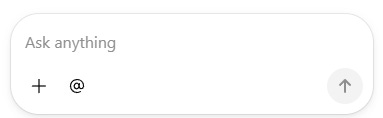
We now have an ‘@’ symbol next to the plus which lets you select exactly what note, notebook, stack, space or tag you want to refer to in your prompt.
You’ve always been able to use the ‘@’ symbol when typing it but it makes it more obvious how to refer to specific items in Evernote.
If you missed last weeks article it talks about creating a prompt using the eBILDE framework.
I’ve recently been using the AI Assistant to research information and compile what it finds and let me add that info to my notes.
I wanted to share a couple of real life use cases which may give you a few more ideas on how to use the Evernote AI.
I’m thinking about buying a Mac Mini
I’ve been pondering this for a while, have being doing a bit of research and have a note inside Evernote with all the information I need about buying a Mac Mini.
I have web clippings, copy/paste info from a couple of websites, a list of the specs I want and I’ve been using the AI Assistant to help me come to a decision.
One key prompt I used was to ask the assistant to search the web for reviews and compile them into a list so I could add them to a note.
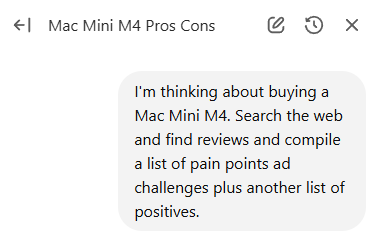
It did a really good job and went out to the web, searched a lot of reviews and review sites and then compiled a list for me which I could copy and paste into my note.
At the bottom of the reply the assistant gave me all the sources it looked at and a copy button for the info.
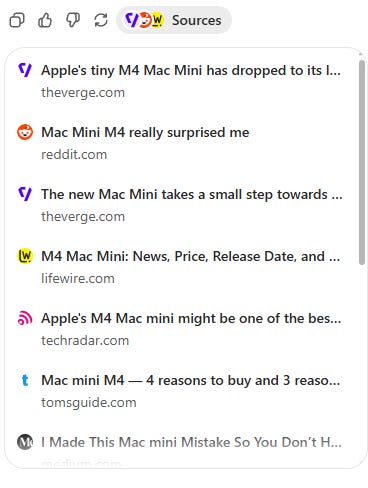
This all happened within a minute or two so way faster than me having to trawl all the review sites one by one and copy information. It really saved me a lot of time.
Whatever type of product you’re looking to buy, if you’re doing research on it ask Evernote AI to look for pain points, challenges, positives and reviews.
It’s great a doing this.
I’m building out my vinyl collection notes
Long time readers will now I’m a bit of a vinyl record collector and I have a notebook in Evernote that holds all the information about the collection.
Each vinyl has its own note with the album cover, how much I paid and how much it’s worth which is usually less than I paid!
What I’ve always wanted to do is include full track listings, producer and engineer info and maybe a little bit of history about each LP.
But its always seems like a big job. Lots of searching and copy/pasting for many notes.
The AI Assistant has really helped. I can get it to do the searching, compile the information and then I add it to the note.
This is how I’ve been doing it.
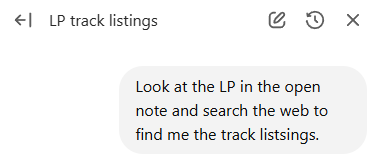
It found the name of the album in the note which is “Dream Theater’s Metropolis Pt. 2: Scenes From a Memory” and it found the track listings.
Next I wanted the production team information so I asked:

It gave me a full list of the production team including photography and album cover design which was useful.
Finally I asked for a brief history of the album.
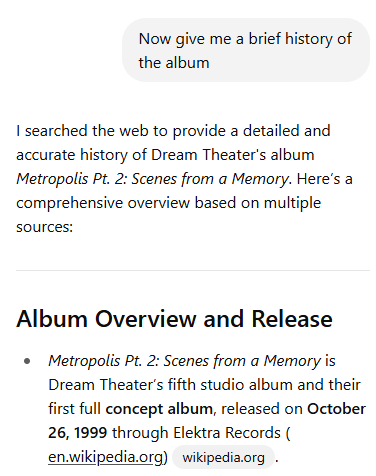
It did a pretty good job on the history and included topics for origins and background, recording and production, concept and storyline, release, touring and critical reception.
It did well and I’ve copy pasted all this info into my note which is helping me expand the information about my collection.
So there’s a couple of different ways I’ve been using the AI Assistant to save me time, do the searching and research for me so I can expand the information in my notes.
I hope this is useful and it gives you a few ideas on how to use the assistant.
Let me know how you’ve been using it in the comments.
Have a great weekend
All the best
Jon
Another great post, Jon. Ties in well with your earlier post describing your eBILDE framework. Just wondering if there's a way to enlarge the AIA window, or to open it in a separate window?
Thanks for showing another way to use AI. Specific examples and How-Tos are enlightening and helps me see how I can adapt it to my needs.