


A huge thank you to Rory, Mike and Marty who became paid subscribers over the last week and many thanks to those who bought me a coffee. Taming the Trunk is 100% reader supported, no ads or commission links and your support is really appreciated.
Newsletter housekeeping: The latest version for PC & Mac is 11.25.6. You can grab it from the download page. Latest mobile version is 11.25.6.
OK, let’s get this little change out of the way quickly.
A few weeks ago Evernote changed the colours in the text highlighter tool and a few folk found them a little bit too pastel, so with the new release this week we can now chose between the new colours and the old ones which are a bit brighter.
Head to Settings -> Notes, and you can select which ones you want to use.
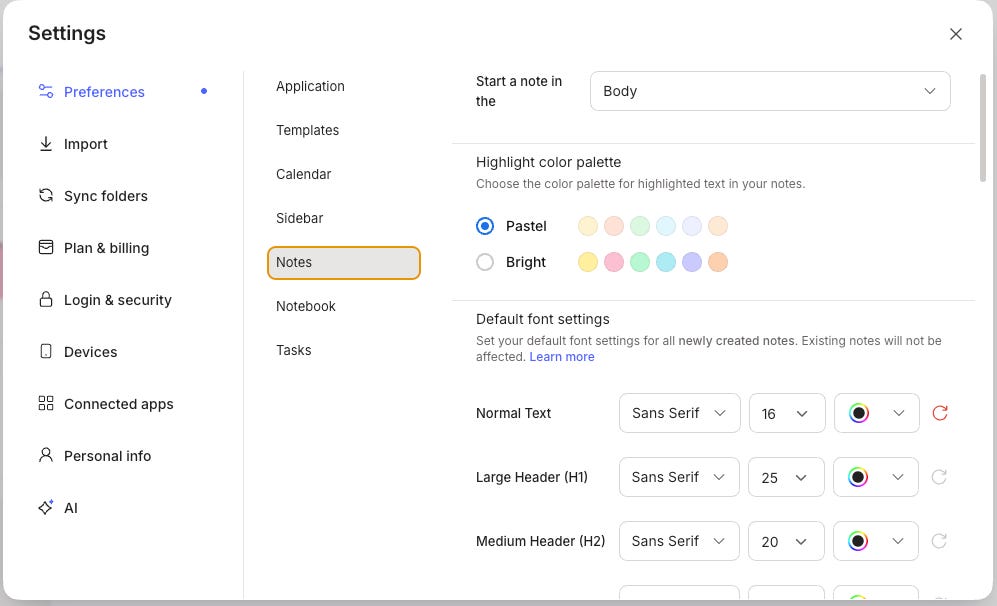
I must admit my old man colour-blind eyes can’t really tell much difference between the two, but for those whose eyes still work, this may be helpful.
Let me know what you think in the comments.
Working with file attachments in the Evernote AI Assistant
One of the slightly hidden features of the AI Assistant is the ability to attach files to a chat.
This is different to having the file in a note and there could be a few occasions where you want to work on a file but not have that file in the note itself.
When you open the AI Assistant, you can add a file or photo to the conversation by clicking the plus button and selecting Add photos & files.

I’ve been having a play to see what it can do.
Turning a handwritten chart into a Mermaid chart using Evernote AI
This was cool. I attached a photo of a crappy drawing of a simple flow chart and asked the AI Assistant to convert it into a Mermaid chart. The image itself doesn’t need to be kept, but it’s nice to have the chart.
The prompt I used was:
Look at the attached image of a written chart. Convert this into a Mermaid chart.
This was the response.
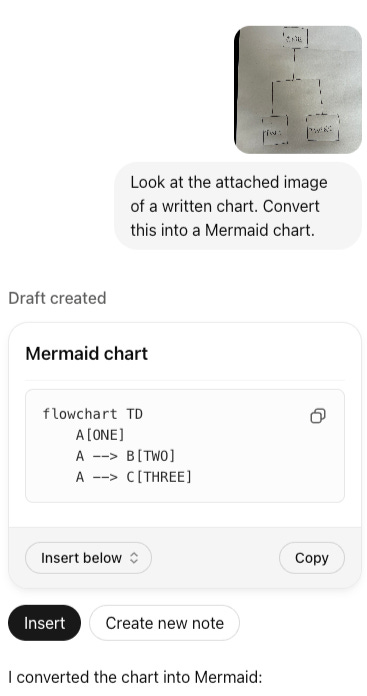
The Mermaid chart it produced looks like this.

This is pretty cool, converting my rubbish drawing. I like the way the AI can see the image.
This will be useful if I take photo’s of slides or whiteboards.
I wrote about creating charts and diagrams using Mermaid in Evernote a few weeks ago.
Crunching information inside a spreadsheet
A part of my day job is to run AI Marketing training sessions, so I have some sample spreadsheets setup that I use in lessons.
In this example, I’ve used some sample online store sales data.
I attached the spreadsheet and used the following prompt:
I’ve attached a spreadsheet of sales for an online store.
Give me a total of all sales, give me a list of all sales categories ranked by sales and give me the most popular payment methods.
Only refer to Completed sales, not Pending or Cancelled.
Give me a separate list of cancelled orders.
Double check the results before you give them to me.
This was the response.
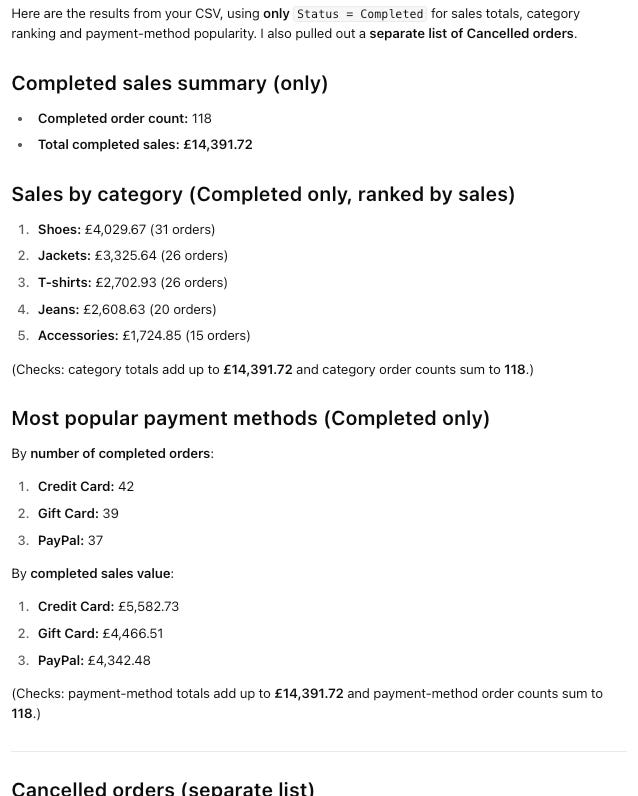
Pretty cool. Being able to upload CSV spreadsheets and analyse them is really useful, especially if they’re holding a lot of data.
You can also add multiple files to a chat, so it would be easy to ask the AI to run comparisons for you.
Note: This only works with CSV files and not Excel. You can export your Excel files as CSV before using them.
Pulling information out of a PDF document
In this example I’ve attached a PDF with all the GDPR rules. I really don’t want to read all this, but I want the rules regarding business to business email marketing.
This was the prompt:
Look at this PDF about GDPR and pull out the most important statements about email marketing for business to business.
This is part of the response (it was long):
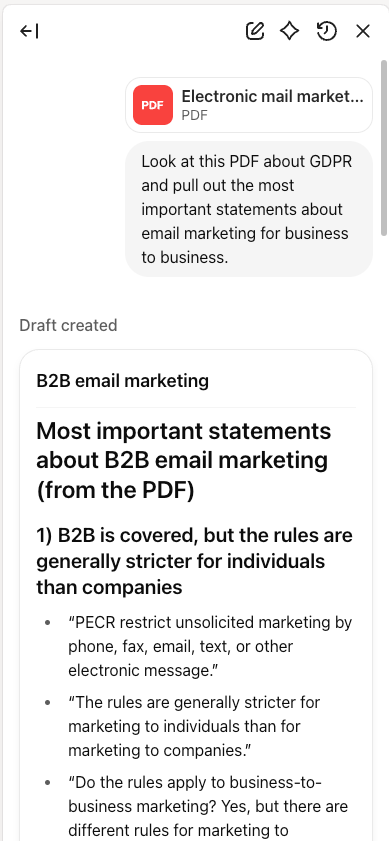
If you have big PDFs that you want to summarise and create notes out of, attach them as a file and ask the AIA to create the note for you.
One thing to mention again is that you can add multiple files to the chat window so the assistant could bring together information from multiple places and combine it into a report or new note.
Another quick thing to mention is that you can also tell the AI Assistant to add the file you’ve attached to the note. Most of the time, it would be easier to drag the file in, but I’m sure there are use cases for this.
The examples above are very much work related and I think the AI Assistant works best when its analysing data or long text, maybe we don’t do that quite so much in our personal projects.
That said, I’ve used the assistant to compare yearly blood test results, work out backpacking itineraries and plan home projects.
Adding files to the chat window is useful, not as useful as adding them to the note but if they are files that you don’t need to keep in Evernote it’s another option for you.
Let me know if you’ve added files to chat in the comments. What was the reason? I love to hear about different workflows.
Have a great weekend
All the best
Jon
Wonderful to have the choice of colors -- and to have red again, rather than two shades of orange in the pastel version.