


A huge thank you to all paid subscribers and many thanks also to those who bought me a coffee. Taming the Trunk is 100% reader supported, no ads or commission links and your support is really appreciated.
This spot is usually reserved for the latest version numbers, but right now I’m in a tent in South Wales and it’s probably raining for the first time in months! I scheduled this post a while ago. Check the latest version numbers for the desktop apps here.
Over the last few weeks I’ve had a few questions asking about the difference between the Evernote AI Assistant and the MCP server so here’s a bit of a comparison for you which may help you decide which tool is best for you.
What is the Evernote AI Assistant?
The AI Assistant is around 12 months old now and you activate it using the icon at the bottom right of the screen.
A drawer slides out and you can interact with the notes and data in your Evernote account.
The AI Assistant uses ChatGPT but does not use any of your data to train the model and there’s no data retention.
It works like a conversational chat bot where you ask questions, give instructions and work back and forth with the AI to get the results you want.
You can search notes, create notes, edit notes, create tasks, set reminders, search the web and perform many other tasks using natural language.
Here’s an example of creating a task to call the doctor at 2pm this afternoon.
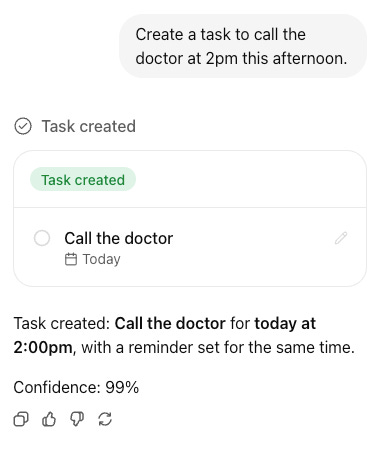
In Evernote’s settings, you can switch off the AI Assistant if you don’t want to use it and also track your usage. These limits are not published but I’ve never got near them, I think the most I’ve got to is 15%.
So that’s a quick overview of the AI Assistant.
What is the Evernote MCP?
I’ve written an article about how to connect Evernote to ChatGPT and Claude so have a read if you get chance.
The Evernote MCP is a way to connect your external AI tool with your Evernote notes and data.
If you use ChatGPT, Claude or other AI tools you can connect to Evernote and work with your notes inside the application itself. You don’t need to open Evernote.
It’s a little bit like a fancy API where you connect two different applications together.
You can create notes, save information to Evernote, create tasks and do most of the things you can do with the AI Assistant, you’re just doing it from within your AI software. You can do much more than this, you have the full power of your AI at hand.
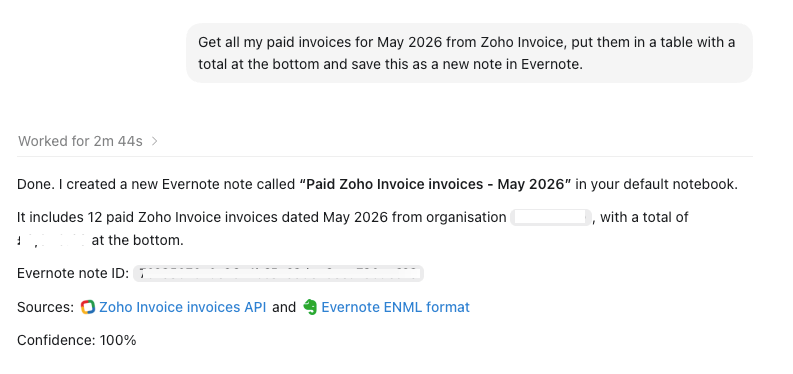
Here’s an example where I asked ChatGPT to connect to my invoice software, find all paid invoices for May 2026, put them into a table with the total at the bottom and save it to Evernote.
What are the main differences?
The AI Assistant just works inside Evernote and only works with your Evernote notes and data plus any other information you upload.
AI software like ChatGPT or Claude can connect to many different apps so that you can bring your Evernote data together with data from another application and do something with that.
In my example above ChatGPT has an MCP connection to my invoicing software and Evernote so I can bring in invoicing information, format it in the AI and then save it to Evernote, essentially create a report very quickly.
Use cases for the AI Assistant
The AI Assistant is quite powerful, you can ask questions of your notes and PDFs, edit notes using natural language and do some basic organisation.
There are so many use cases and yours will be different to others, but here’s a few ideas:
Ask questions of your notes
This is one of the most powerful ways to use the AI Assistant and it works a little quicker than if you were using the MCP connection.
Let’s say you have a flight number in a note, just ask “what is the flight number to Paris’ and it should dig it out.
I have a very big PDF with all the GDPR regulations and I sometimes have to find a rule. I no longer have to read it all, I just ask the AI Assistant to find the information I need in the PDF.
I think of this as a power search. Instead of using keywords, you’re asking a question in natural language to find the answer you want. That answer would be contained in your notes.
Editing notes
I did a bit of a deep dive on the editing features in the AI Assistant the other week and also recorded a demo video, check them out if you get chance.
You can put the AI Assistant into Edit Mode and ask it to reformat a note, summarise, check grammar and speeling, translate or turn text into quotes or call-outs.
When you’re in edit mode, you’ll be able to approve or reject any changes made.
One excellent use for this is to tidy up web clips. Ask the AI Assistant to summarise and bring forward the main points of the clip and remove the rest. Much cleaner notes.
You can also use the AI Assistant to change the title of notes and base this on a specific naming convention.
Organisation
You can use the AI Assistant to add tags to your notes, move notes to different notebooks, add tasks, reminders and generally organise things.
I must admit I don’t tend to use the AI Assistant a lot for organisation. I find it quicker to just add a tag manually or move a note by right clicking.
Researching information from the web
You can activate Web Search mode in the AI Assistant and research almost anything you want. I’ve used it to plan short hiking or camping trips, bring in reviews about products I want to buy and I have a whole note dedicated to me buying a Mac Mini which I will get round to one day!
This saves so much time searching, compiling and formatting.
You can create comparison charts, find new places to visit, research hobbies or topics related to work and do this very quickly.
Use cases for the Evernote MCP
Connecting multiple apps together
A lot of apps now come with MCP servers or various connectors and plugins so you can connect them with your choice of AI software. This is where the power of an MCP comes into its own.
The example above that creates a monthly revenue report in Evernote pulls in data from my invoice software.
I also have my cloud drive connected and my CRM so I can pull in information, create documents, format things, do some maths and add stuff up and create what I want.
In the past I’ve pulled in information from a client brief in my cloud drive, summarised it and created an action list and then saved the information to the clients notebook in Evernote. In the past this would’ve been a manual job.
A lot of the multi-app use cases will probably revolve around work but let me know if you're connecting Evernote with other apps via an MCP for personal use.
One personal use case for me was to compare blood test results from 2025 to 2026 and see what had changed. All the information was in PDFs in Evernote and the AI got the data and compared it.
Bulk processing notes
This is where the MCP really shines.
The AI Assistant struggles when editing or changing many notes, like hundreds of them. It’s getting better, but it’s not really designed for this kind of bulk processing.
The MCP can use the power of whatever AI system you use and through that process many hundreds of notes.
Here’s an example.
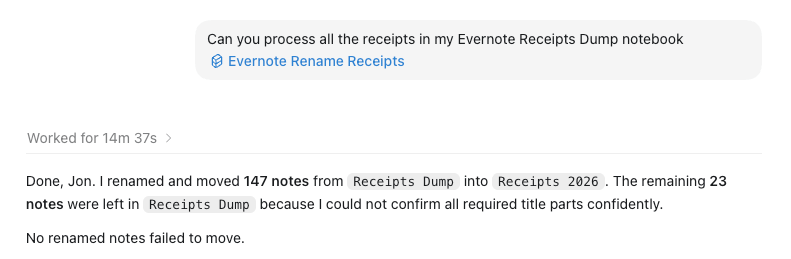
I’m really bad at sorting out all the invoices and bills I send into my Receipts Dump notebook. I usually forward these via email. They sit there for ages, months on end and then I have to go through them one by one, change the title, give it a date and file it in the correct notebook.
Tedious.
So, I wrote a skill in ChatGPT to do this for me. It took a while to get this skill perfected but it’s worth it.
If anyone is interested, I’ve copied the full instructions for this skill right at the bottom of this article... they are long and very specific, but you need specific for AI’s to do their job properly.
So, in just under 15 mins, all 174 invoices in my Receipts Dump notebook had their titles changed using my own naming convention and moved to another notebook. This would’ve taken me hours.
I spoke to someone the other week who has a huge number of web clips and they got their AI to trawl through them, summarising them and titling them properly.
Deep research
This is something else the AI Assistant will struggle with. In ChatGPT and Claude you can ask it to deep research topics.
I ran a growth strategy for a project I’m working on. I gave the AI reams of information about current positions, competitors’ info and also uploaded sales data, web traffic analytics and a lot more.
It went away for just under an hour and produced an 80 page strategy document for me that I pulled apart and summarised.
A lot of this information was reformatted and transferred to the clients notebook in Evernote.
Conclusion
I use the AI Assistant when I want questions answered from my notes, I want to edit or work with a single note, or want to quickly create some tasks.
I use the MCP when I want to do bulk work with my notes or combine information in other apps with my Evernote data to create a new report or note or something.
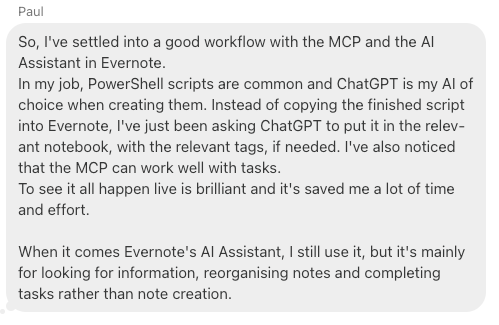
Here’s a comment from the Taming the Trunk chat where Paul explained how he was using the MCP and AI Assistant.
I’d love to hear about how you use them. What do you use the MCP for? What do you use the AI Assistant for? Let me know in the comments.
Sorry this was long!
Have a great weekend
All the best
Jon
Here’s the really long skill instructions for processing my receipts using the ChatGPT MCP. If you use this, edit it, as it refers to my own notebooks and naming convention.
Overview
Process Evernote receipt-dump notes conservatively. Rename only notes where the supplier, purpose, and invoice or bill date are clear, then move only those renamed notes into the destination notebook and report the changes.
Workflow
Resolve the source notebook named
Receipts Dumpand destination notebook namedReceipts 2026with the Evernote notebook search tool. If either notebook is missing or ambiguous, stop and ask Jon.Search notes in
Receipts Dump. Page through results if needed rather than assuming the first page is complete.For each note, read the note content and available attachment/resource metadata. Use note text, OCR text, snippets, filenames, attachment metadata, and visible invoice/bill details where available.
Determine whether the note is an invoice, bill, or receipt that can be named confidently.
Rename only when all required title parts are clear:
Supplier or biller, for example
EEWhat it is for, for example
Phone Bill,Internet Bill,Accountancy Invoice, orFuel ReceiptInvoice, bill, statement, or receipt month and year, formatted as
Month YYYY, for exampleJuly 2026
Use the title format
Supplier Purpose Month YYYY, for exampleEE Phone Bill July 2026.Edit the Evernote note title only. Do not alter note body content, tags, attachments, or tasks.
Move only successfully renamed notes into
Receipts 2026.Read or inspect move results where the tool provides per-note status. If any rename succeeded but move failed, report that separately.
Give Jon a concise list of notes changed and moved, including old title and new title.
Naming Rules
Use British English in explanations to Jon.
Use the month and year shown on the invoice, bill, statement, or receipt, not the Evernote note creation or update date unless the document itself clearly says that is the bill date.
Prefer the billing period month/year when the document is a recurring bill and the billing period is clearer than the issue date.
Use Title Case for the renamed note.
Keep supplier names recognisable. Preserve common brand capitalisation such as
EE,HMRC,O2,BT, andAWS.Keep the purpose short and useful. Prefer
Phone Bill,Electricity Bill,Internet Bill,Software Subscription,Accountancy Invoice,Office Supplies, or similar practical labels.Do not include invoice numbers, account numbers, payment amounts, VAT numbers, or exact days in the title unless Jon explicitly asks.
Avoid punctuation unless it is part of the supplier name.
Skip Rules
Skip a note without renaming or moving it if any required title part cannot be worked out confidently.
Skip when:
The note is not an invoice, bill, statement, or receipt.
The supplier is unclear.
The purpose is unclear.
The document date or billing month/year is unclear.
Multiple documents in the same note imply different suppliers or different months and no single title would be accurate.
The note appears to have already been filed outside
Receipts Dump.
Do not guess. If a note is borderline, leave it in Receipts Dump and mention it only if Jon asks for skipped notes.
Evernote Tool Guidance
Use structured Evernote tools where available:
Use notebook search to resolve
Receipts DumpandReceipts 2026.Use note search with the source notebook filter to collect candidate notes.
Use note read/get to inspect full content before deciding.
Use note edit/update only for the title field.
Use note move only after a successful rename.
Batch moves are acceptable for successfully renamed notes, but preserve a record of each note’s old title, new title, and note ID before moving.
Final Response
Report:
Count of notes renamed and moved.
A list in the form
Old title->New title.Any renamed notes that could not be moved, if applicable.
Do not list skipped notes by default. Keep the report friendly, brief, and in British English.
Hi Jon, I'm not big into AI. I only use the EN AI Assistant for odd little things.
But, as always, I enjoy your posts.
I did have a good chuckle though reading your text...
In your Use cases for the AI Assistant under Editing notes, it reads,
"You can put the AI Assistant into Edit Mode and ask it to reformat a note, summarise, check grammar and speeling, translate or turn text into quotes or call-outs."
Maybe you should have used the AI Assistant for spell check LOL.
Great posting! 👍
Here are my main reasons to use MCP via ChatGPT instead of EN's internal AI:
- internal AI is limited in functionality (i.e. cannot insert automatic TOCs)
- internal AI always closes left side bar - have to reopen ;-)
- internal AI comes to a monthly workload limit tooo early
- internal AI sometimes refuses to bulk-work on many notes. I need to give it instructions like "go on..."
- internal AI seems to have problems to handle tasks
- ChatGPT comments its own work precisely - which leads to further ideas to enhance my prompt(s)
- ChatGPT gave me correctly executable Python script of its work for bulk operations
There's only one case in which the internal AI can help:
- ChatGPT does not recognize the "currently open note" (because it works on server data). You have to describe this note by clearly specified it's title or tag(s).
Here are some missing points on both (internal AI and MCP)
- it's impossible to delete reminders
- changing headline styles to "standard" does not work