


A huge thank you to all paid subscribers and many thanks also to those who bought me a coffee. Taming the Trunk is 100% reader supported, no ads or commission links and your support is really appreciated.
Newsletter housekeeping: The latest version for PC & Mac is 11.26.4. You can grab it from the download page. Latest mobile version is 11.26.3.
The Evernote MCP server is out in public beta right now for folks on the starter and advanced plans. It’s coming soon to enterprise plans.
An MCP server is basically a way for you to connect your Evernote account to your favourite AI tool so you can work with your notes in the AI software itself.
I wrote about what an MCP is and how its useful a few weeks ago so have a read if you get chance.
Also check the AI section of Taming the Trunk for all AI related posts.
This article is not going to focus on what to use the MCP for, I’ll be writing more about that later. This concentrates on how to connect to the MCP.
First up are the instructions for ChatGPT, scroll down for the Claude instructions.
How to connect the Evernote MCP to ChatGPT
Connecting the Evernote MCP to ChatGPT is fairly straightforward, but you do need to check a few boxes along the way.
A few weeks ago, OpenAI released new versions of the ChatGPT web and desktop apps, so they are both very similar, this helps a lot.
All the screenshots below are from the web, it’s pretty much the same in the app.
The first thing you need to do is switch on developer mode so you can add the Evernote MCP.
Open up ChatGPT and go to Settings -> Plugins and then scroll down and click on Developer mode which is near the bottom.
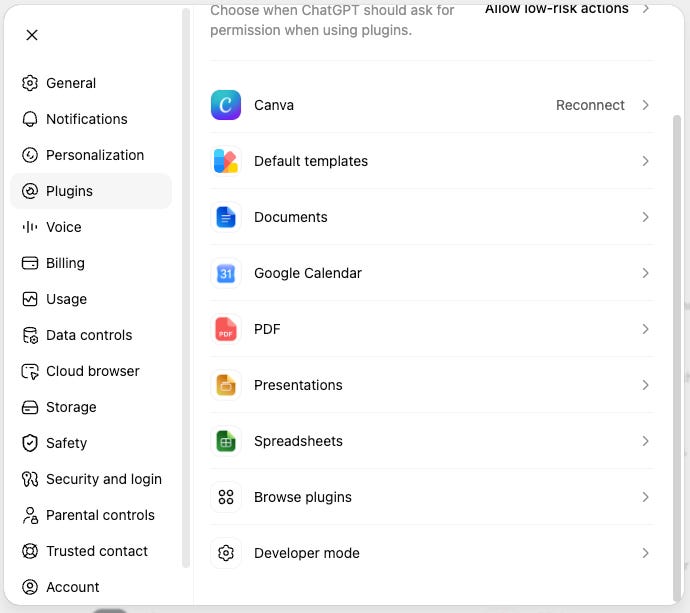
Then scroll down and check the toggle that says Developer mode.

This lets you connect to third party MCP servers.
Next, click on Plugins in the sidebar and you should see a plus button towards the top right of the screen. Click this to add a new plugin.
This window appears.
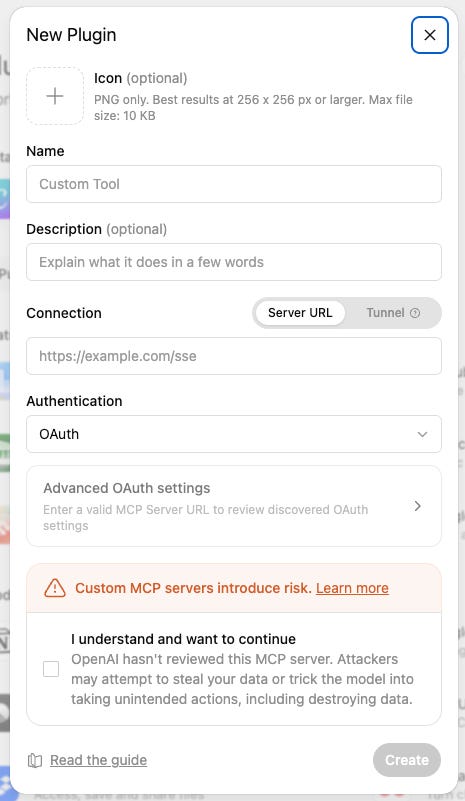
You can ignore selecting an icon if you want, just give the plugin a name which would be Evernote and paste the following URL into the Connection box.
https://mcp.evernote.com/mcpDon’t mess with anything else. Authentication should be OAuth, the connection toggle should be Server URL. Then all you need to do is check the disclaimer box at the bottom and click Create.
You should see a pop up similar to this asking yo to connect with Evernote.
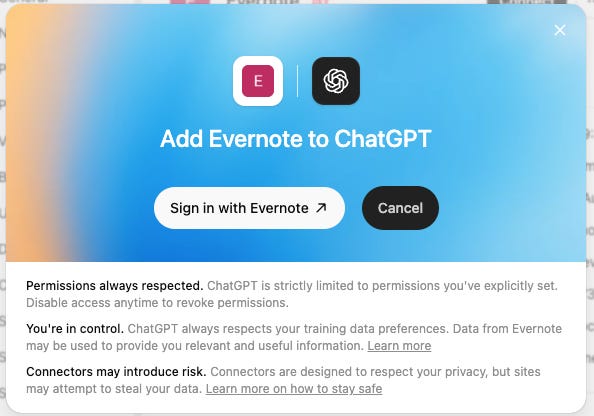
Click Sign in with Evernote.
If you are not logged in you’ll see the usual Evernote login box.
Then you’ll be asked for some permissions.
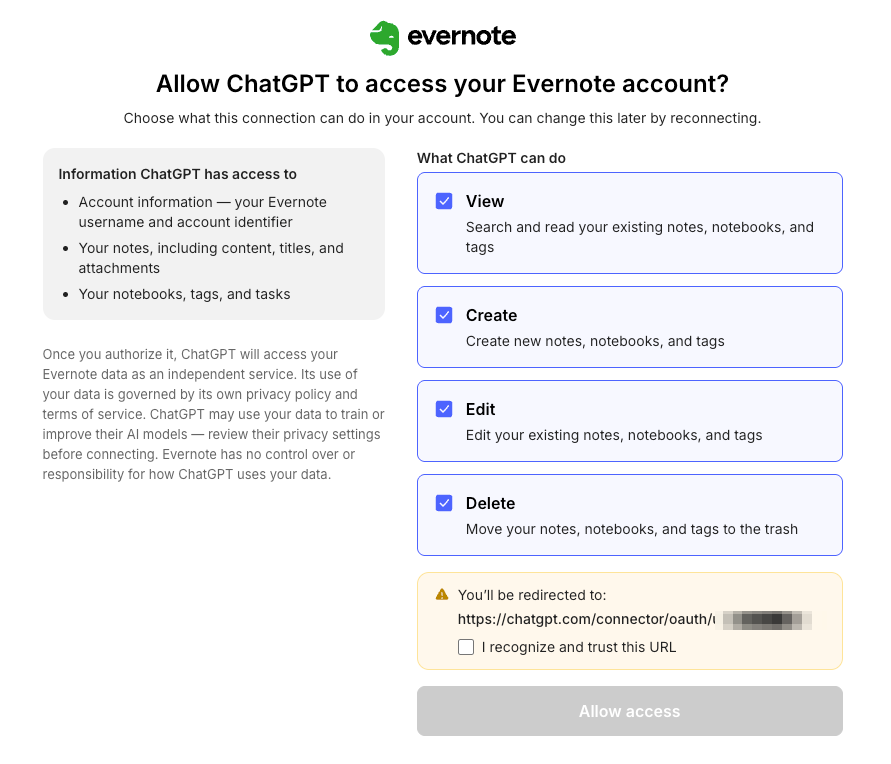
Tick and untick what you want. If you don’t want the MCP to delete anything then uncheck this box. You can always revisit permissions later in the ChatGPT app.
Then check the disclaimer box at the bottom and click the Allow access button.
You’ll be redirected back to ChatGPT and away you go.
Try a quick prompt.
List all the notes in my default Evernote notebook.
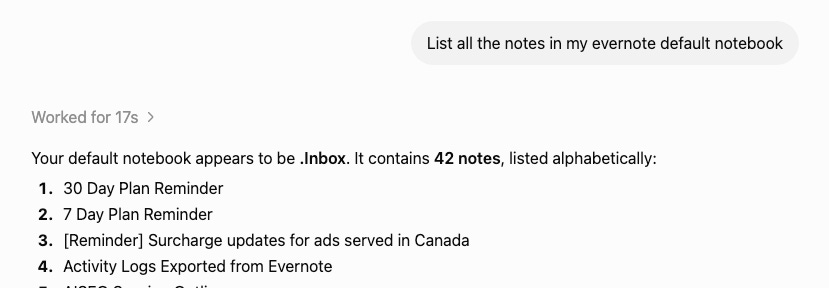
That’s it. A bit of a process, but it works.
This workflow is pretty much the same in the desktop ChatGPT apps.
Feel free to ask questions in the comments below. I use ChatGPT as my flavour of AI, so I should be able to help with questions.
How to connect the Evernote MCP to Claude AI
Here’s how to connect the Evernote MCP with Claude.
Just a note. I don’t use Claude as my daily AI, I’m a ChatGPT person, so I’ve signed up for the free plan to take a bunch of screen shots. Please let me know if anything is different in the paid plan regarding MCPs.
I used Claude web for all the screen shots, but it should be pretty much the same with the desktop apps, correct me if I’m wrong.
First step is to head into Settings -> Connectors and then from the Add dropdown menu at the top right of the screen select Add custom connector.
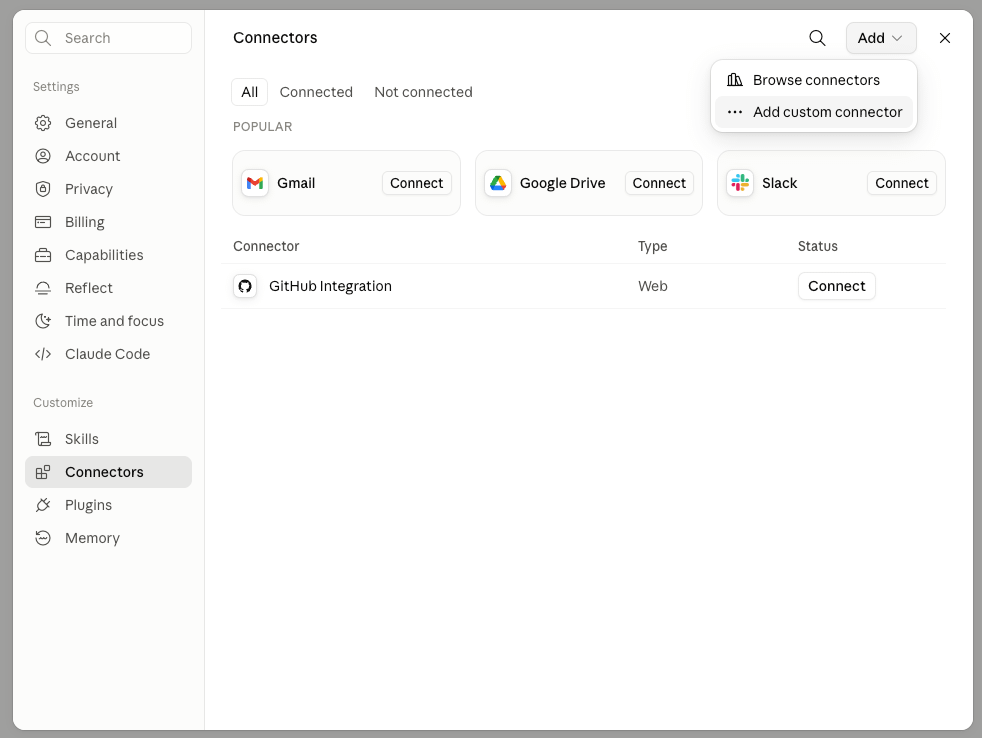
You’ll see this box.
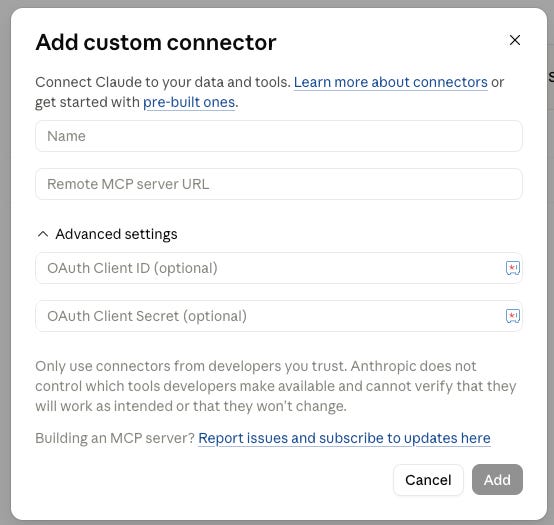
Choose a name which would be Evernote and add this URL to the Remote MCP server URL box.
https://mcp.evernote.com/mcpDon’t worry about the other boxes.
Next, click Add at the bottom right.
You’ll then see an option to connect with Evernote. Do this.
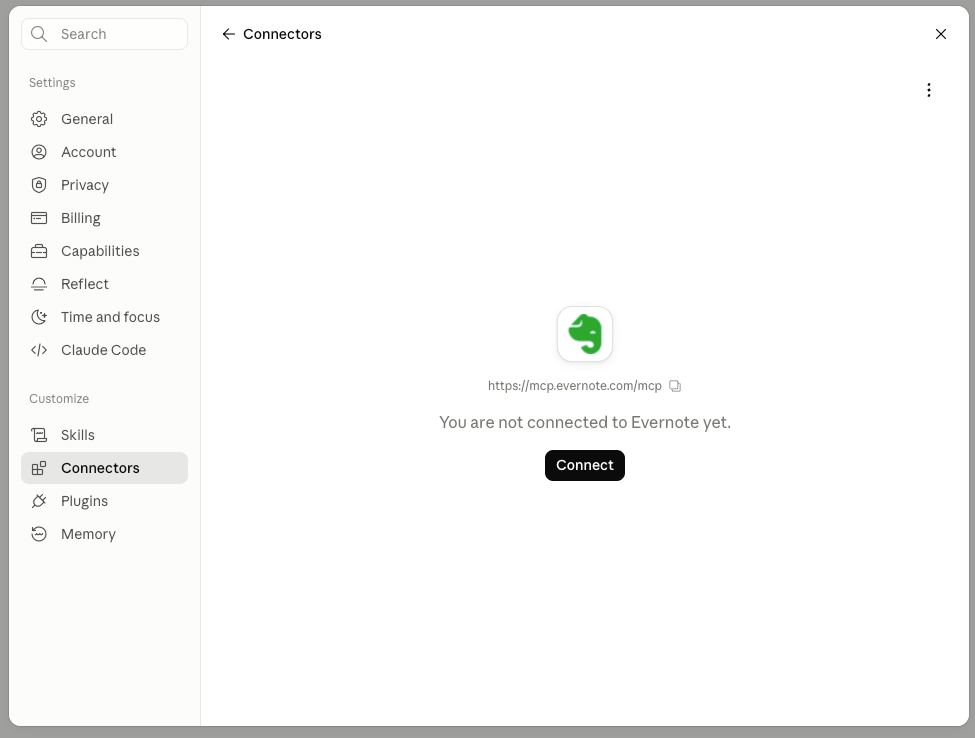
If you are not already logged into Evernote you will need to login.
After logging in, you then get to select the permissions you want to allow within Claude AI.
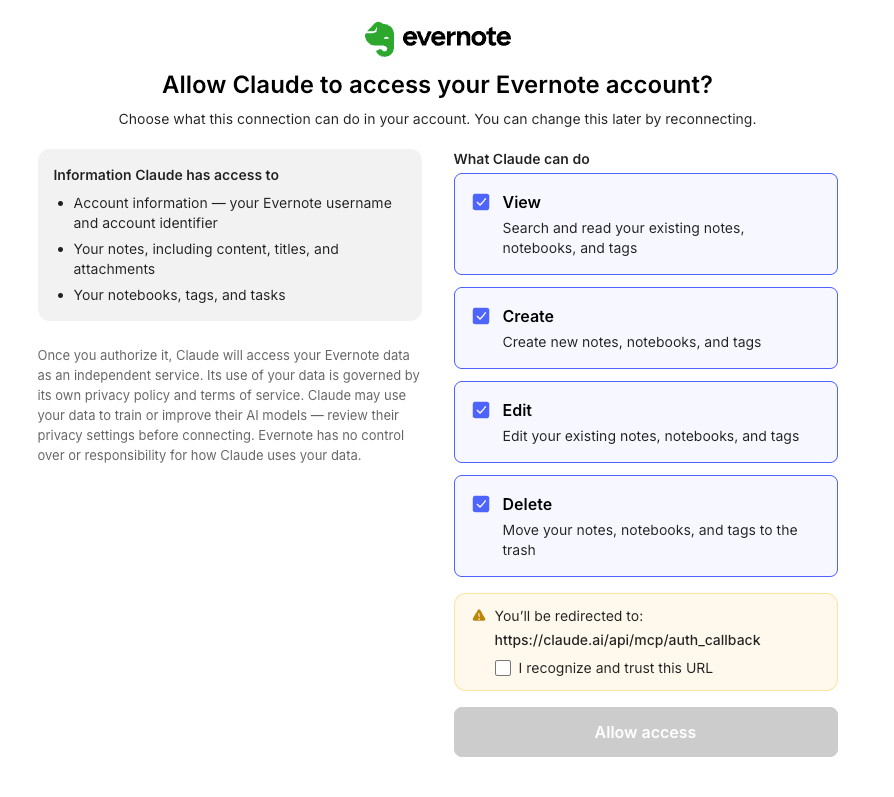
If you don’t want Claude to delete or create notes, then uncheck these boxes. Yu choose the scope of what the AI can do.
Permissions can be changed at any time within the Claude app.
Once you’re happy with the permissions, check the disclaimer box at the bottom and click the Allow access button.
You’ll be redirected back to Claude and you can go from there.
Try a quick prompt.
List all the notes in my Evernote default notebook.
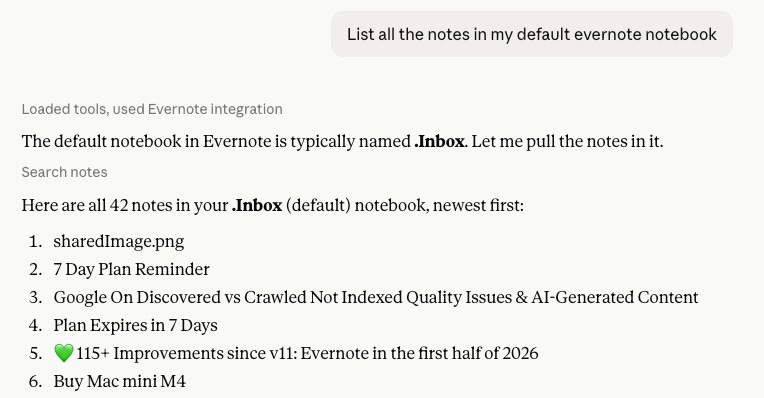
That’s it. Pretty simple.
Connect up and let me know how it goes. Leave a comment below.
Connecting Evernote MCP with other AI tools
You should be able to connect to the Evernote MCP with pretty much any AI tool but you will need to refer to your AI platforms documentation.
I know folk who have connected to Cursor and a few others, so give it a go and let me know what you connect and how you use it.
Also don’t forget to subscribe to Taming the Trunk as I’ll be writing a bunch of articles on what to use the MCP for.
Have a great weekend
All the best
Jon
Thanks for the instructions. My preferred AI currently is Grok.ai. I try connecting it, but I get an error from Evernote that the MCP server connection is not available. I was able to connect my ChatGPT account to confirm that the Evernote MCP server is not down. Grok informs me that the their MCP connector should work and for some reason Evernote isn't allowing a connection from Grok. I wrote to Evernote tech support, though I'm afraid I wasted my time, because ever time I reached out to their Tech Support I got non-responses.
It will be interesting to see how external AI's perform compared to the inbuilt Evernote AI
Have just web clipped that article to 🐘